Visual Intelligence Summit: Oct 22 in San Francisco Get your ticket

Convert annotation formats

How To Convert Kaggle Wheat CSV to COCO JSON

In this guide, we show you how to convert data between the Wheat and COCO formats for free. You can use your converted data to train YOLOv8 Pose Estimation models and other models that support the COCO format.

Kaggle Wheat CSV

Custom format used in a specific Kaggle object detection competition.

Below, learn the structure of Kaggle Wheat CSV.

kaggle.wheat.csv
image_id,width,height,bbox,source
b6ab77fd7,1024,1024,"[834.0, 222.0, 56.0, 36.0]",usask_1
b6ab77fd7,1024,1024,"[226.0, 548.0, 130.0, 58.0]",usask_1
b6ab77fd7,1024,1024,"[377.0, 504.0, 74.0, 160.0]",usask_1
b6ab77fd7,1024,1024,"[834.0, 95.0, 109.0, 107.0]",usask_1
b6ab77fd7,1024,1024,"[26.0, 144.0, 124.0, 117.0]",usask_1
b6ab77fd7,1024,1024,"[569.0, 382.0, 119.0, 111.0]",usask_1
b6ab77fd7,1024,1024,"[52.0, 602.0, 82.0, 45.0]",usask_1
b6ab77fd7,1024,1024,"[627.0, 302.0, 122.0, 75.0]",usask_1
b6ab77fd7,1024,1024,"[412.0, 367.0, 68.0, 82.0]",usask_1

COCO JSON

COCO is a common JSON format used for machine learning because the dataset it was introduced with has become a common benchmark.

Below, learn the structure of COCO JSON.

coco.jsonJSON
{
    "info": {
        "year": "2020",
        "version": "1",
        "description": "Exported from roboflow.ai",
        "contributor": "Roboflow",
        "url": "https://app.roboflow.ai/datasets/hard-hat-sample/1",
        "date_created": "2000-01-01T00:00:00+00:00"
    },
    "licenses": [
        {
            "id": 1,
            "url": "https://creativecommons.org/publicdomain/zero/1.0/",
            "name": "Public Domain"
        }
    ],
    "categories": [
        {
            "id": 0,
            "name": "Workers",
            "supercategory": "none"
        },
        {
            "id": 1,
            "name": "head",
            "supercategory": "Workers"
        },
        {
            "id": 2,
            "name": "helmet",
            "supercategory": "Workers"
        },
        {
            "id": 3,
            "name": "person",
            "supercategory": "Workers"
        }
    ],
    "images": [
        {
            "id": 0,
            "license": 1,
            "file_name": "0001.jpg",
            "height": 275,
            "width": 490,
            "date_captured": "2020-07-20T19:39:26+00:00"
        }
    ],
    "annotations": [
        {
            "id": 0,
            "image_id": 0,
            "category_id": 2,
            "bbox": [
                45,
                2,
                85,
                85
            ],
            "area": 7225,
            "segmentation": [],
            "iscrowd": 0
        },
        {
            "id": 1,
            "image_id": 0,
            "category_id": 2,
            "bbox": [
                324,
                29,
                72,
                81
            ],
            "area": 5832,
            "segmentation": [],
            "iscrowd": 0
        }
    ]
}

Step 1: Create a free Roboflow public workspace

Roboflow is a universal conversion tool for computer vision annotation formats. The Public plan is the best way for those exploring personal projects, class assignments, and other experiments to try Roboflow. To convert your dataset, start by creating a free workspace on the Public plan.

Step 2: Upload your data into Roboflow

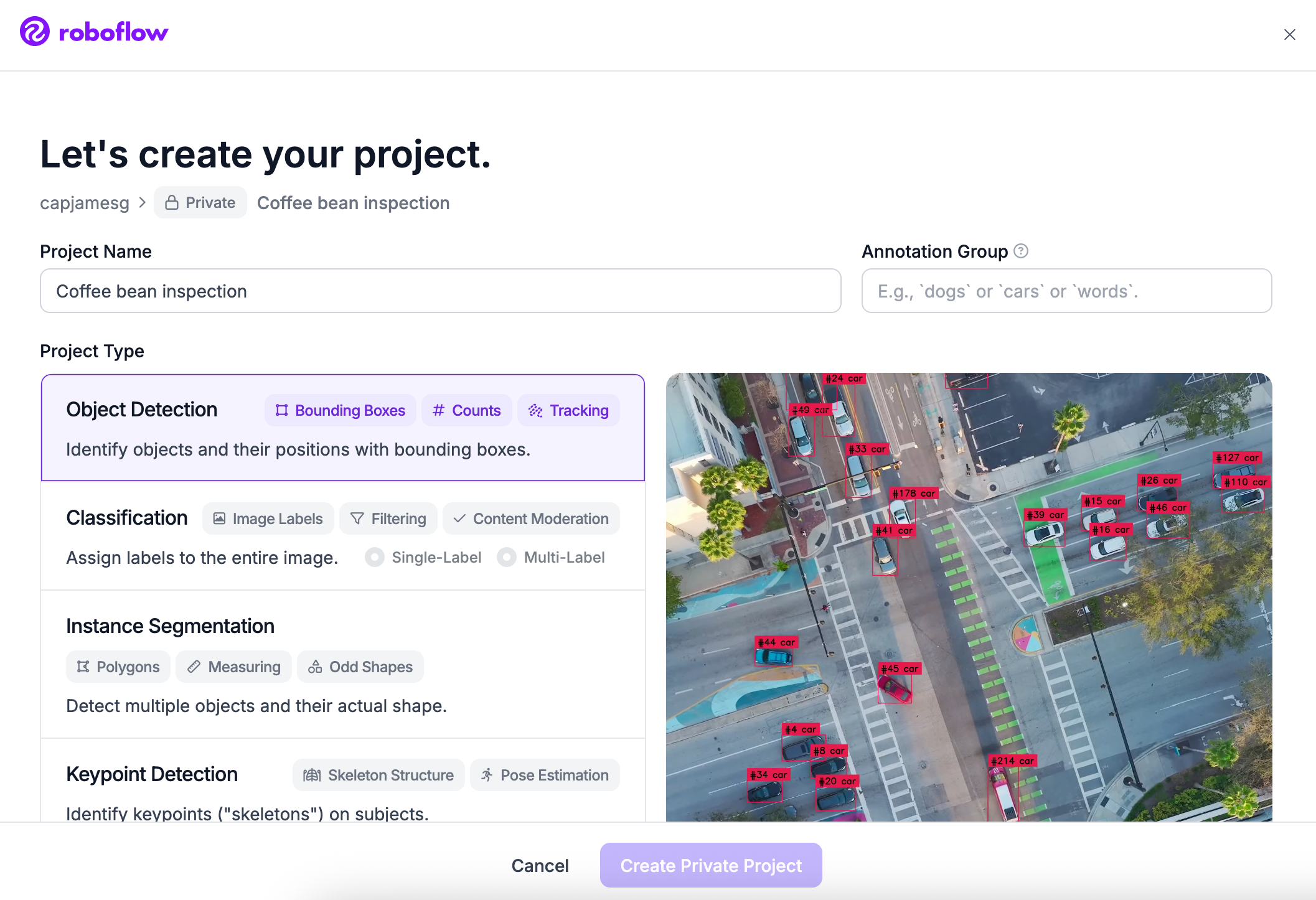
Once your account has been created, click Create New Project.

Roboflow's create project form, with Object Detection selected as the project type

Upload your data to Roboflow by dragging and dropping your Kaggle Wheat CSV images and annotations into the upload space.
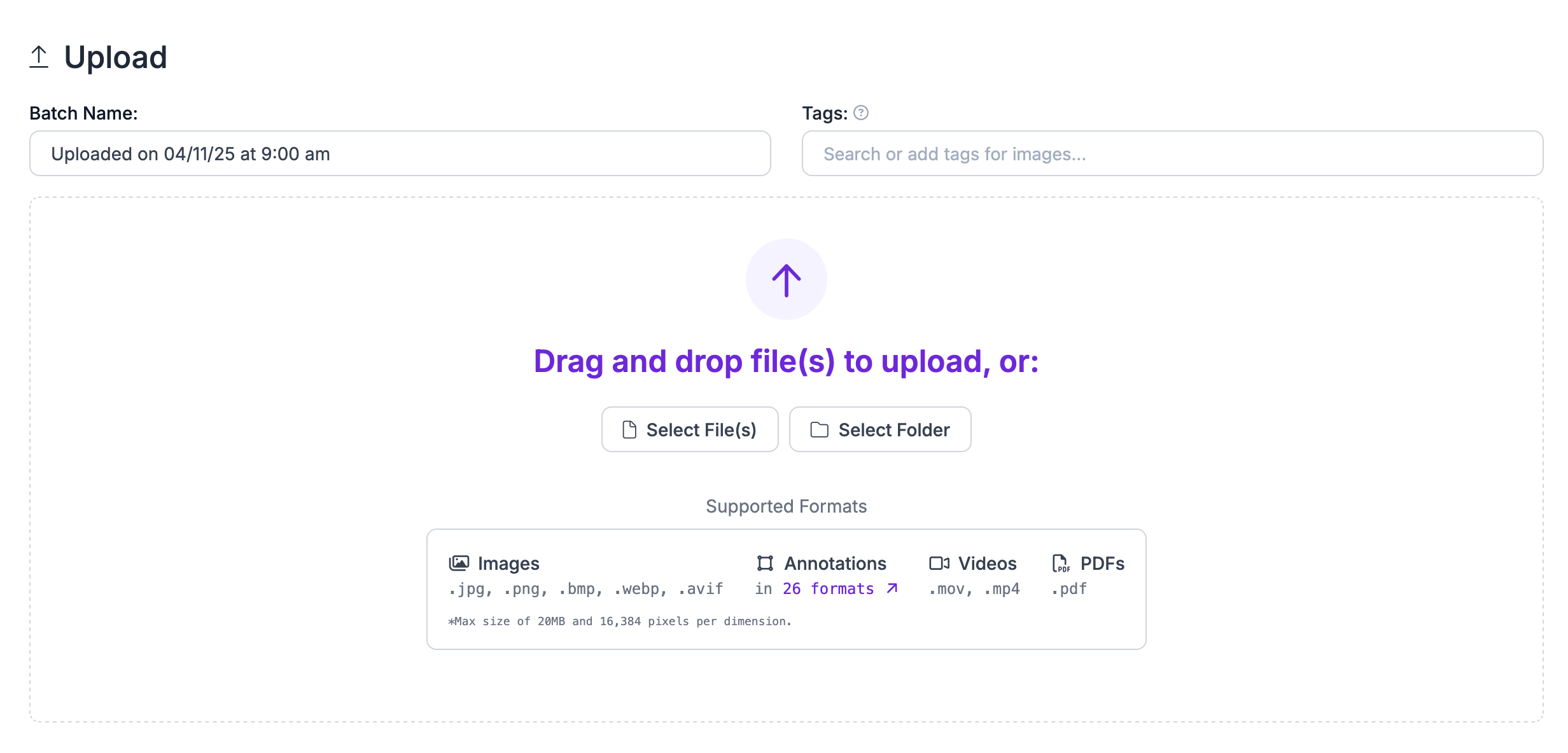
Roboflow's upload page, with a drag-and-drop area for images, annotations, videos and PDFs

Step 3: Generate Dataset Version

Next, click "Generate New Version" to generate a new version of your dataset:
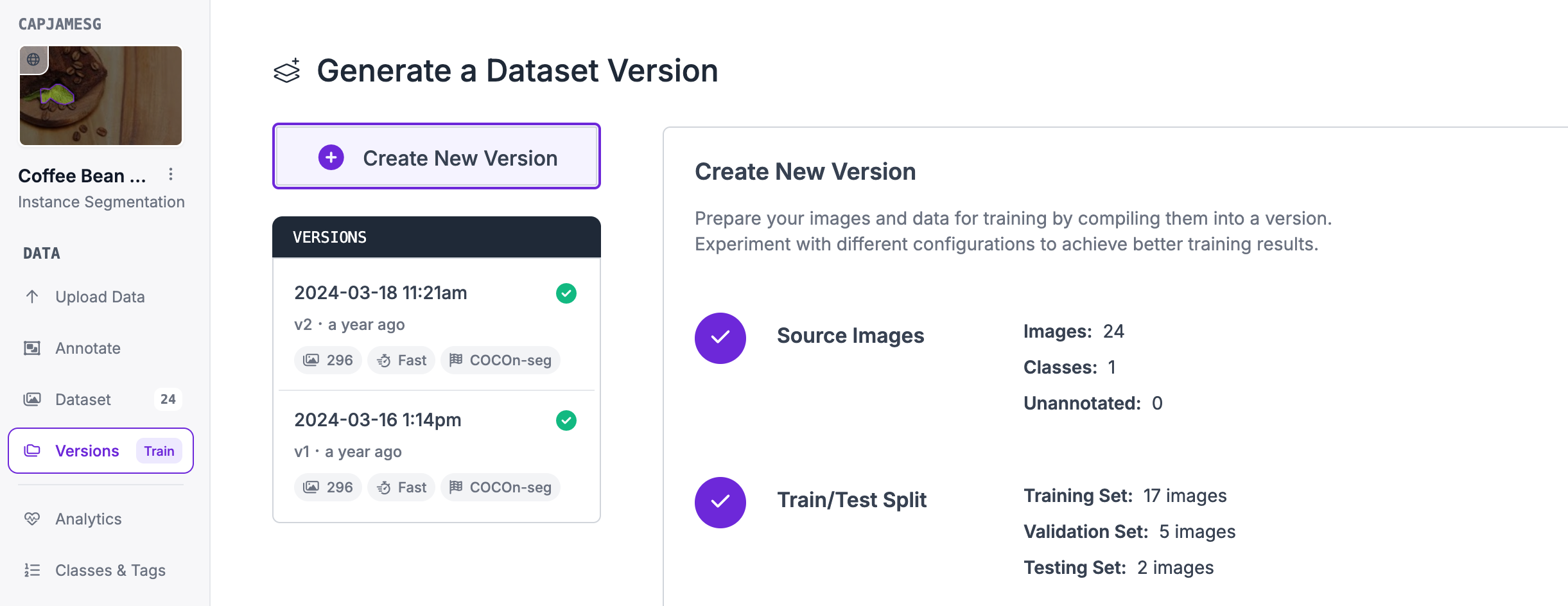
Roboflow's Generate a Dataset Version page, showing the source images and train/test split for a new version

You can then apply any preprocessing or augmentation steps to your dataset:
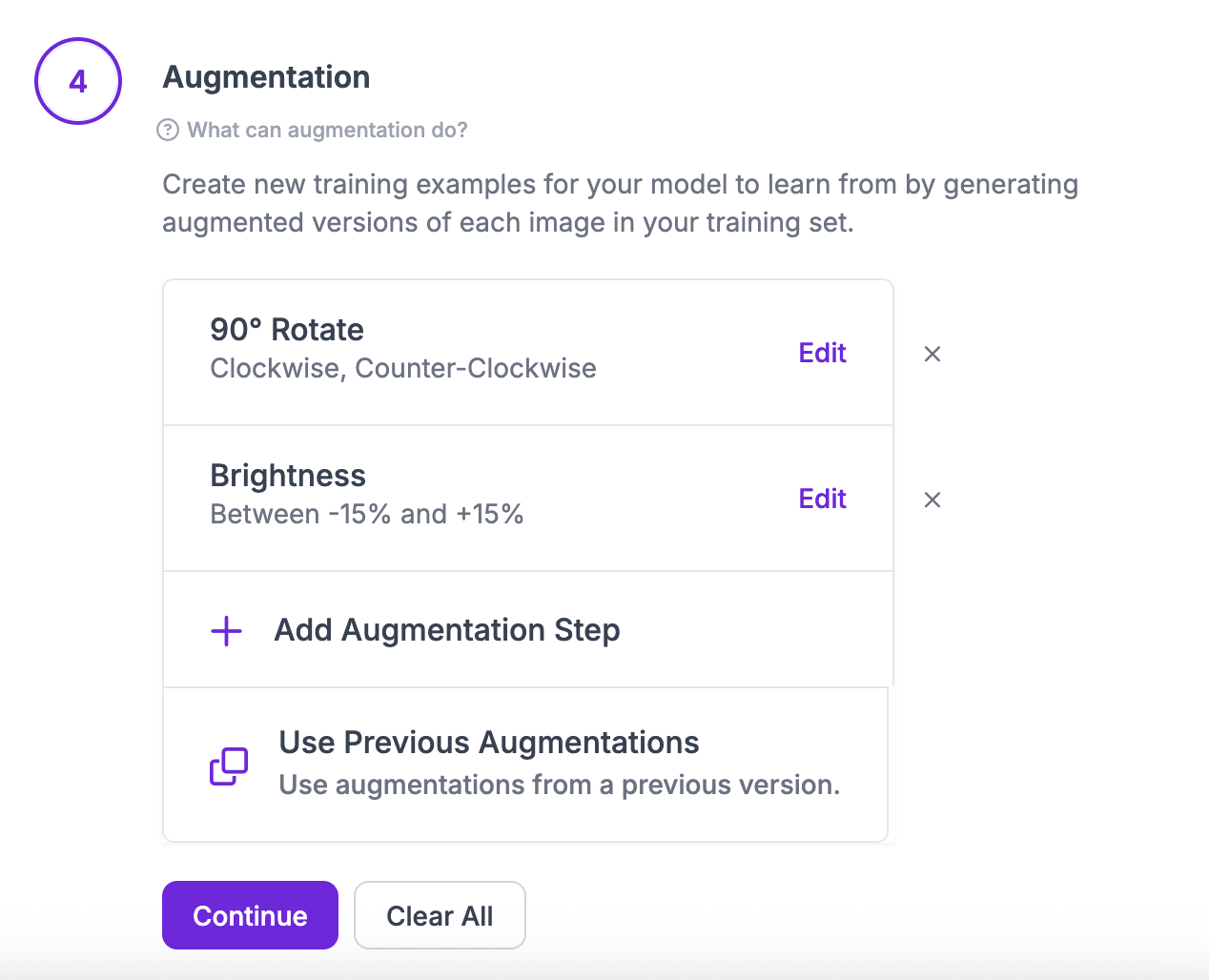
The augmentation step of a new dataset version, with 90° Rotate and Brightness added

Step 4: Export Dataset Version

After generating, you will be prompted to Export your dataset. You can choose to receive your dataset as a .zip file or a curl download link. Choose COCO JSON when asked in what format you want to export your data. You will see a dropdown with various options like this:
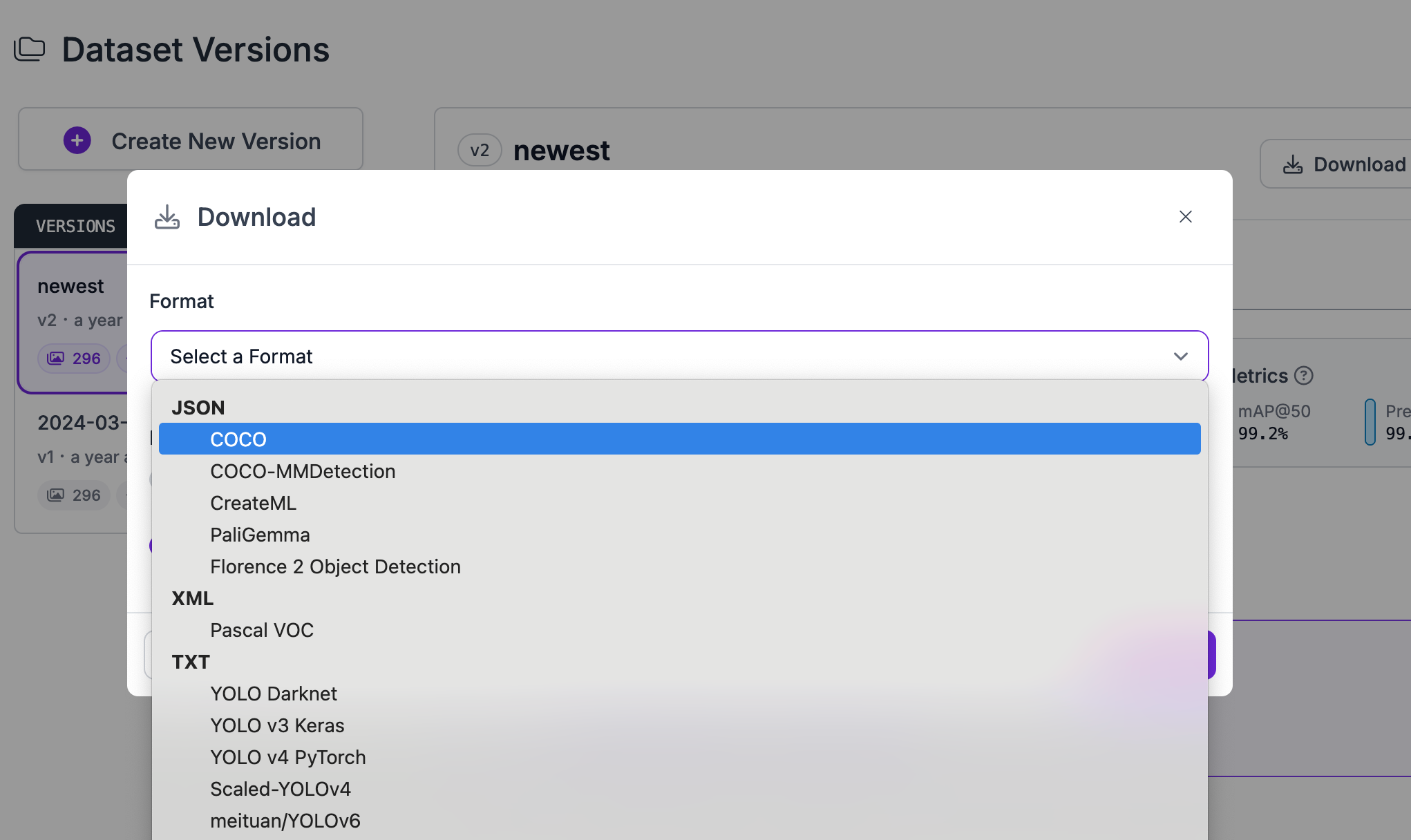
Roboflow's Download dialog, with the export format list open and COCO highlighted

Congratulations, you have successfully converted your dataset from Kaggle Wheat CSV format to COCO JSON format!

Video Tutorial

Convert Computer Vision Annotation Formats Tutorial

Want to dive deeper into converting annotation formats with Roboflow? In the tutorial below, we explore how to convert your data in the Roboflow dashboard. We also discuss rejecting annotations and train-test-validation splits.

Frequently Asked Questions

Yes! It is free to convert Kaggle Wheat CSV data into the COCO JSON format on the Roboflow platform.

If you have between a few and a few thousand images, converting data between these formats will be quick. But, the time it takes to convert between data formats increases with the more images you have.

Show guide
Start where you are

Speak with an AI expert

Our team will help you start solving business problems on the first call.

  • Solution architecting
  • Live demonstration
  • Pricing and specifications
  • Feasibility assessment

Over 16,000 organizations build with Roboflow.

Rivian
Pella
Chobani
USG Corporation
BNSF Railway
American Woodmark
Outcomes
Patrick Industries
Peer Robotics
Create Roboflow Workspace