How to label data for Vision Transformer training
Before you can train a computer vision model, you need labeled data on which to train your model. The more accurate the labels, or annotations, are, the higher the performance the model will achieve.
Overview
Vision Transformer is an image classification model: it learns to name what a whole image shows. So labeling for Vision Transformer means picking a class for each image, with nothing to draw. This guide shows how to do that with Roboflow Annotate, then train Vision Transformer in Roboflow or export your labels to train it yourself.
Roboflow Annotate runs in your browser and is free to start. Roboflow is SOC 2 Type 2 compliant and used by over 2 million developers.
To label data for Vision Transformer, you will:
- Create a classification project and upload images
- Open an image in Roboflow Annotate
- Assign a class to each image
- Label faster with AI
- Train Vision Transformer or export your data
Step 1: Create a project and upload images
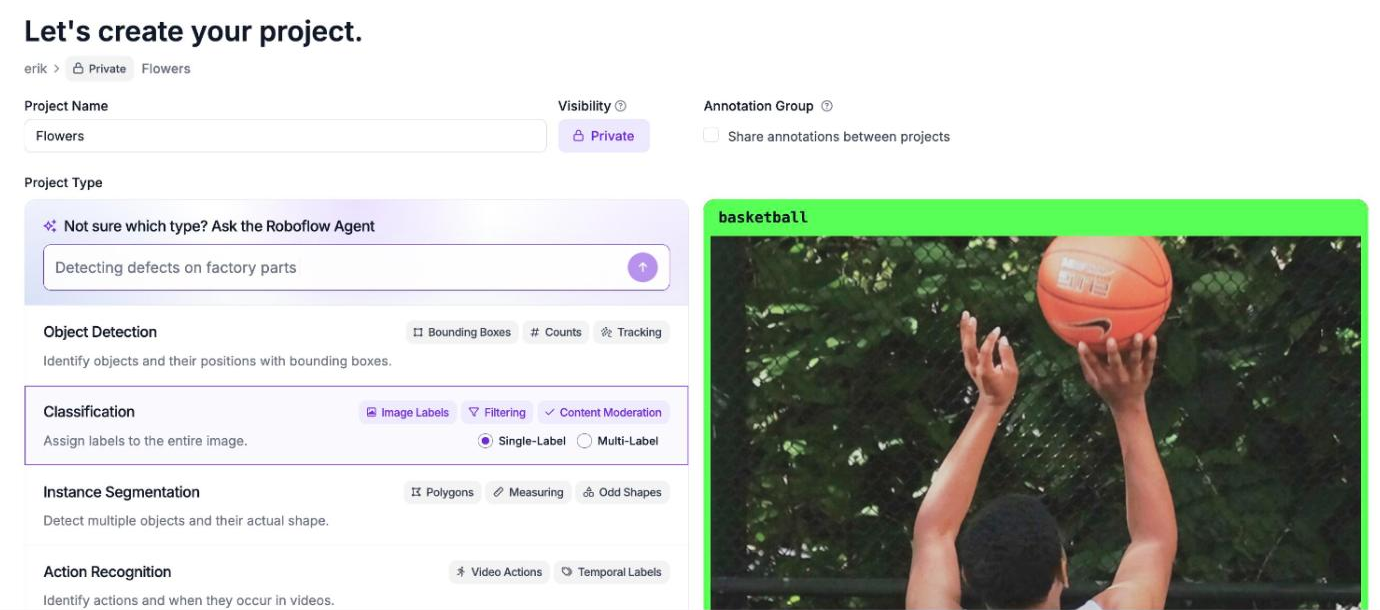
Create a free Roboflow account, then create a new project. Give it a name and choose Classification as the project type. Pick Single-Label if each image belongs to one class, or Multi-Label if an image can belong to several:
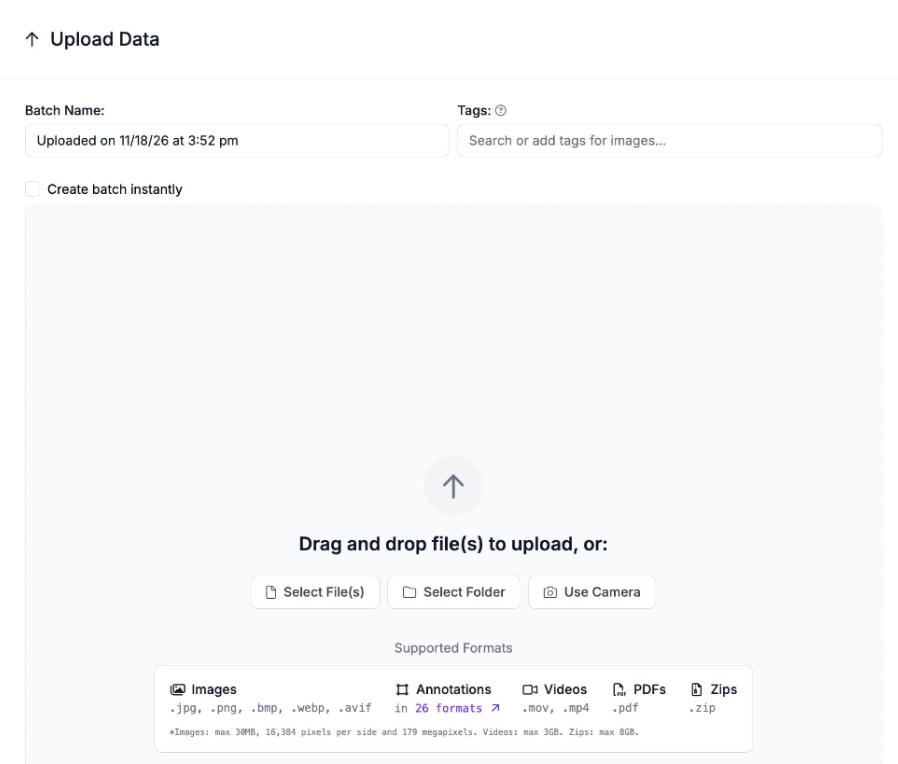
Next, upload your images. Drag them onto the Upload Data page, or select files or a whole folder:
Step 2: Open an image
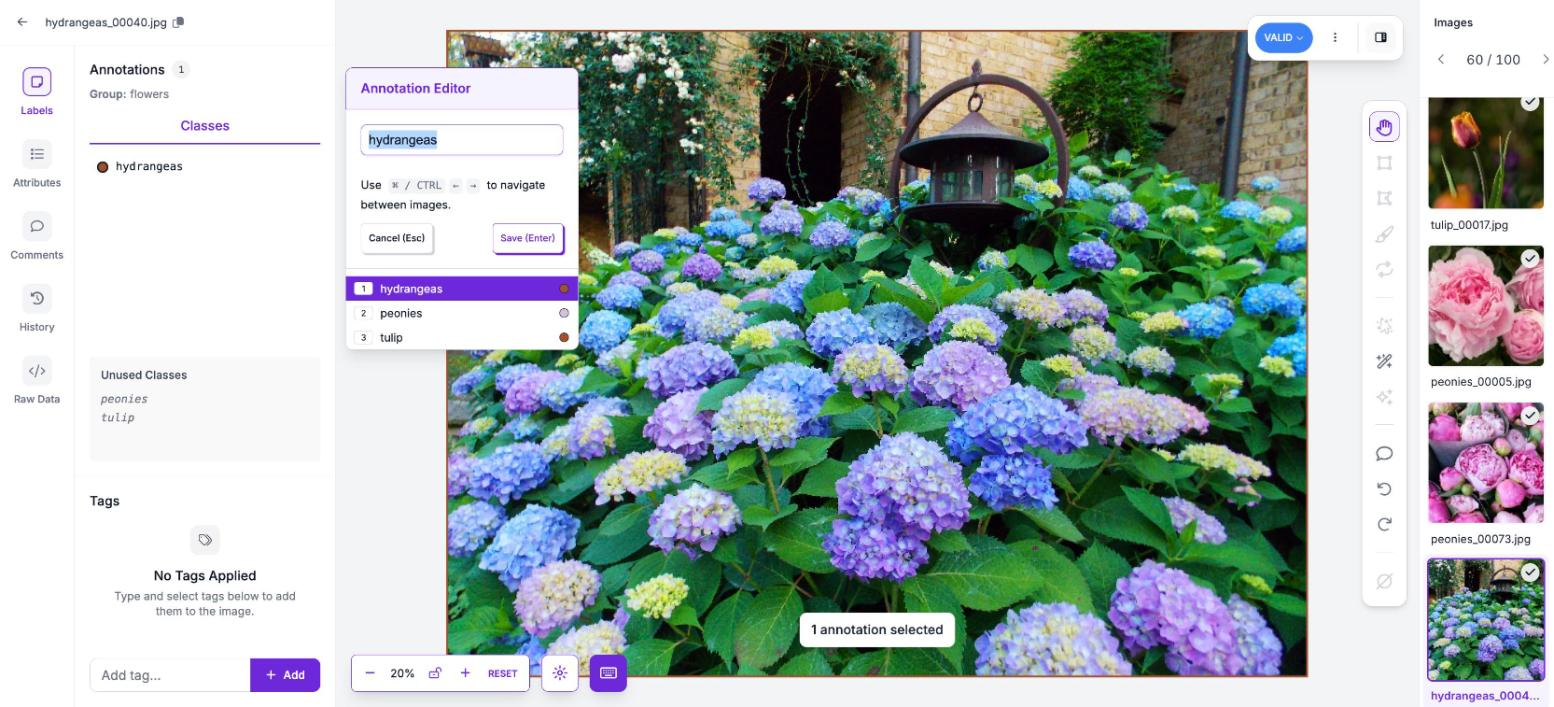
Click any image in your project to open it in Roboflow Annotate. The class list opens with it:
Step 3: Assign a class to each image
Pick the class that matches the image, or type a new class name, then press Enter to save. In a Multi-Label project, pick every class that applies.
Use ⌘ or Ctrl with the arrow keys to move to the next image, so you can label a whole set without leaving the keyboard.
Keep classes balanced where you can: a class with only a handful of examples is hard for any model to learn.
Step 4: Label faster with AI
Auto Label can classify a whole batch for you: a vision language model or CLIP picks the class for each image from your class names, and you review the results. Label Assist (opens in a new tab) also works in classification projects, suggesting a class from an earlier version of your model.
Step 5: Train Vision Transformer or export your data
When your images are labeled, generate a dataset version. Then open Train in your project, click "Custom Training", and choose "ViT". The Train a Model guide (opens in a new tab) walks through each option.
To train Vision Transformer on your own hardware instead, export the version as Folder Structure, one folder of images per class.