How to label data for RF-DETR Segmentation training
Before you can train a computer vision model, you need labeled data on which to train your model. The more accurate the labels, or annotations, are, the higher the performance the model will achieve.
Overview
RF-DETR Segmentation learns the exact outline of each object, not just a box around it. This guide shows how to label those outlines with Roboflow Annotate, then train RF-DETR Segmentation in Roboflow or export your labels to train it yourself.
Roboflow Annotate runs in your browser and is free to start. Roboflow is SOC 2 Type 2 compliant and used by over 2 million developers.
To label data for RF-DETR Segmentation, you will:
- Create an instance segmentation project and upload images
- Open an image in Roboflow Annotate
- Draw polygons and masks
- Label faster with AI
- Train RF-DETR Segmentation or export your data
Step 1: Create a project and upload images
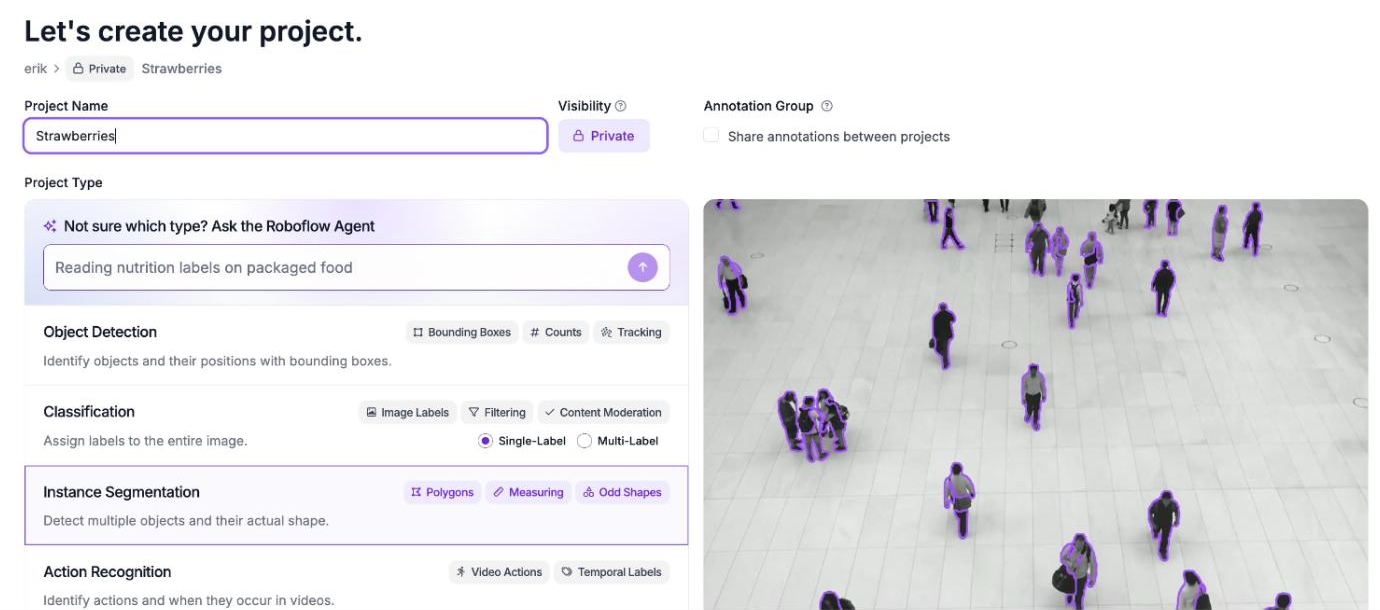
Create a free Roboflow account, then create a new project. Give it a name and choose Instance Segmentation as the project type:
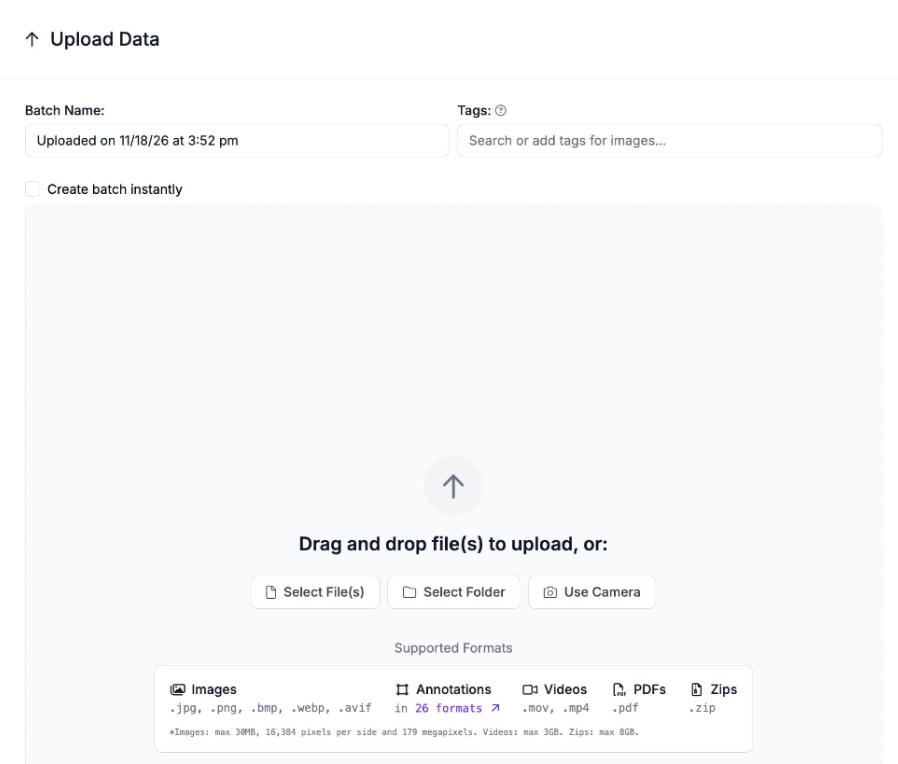
Next, upload your images. Drag them onto the Upload Data page, or select files or a whole folder. If you already have labels, upload the annotation files with your images to review or fix them in Roboflow Annotate:
Step 2: Open an image
Click any image in your project to open it in Roboflow Annotate:
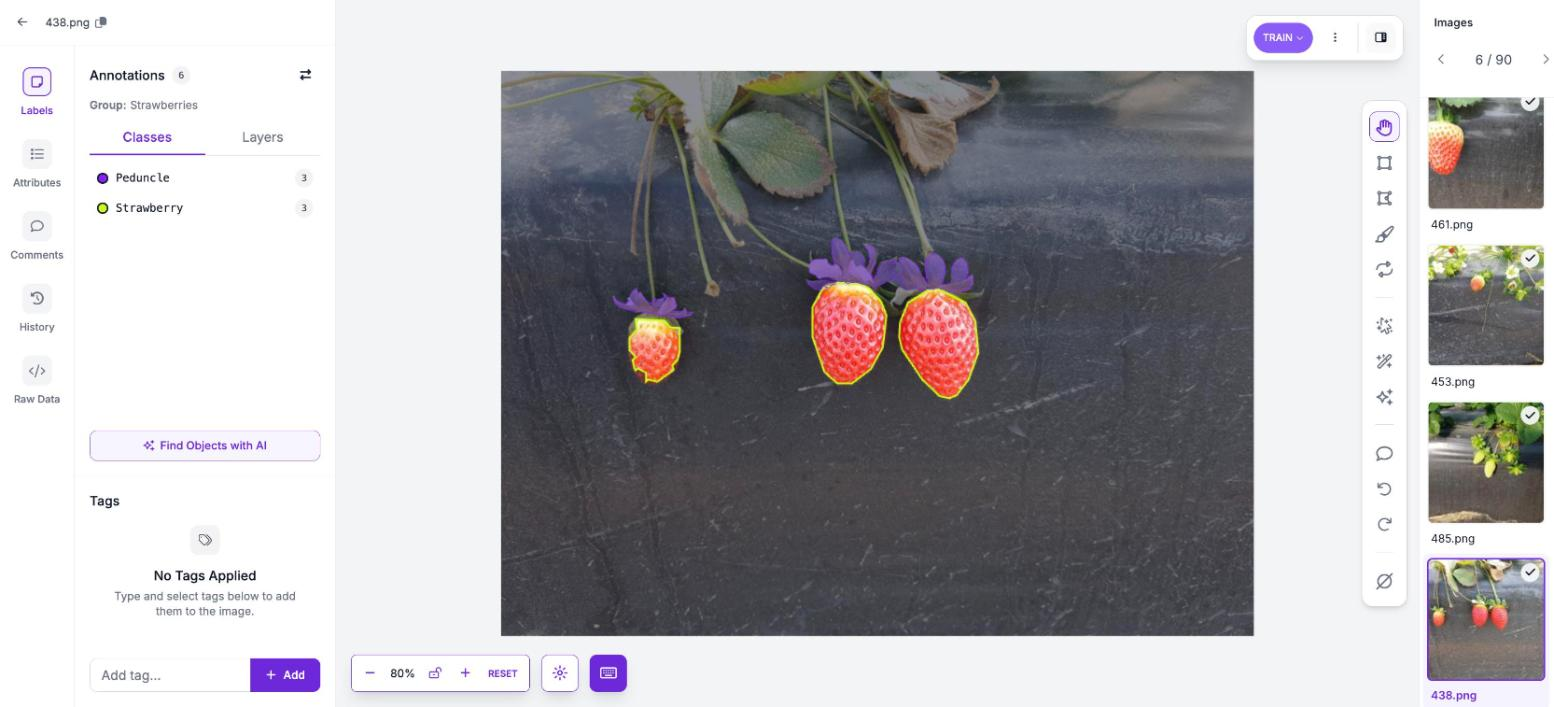
Your project's classes are listed on the left. In an instance segmentation project, every label is a polygon or a mask that follows the object's edge.
Step 3: Draw polygons and masks
Select the polygon tool, or press P, and click around the object's edge to place points. Click the first point again to close the shape, then pick its class from the list, or type a new class name.
For soft or irregular edges, like leaves, hair or smoke, use the brush tool (U) to paint a pixel mask instead.
Follow the edge closely, so RF-DETR Segmentation learns where each object ends and the background begins. Our labeling best practices cover more tips.
Step 4: Label faster with AI
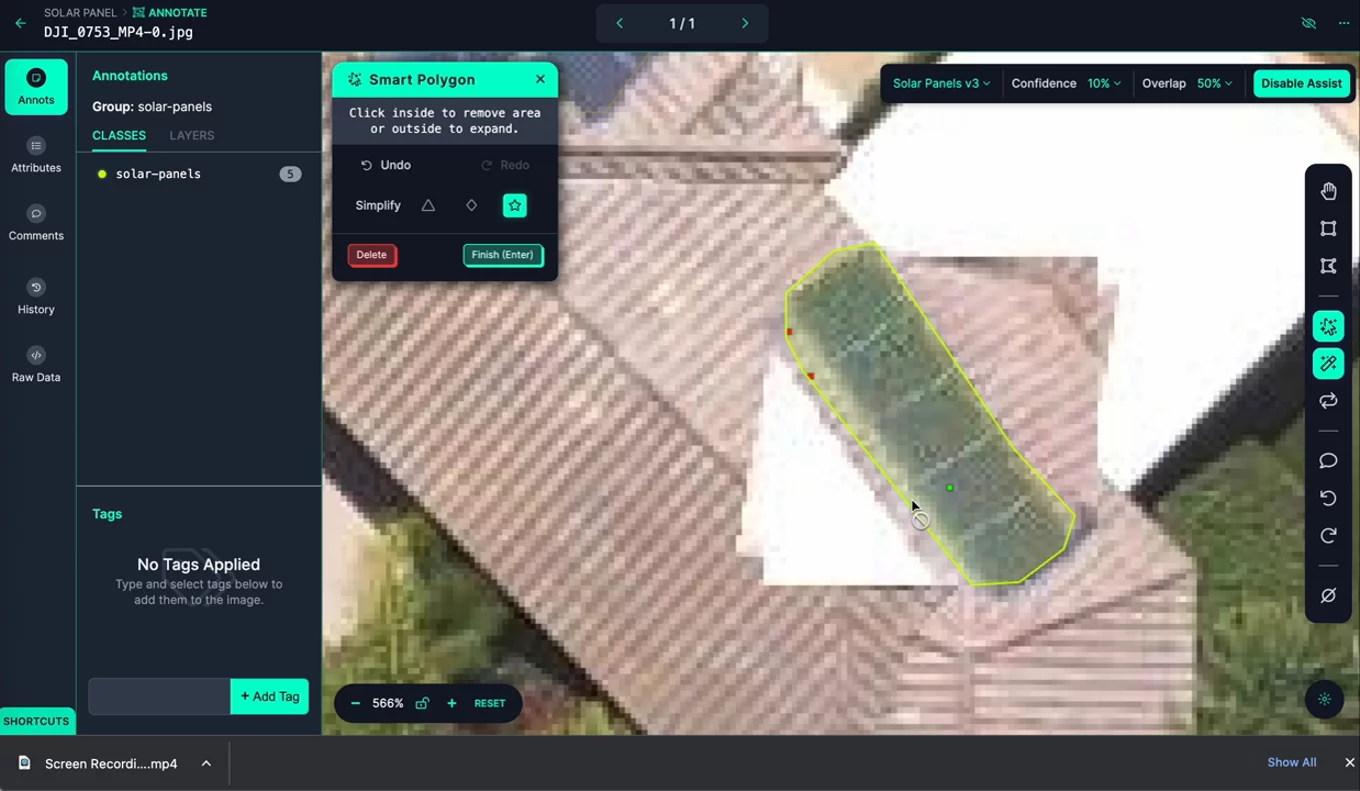
Smart Polygon (opens in a new tab) outlines an object from a single click, using Segment Anything. Press S, click the object, and add or remove areas with more clicks until the outline fits:
To label a whole batch at once, use Auto Label. Name your classes, and SAM 3 draws a mask or polygon around each object it finds. Then review the results before you train. See the Auto Label documentation (opens in a new tab) for the models it supports.
Step 5: Train RF-DETR Segmentation or export your data
When your images are labeled, generate a dataset version. Then open Train in your project, click "Custom Training", and choose "Roboflow RF-DETR". The Train a Model guide (opens in a new tab) walks through each option.
To train RF-DETR Segmentation on your own hardware instead, export the version as COCO Segmentation, the COCO JSON format with masks.