Is it free to convert CreateML JSON to Florence-2?
Yes! It is free to convert CreateML JSON data into the Florence-2 format on the Roboflow platform.
Convert annotation formats
In this guide, we show you how to convert data between the CreateML and Florence-2 formats for free. You can use your converted data to train models and other models that support the Florence-2 format.
Yes! It is free to convert CreateML JSON data into the Florence-2 format on the Roboflow platform.
Apple's CreateML and Turi Create tools need a special JSON format for object detection tasks.
The data format used by the Florence-2 multimodal model.
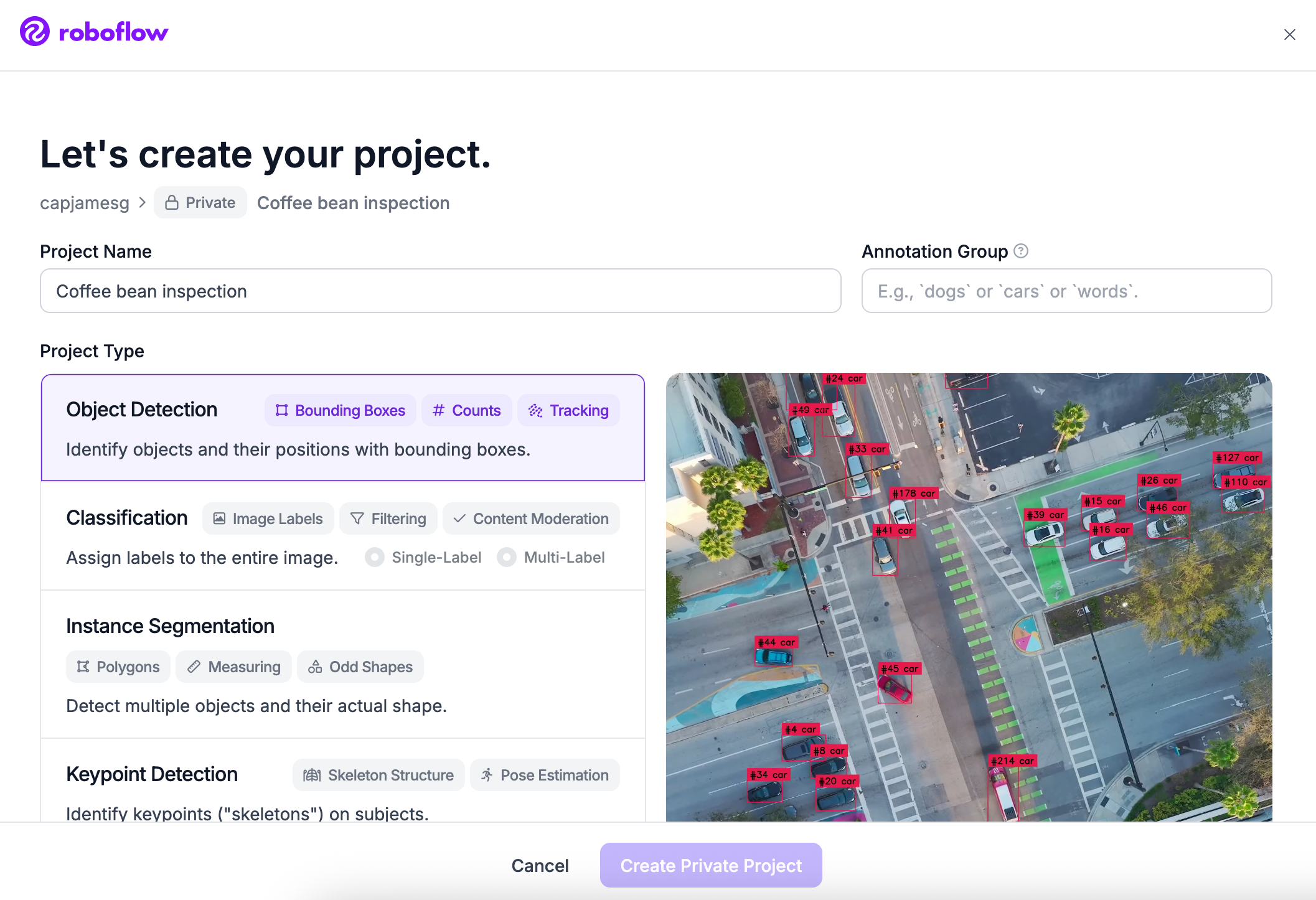
Once your account has been created, click Create New Project. (opens in a new tab)
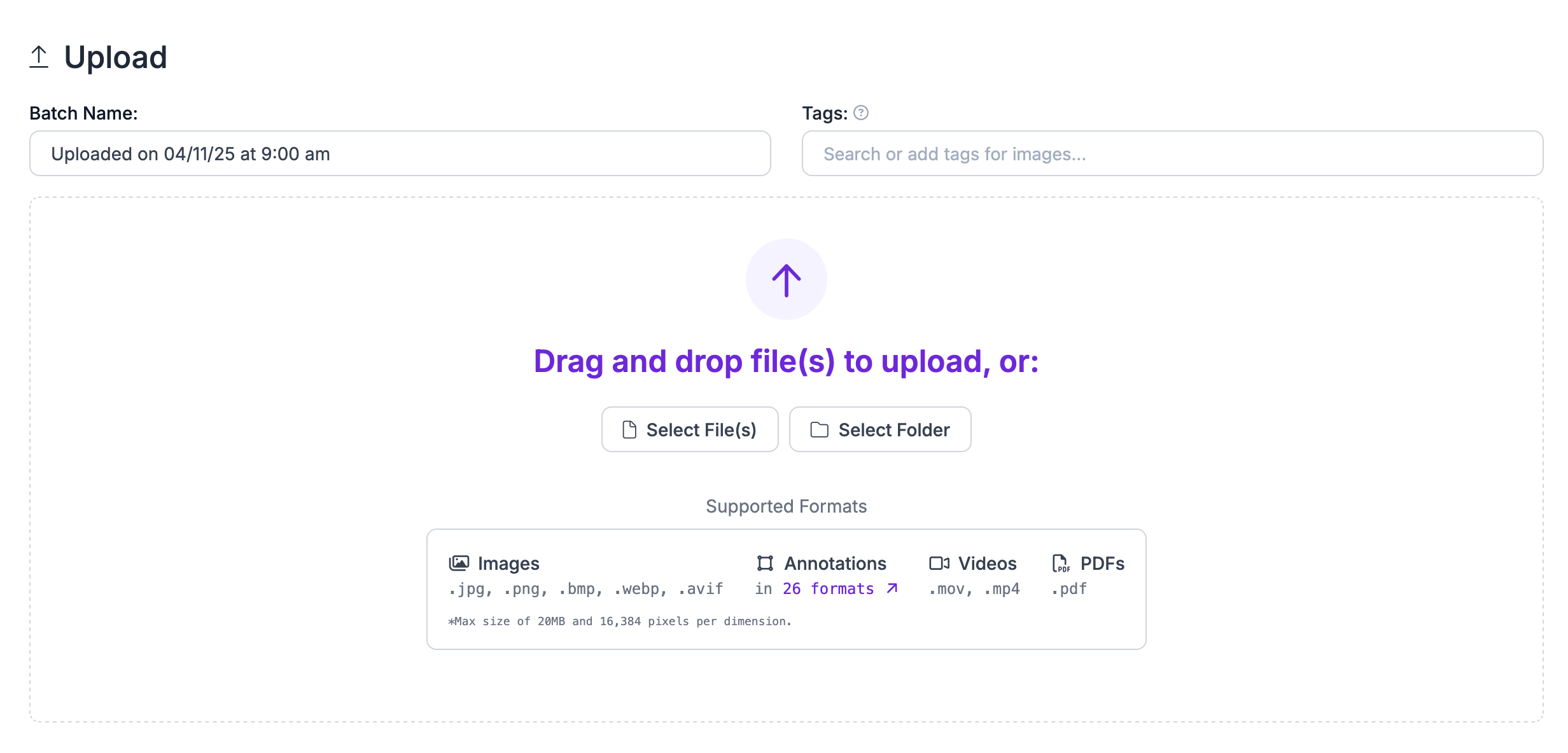
Upload your data to Roboflow by dragging and dropping your CreateML JSON images and annotations into the upload space.
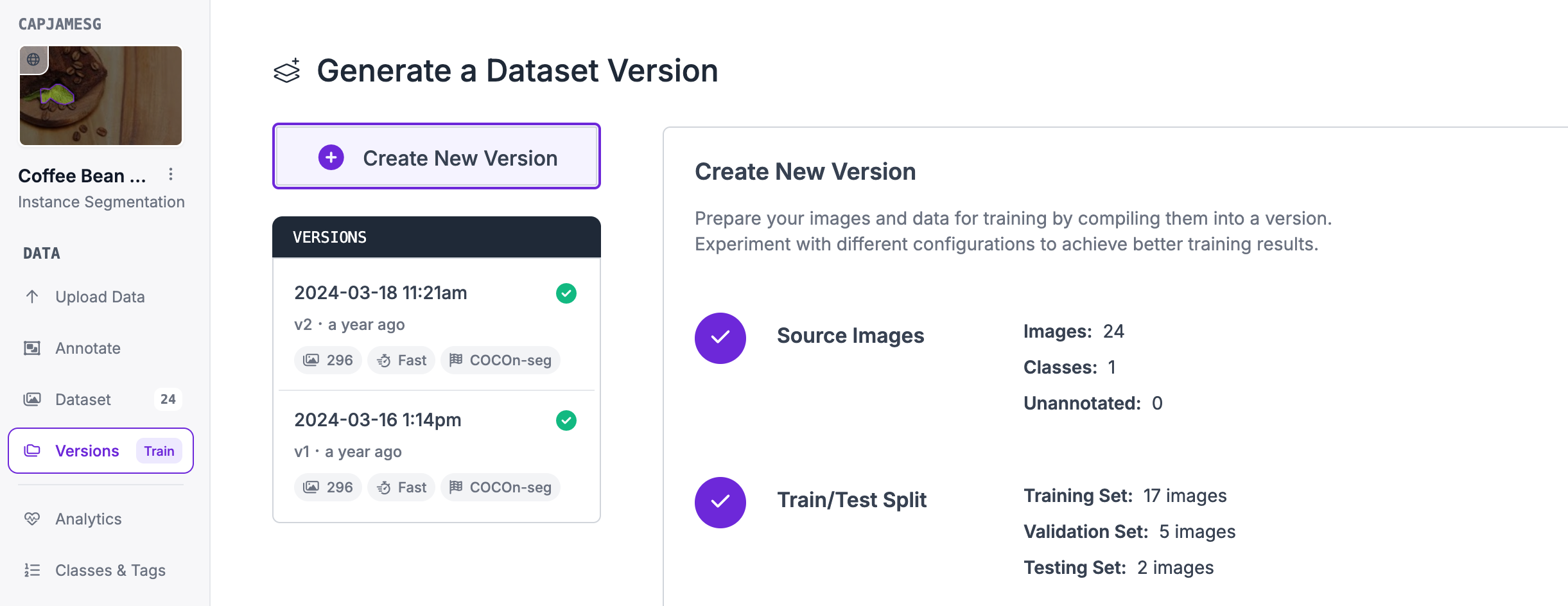
Next, click "Generate New Version" to generate a new version of your dataset:
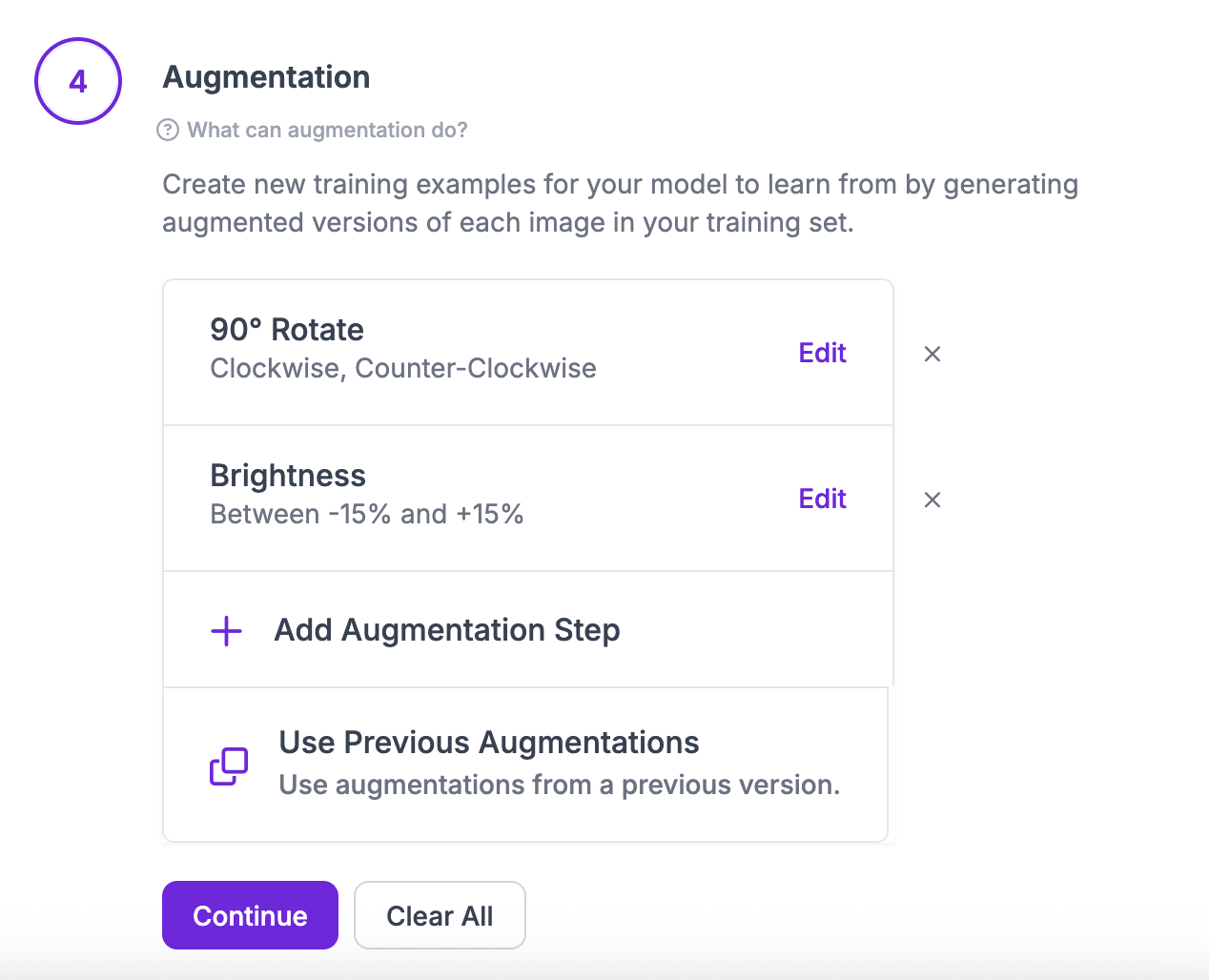
You can then apply any preprocessing or augmentation steps to your dataset:
After generating, you will be prompted to Export your dataset. You can choose to receive your dataset as a .zip file or a curl download link. Choose Florence-2 when asked in what format you want to export your data. You will see a dropdown with various options like this:
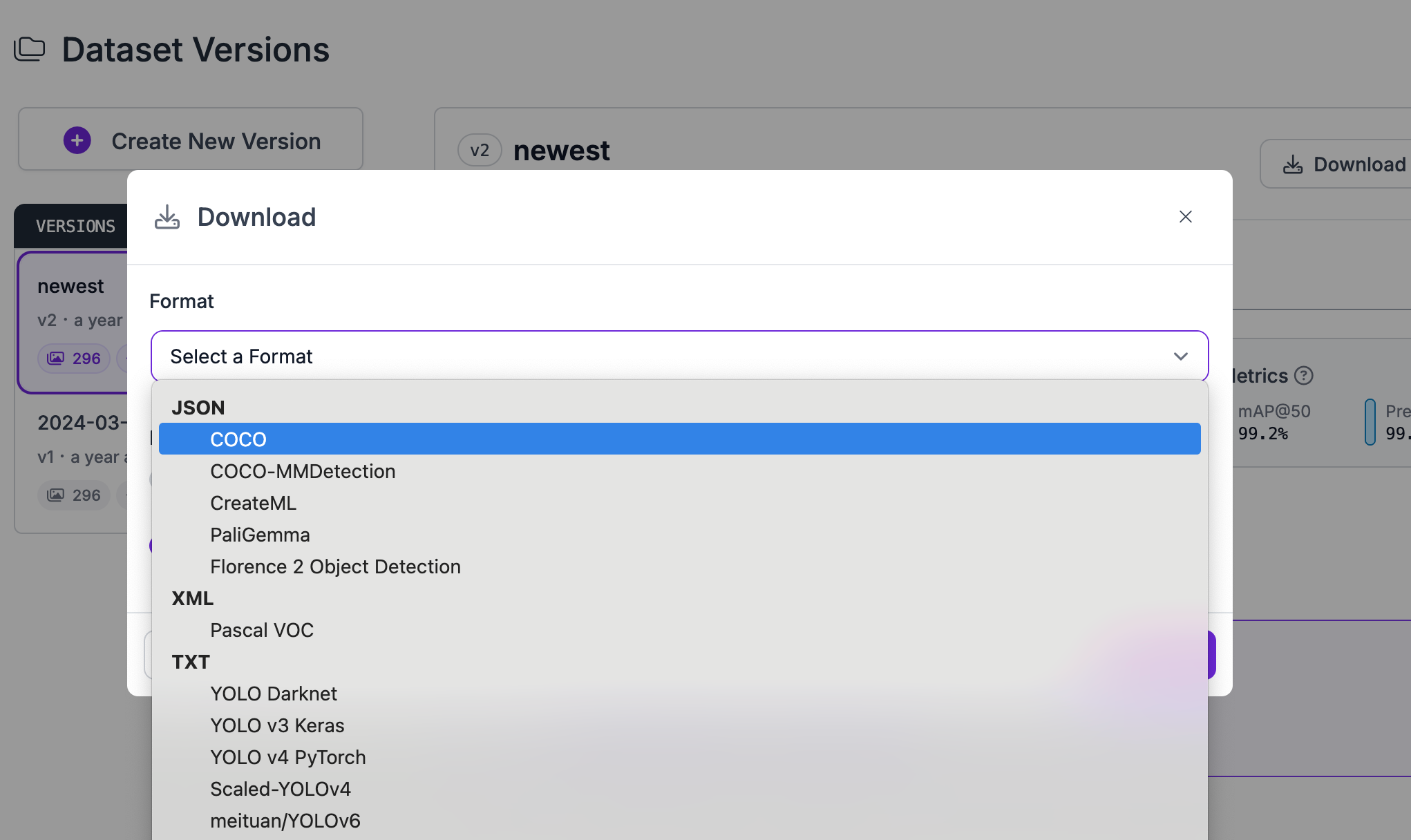
Congratulations, you have successfully converted your dataset from CreateML JSON format to Florence-2 format!

Convert Computer Vision Annotation Formats Tutorial
Want to dive deeper into converting annotation formats with Roboflow? In the tutorial below, we explore how to convert your data in the Roboflow dashboard. We also discuss rejecting annotations and train-test-validation splits.
Yes! It is free to convert CreateML JSON data into the Florence-2 format on the Roboflow platform.
If you have between a few and a few thousand images, converting data between these formats will be quick. But, the time it takes to convert between data formats increases with the more images you have.
Our team will help you start solving business problems on the first call.
Over 16,000 organizations build with Roboflow.