How to Auto-Label Images with ChatGPT and Roboflow
 Timothy MPublished Oct 26, 2026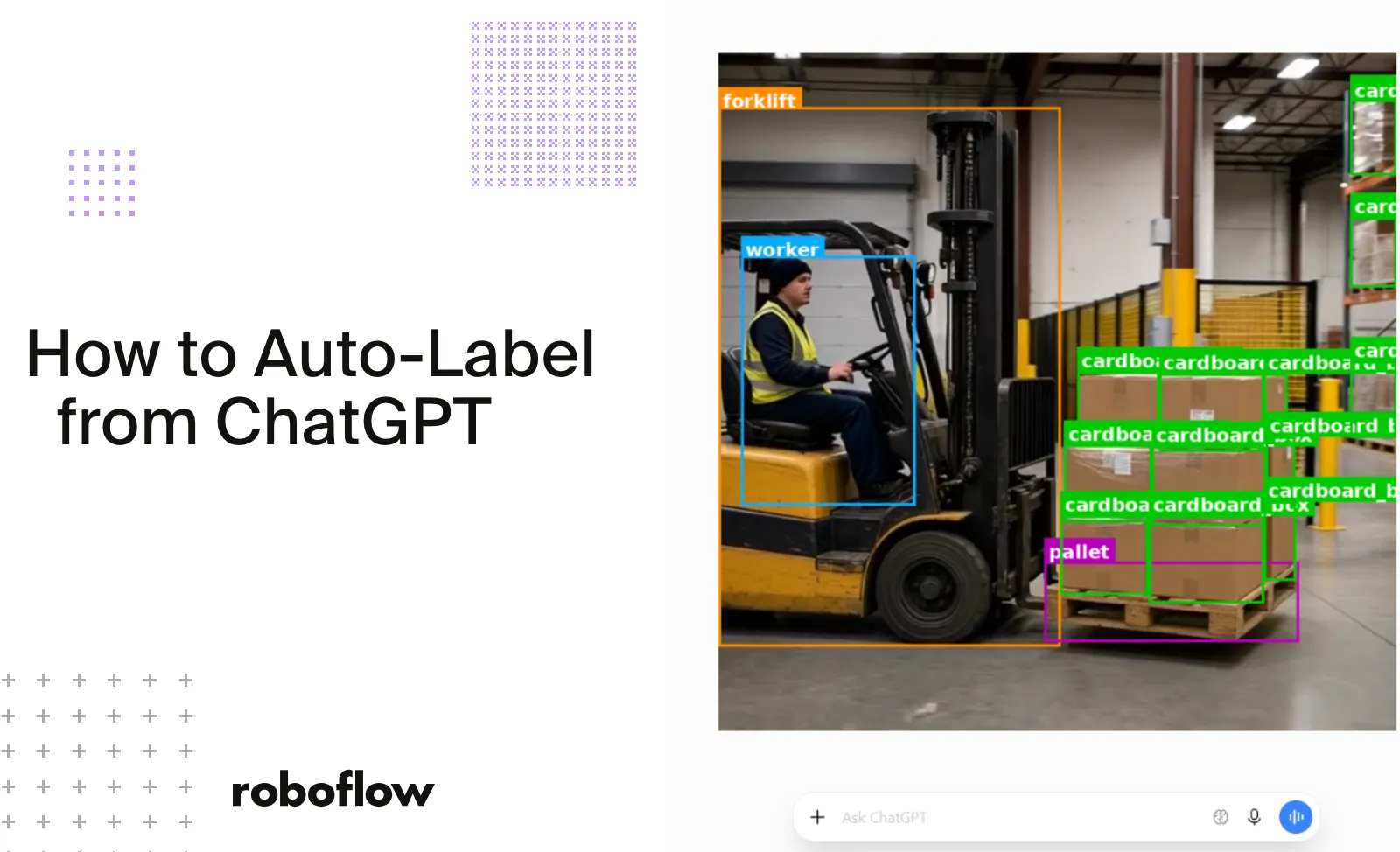
To auto-label an image dataset from ChatGPT, install the Roboflow plugin, connect your workspace, and describe the job in plain language. It creates the project, uploads your images, previews an auto-labeling model on a few samples, then labels the full batch.
You can auto-label images with ChatGPT using the Roboflow plugin (opens in a new tab). Upload your images, describe the objects you want to detect, and use plain-language prompts to create a project, preview bounding boxes, and start an automatic labeling job. ChatGPT manages these steps through Roboflow, while your selected vision model generates the annotations.
For a warehouse dataset, that could mean labeling cardboard boxes, pallets, forklifts, and workers across images with different viewpoints and lighting conditions. You can test the model on a few images first, check its predictions, and then apply it to the full batch. Review and correction happen in Roboflow before the images become part of your training dataset.
In this guide, you’ll connect the Roboflow plugin to ChatGPT, create an object detection project, and auto-label a batch of warehouse images. Then, you’ll review the annotations and generate a dataset version ready for model training or export.
How to Install the Roboflow ChatGPT Plugin
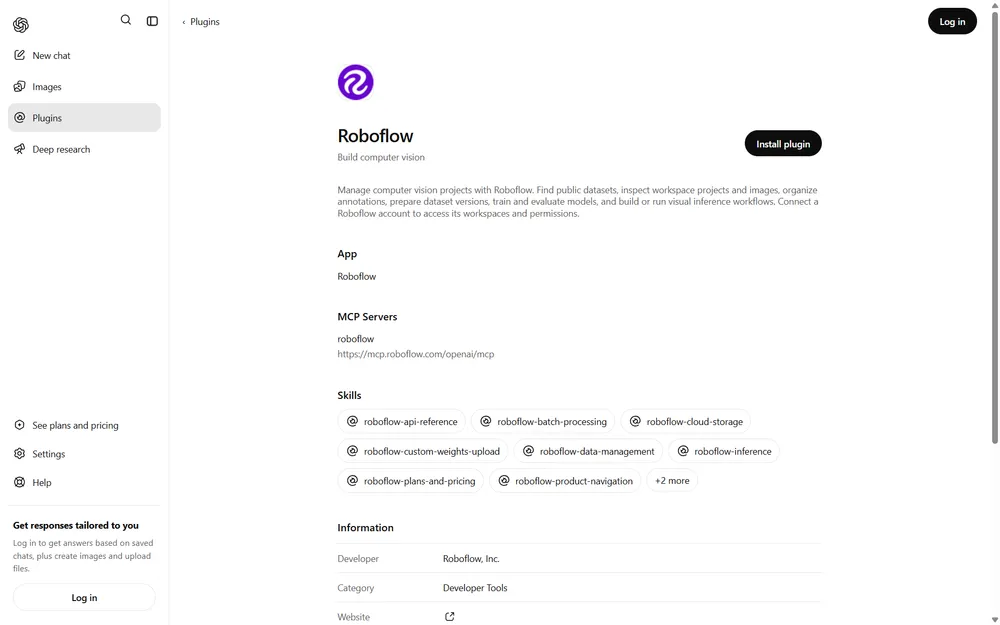
- Open the Roboflow plugin page while signed in to ChatGPT (opens in a new tab).
- Select the installation control, shown as a plus (+) button in the plugin directory.
- Connect your Roboflow account when prompted, select your workspace, and review the requested permissions.
- Start a new conversation in ChatGPT or a supported Codex interface.
- Type @, select Roboflow, and describe what you want to do.
How to Auto-Label an Image Dataset from ChatGPT
In this tutorial, we will use the Roboflow plugin in ChatGPT to auto-label warehouse images containing cardboard boxes, pallets, forklifts, and workers. Using plain-language prompts, we will set up an object detection project, preview the generated bounding boxes, and start an Auto Label job. We will then review and correct the annotations before adding the images to the dataset for future model training.
Step 1: Prepare your warehouse images
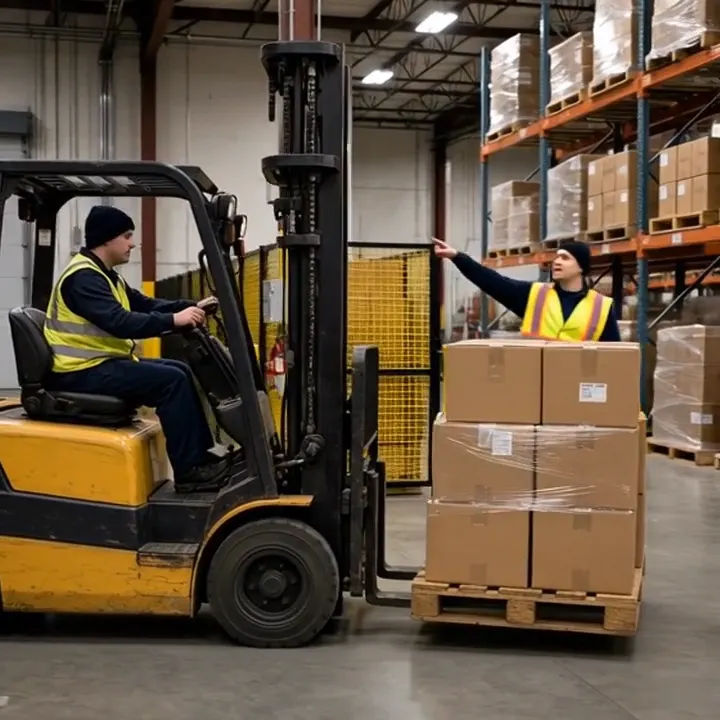
Start with approximately 50 warehouse images containing different combinations of cardboard boxes, pallets, forklifts, and workers. Include different viewpoints, lighting conditions, and object arrangements. This is a small demonstration dataset. We will use these four classes:
| Class | What to label |
|---|---|
| cardboard box | Each individual carton |
| pallet | The pallet itself |
| forklift | Each forklift |
| worker | Each individual warehouse worker |
Step 2: Find your workspace and create an object detection project
First, check which Roboflow workspace is connected to ChatGPT. A workspace contains your projects and datasets. Send this prompt:
@Roboflow Show the name and ID of the Roboflow workspace connected to this chat.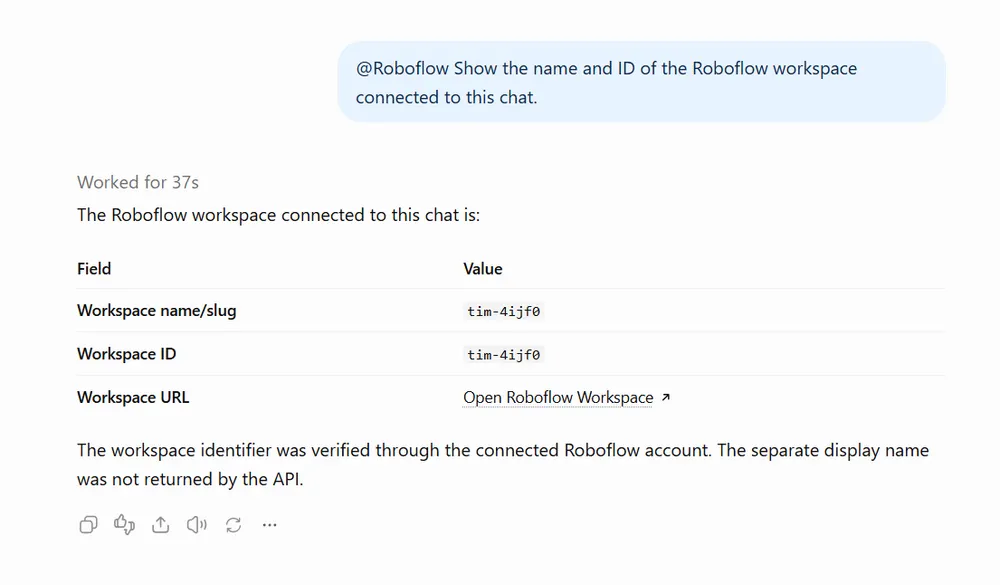
Use the returned workspace ID to create an Object Detection project. This project type supports the bounding boxes we need to locate individual cardboard boxes, pallets, forklifts, and workers.
Replace [WORKSPACE_ID] with the returned ID and [PROJECT_NAME] with your preferred project name:
@Roboflow In [WORKSPACE_ID], create a private Object Detection project named [PROJECT_NAME]. Use a new, unused annotation group. Return the project ID and a link to open the project and upload data.Save the returned project ID for the upload and auto-labeling steps. Keep these four class names consistent throughout the tutorial: cardboard box, pallet, forklift, and worker.
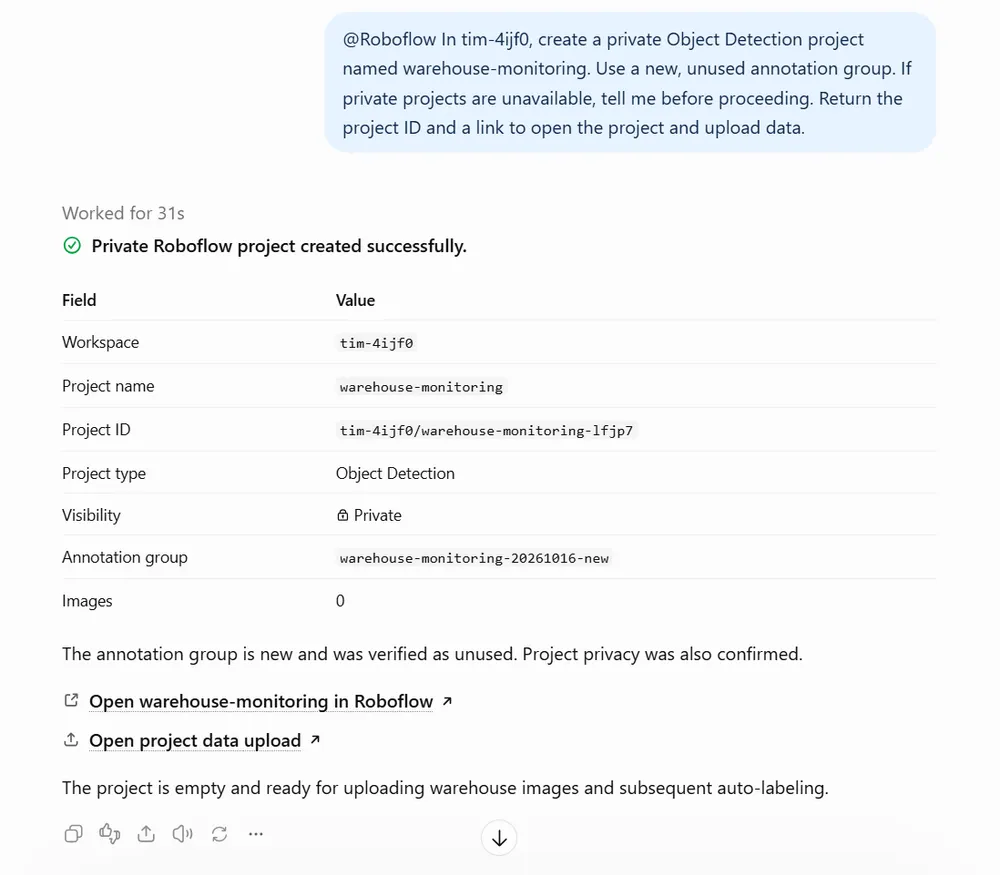
Step 3: Upload your images and find the annotation batch
Attach your warehouse images directly to the conversation in ChatGPT . You can attach individual images or a ZIP file containing them. Then send this prompt to upload them to your Roboflow project:
@Roboflow Upload the attached images, or the images inside the attached ZIP, to my existing project:

Workspace: [WORKSPACE_ID]
Project ID: [PROJECT_ID]

Keep the default batch name. Check the upload status and report the completed image count, batch name, batch ID, duplicates, and any errors.

Do not start auto-labeling yet.
Replace the workspace and project ID with your own values. Wait for the response confirming that the upload has completed. Save the returned batch ID so you can identify these images in the next step when previewing automatic annotations. If the upload is still processing, ask ChatGPT to check the existing upload again.
When you run the prompt with the attached images you will see following output.
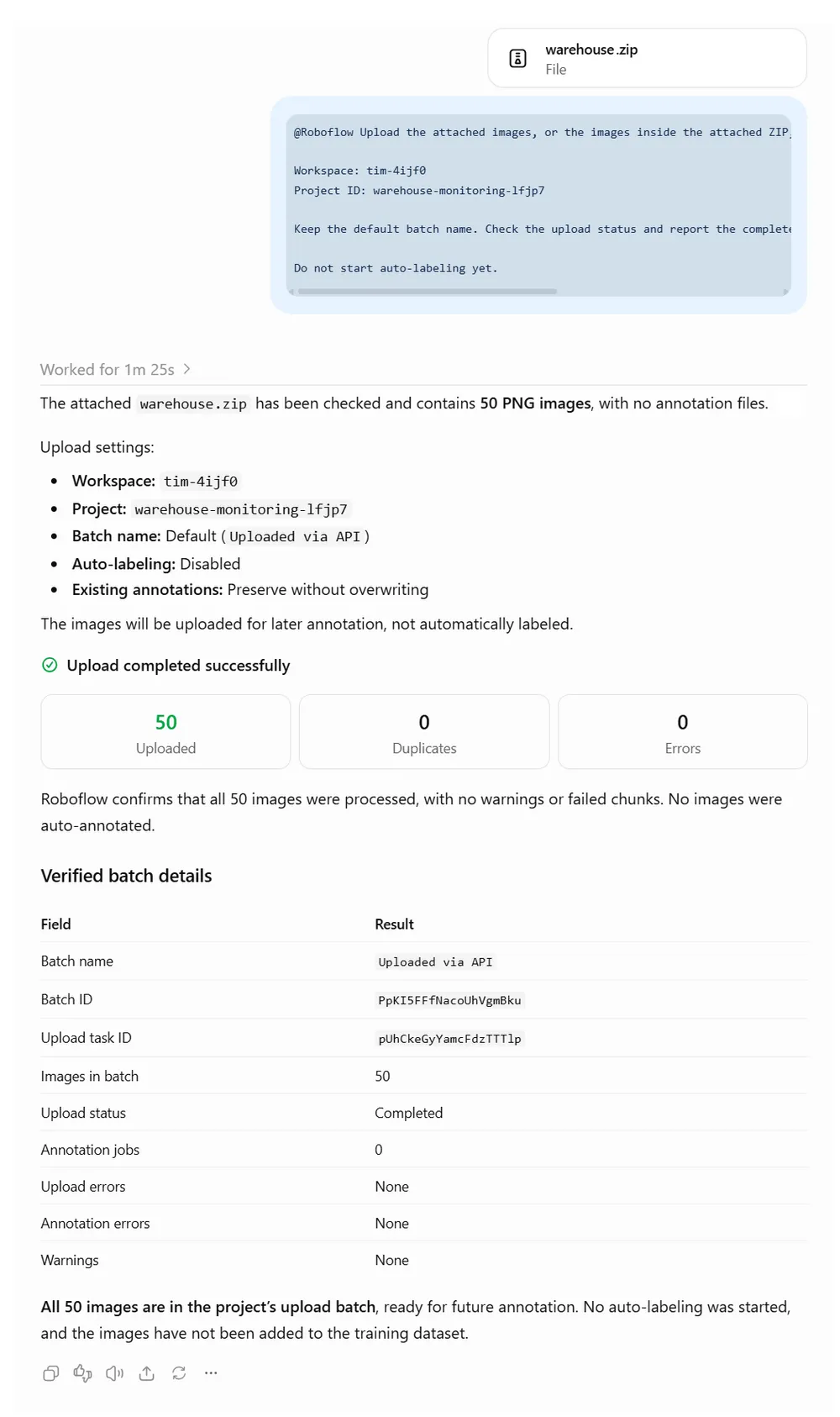
These images are now available in your project for annotation task.
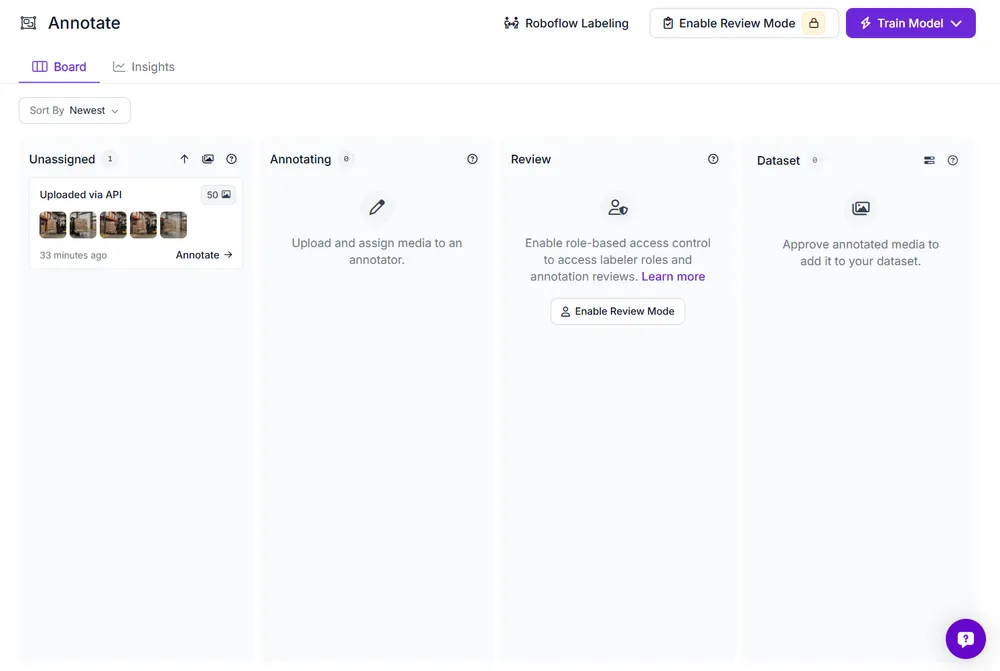
Step 4: Preview the automatic annotations
Ask the Roboflow plugin to list the available auto-labeling models and preview a suitable model on a few images from your uploaded batch. This helps you check whether the model identifies the four classes correctly before labeling all the images.
Replace [PROJECT_ID] and [BATCH_ID] with the values returned in the previous steps:
@Roboflow List the available auto-labeling models for Object Detection and recommend one for my warehouse images.

Preview the selected model on 3 images from [BATCH_ID] in [PROJECT_ID], using exactly these classes:
- cardboard_box
- pallet
- forklift
- worker

Show the model used and the preview results, including detected classes and bounding boxes. Do not start the full batch annotation job yet.
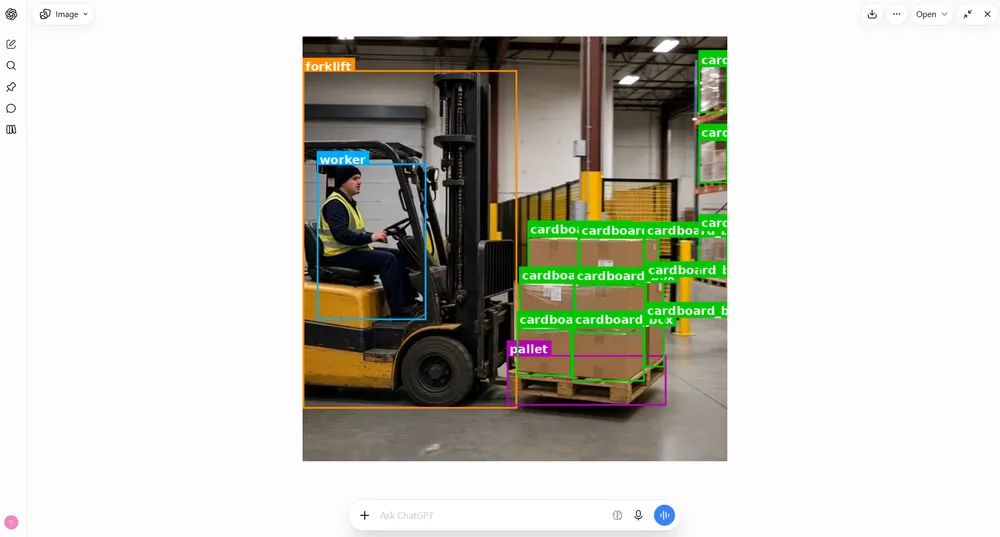
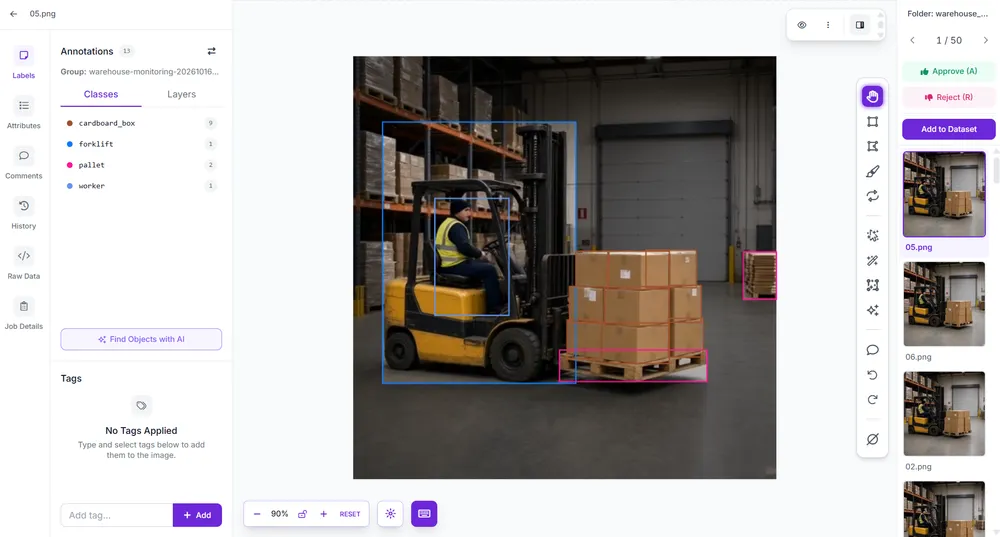
Check the preview results for missing objects, incorrect labels, and misplaced bounding boxes. Each cardboard box and worker should have an individual bounding box. The pallet annotation should cover the pallet itself.
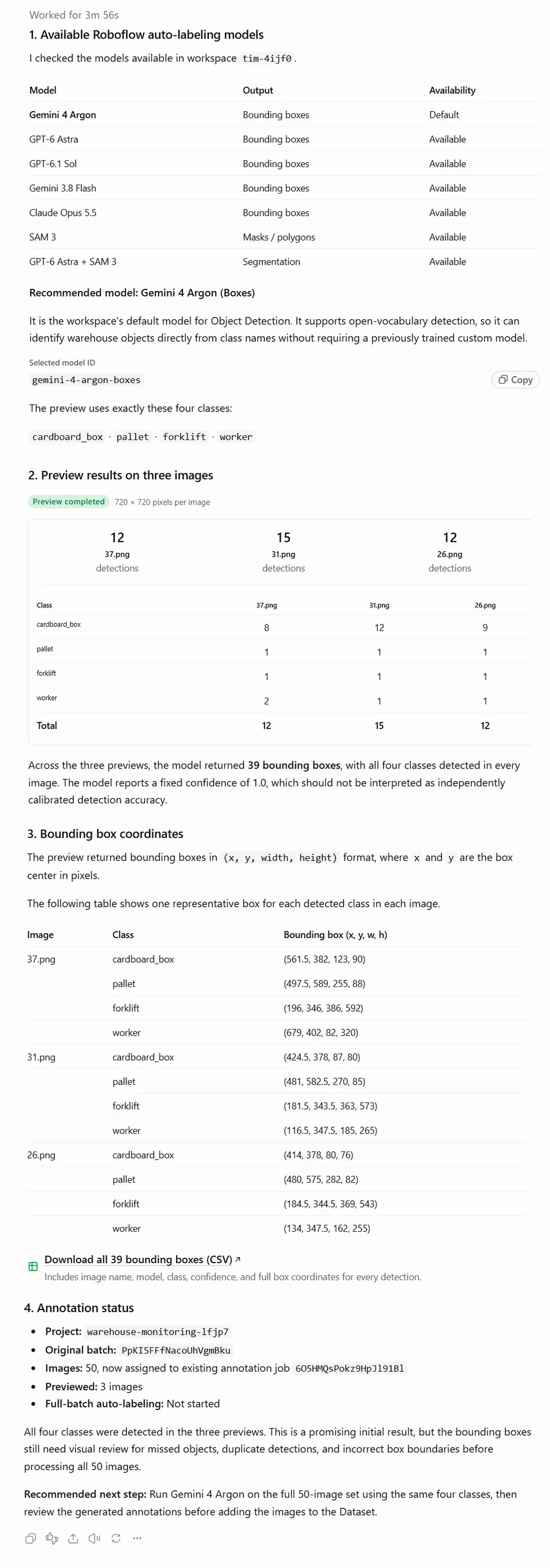
You can visualize the images by uploading the mentioned preview images and sending follow-up prompt below in the same chat to display the original images with the preview bounding boxes:
@Roboflow Display annotated previews for 37.png, 31.png, and 26.png from project warehouse-monitoring-lfjp7.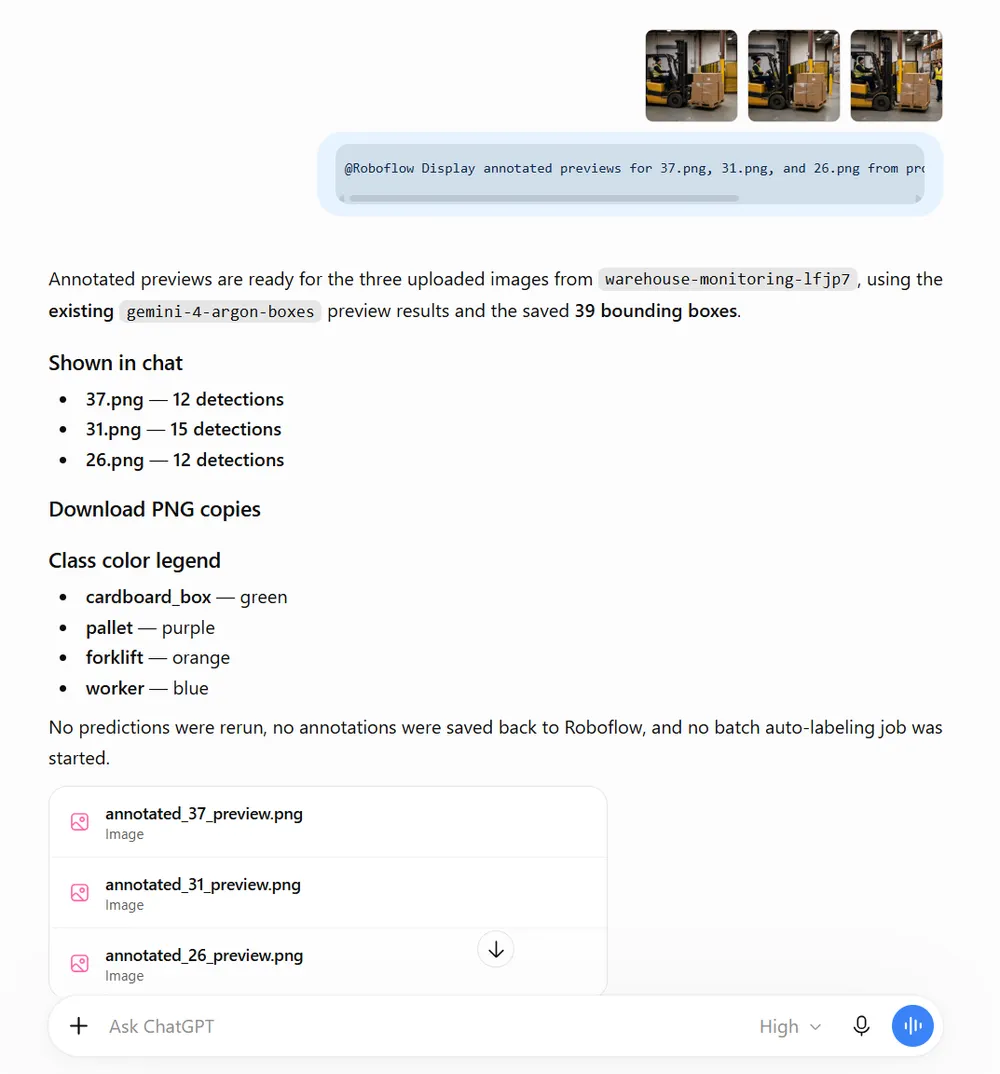
Click on the images to see if annotation works.
Step 5: Auto-label the full batch
Once you are satisfied with the previews, use the selected model to annotate all 50 images. Keep the same four class names used during the preview. Auto Label consumes Roboflow credits, and model usage charges may also apply. docs.roboflow.com (opens in a new tab)
The images are already assigned to an annotation job. Include that information so the plugin can locate the images and prepare them for auto-labeling:
@Roboflow Auto-label all 50 uploaded images in project warehouse-monitoring-lfjp7 using gemini-4-argon-boxes.

Use exactly these classes:
- cardboard_box
- pallet
- forklift
- worker

Original batch ID: PpKI5FFfNacoUhVgmBku
Existing annotation job ID: 6O5HMQsPokz9HpJl91Bl

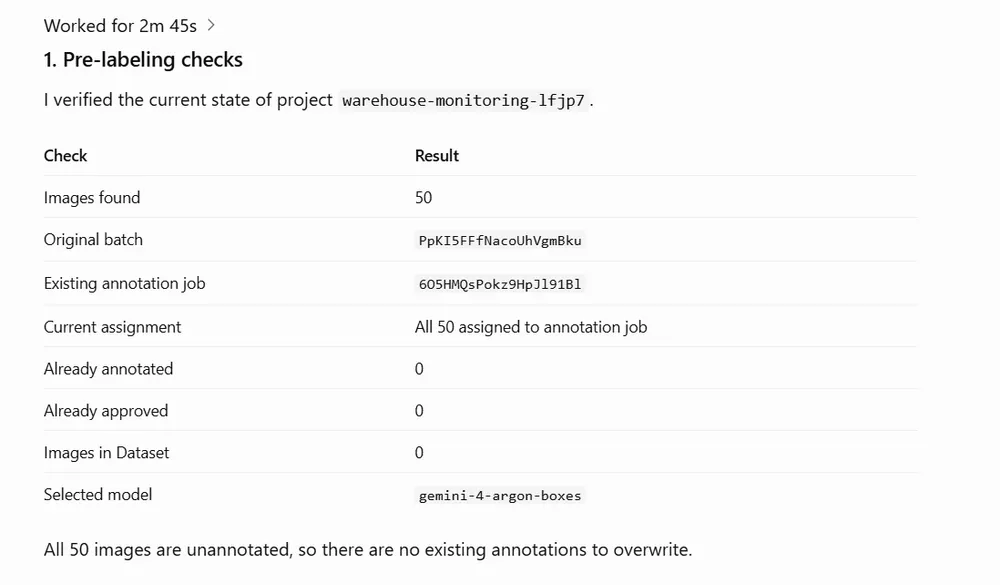
First, check where these images are currently assigned. If necessary, move the unannotated images back to an unassigned batch so Auto Label can process them. Preserve the images and do not overwrite any existing annotations.

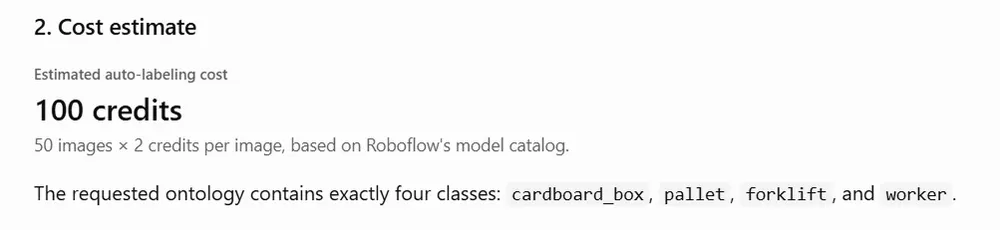
Show any available cost estimate, then start the Auto Label job.

Return the auto-label job ID and annotation job ID. Give a link to review the annotations.

Leave the results ready for review. Do not approve them or add them to the Dataset yet.
It will perform pre-labeling checks,
Give you the estimated credits,
Start the automatic labelling job,
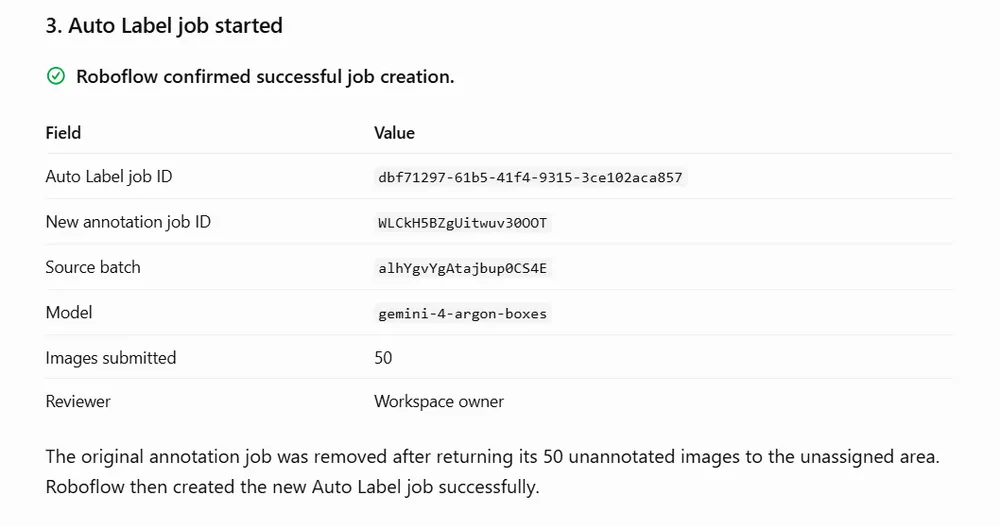
Give a link to review
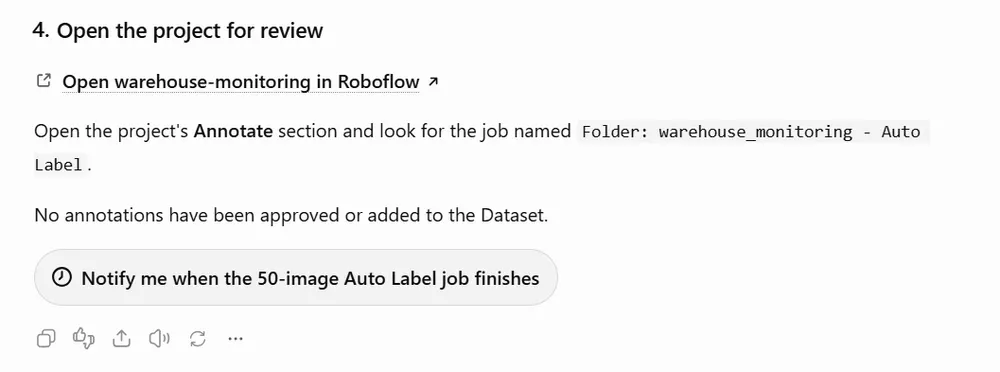
Go to Roboflow and review the annotated images.
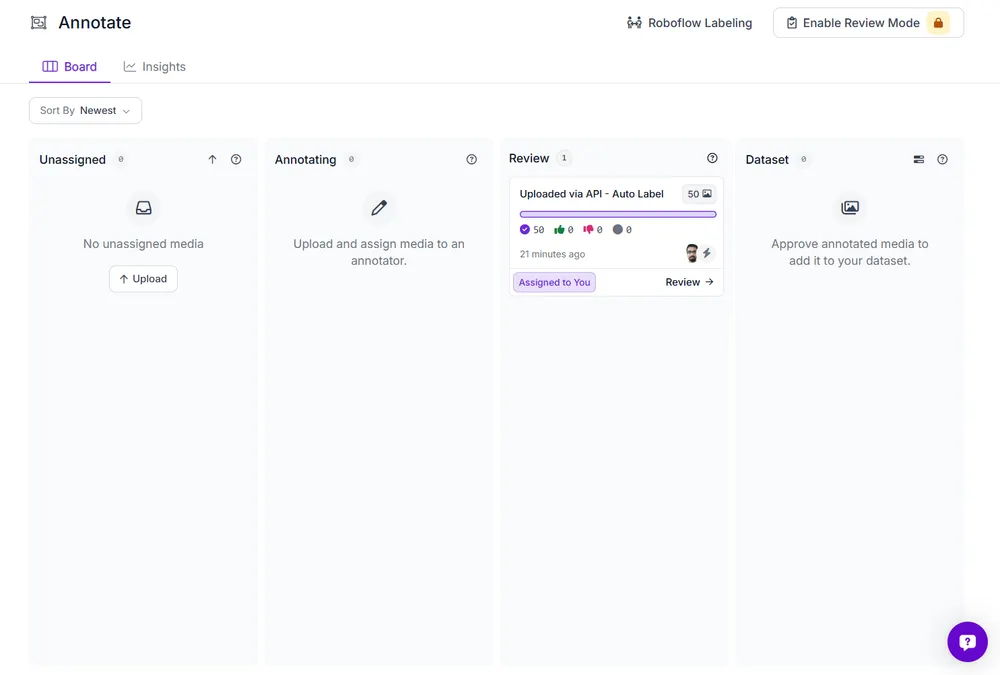
Once labeling finishes, the next step is to review and correct the bounding boxes before adding the images to the Dataset. You can manually approve each images.
Step 6: Add approved images and generate a dataset version
After reviewing and approving the annotations, add the approved images to the project’s Dataset. Use the annotation job ID returned after full-batch auto-labeling.
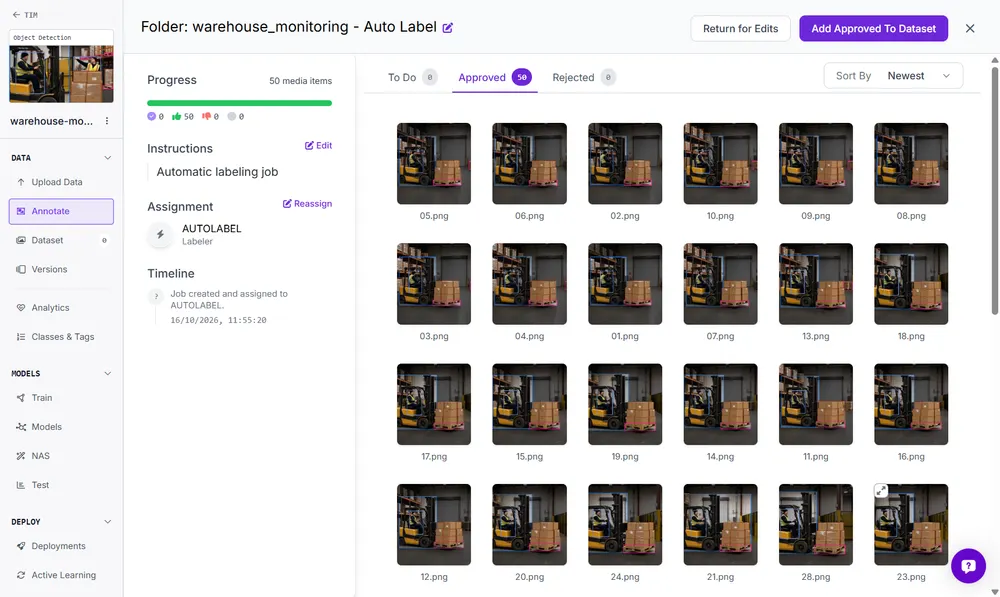
To do this send the following prompt:
@Roboflow Add only the approved images from [ANNOTATION_JOB_ID] to the Dataset in [PROJECT_ID].

Preserve their annotations and assign an 80% training, 10% validation, and 10% testing split.

Report the total Dataset image count and the number of images in each split.
ChatGPT will show following response.
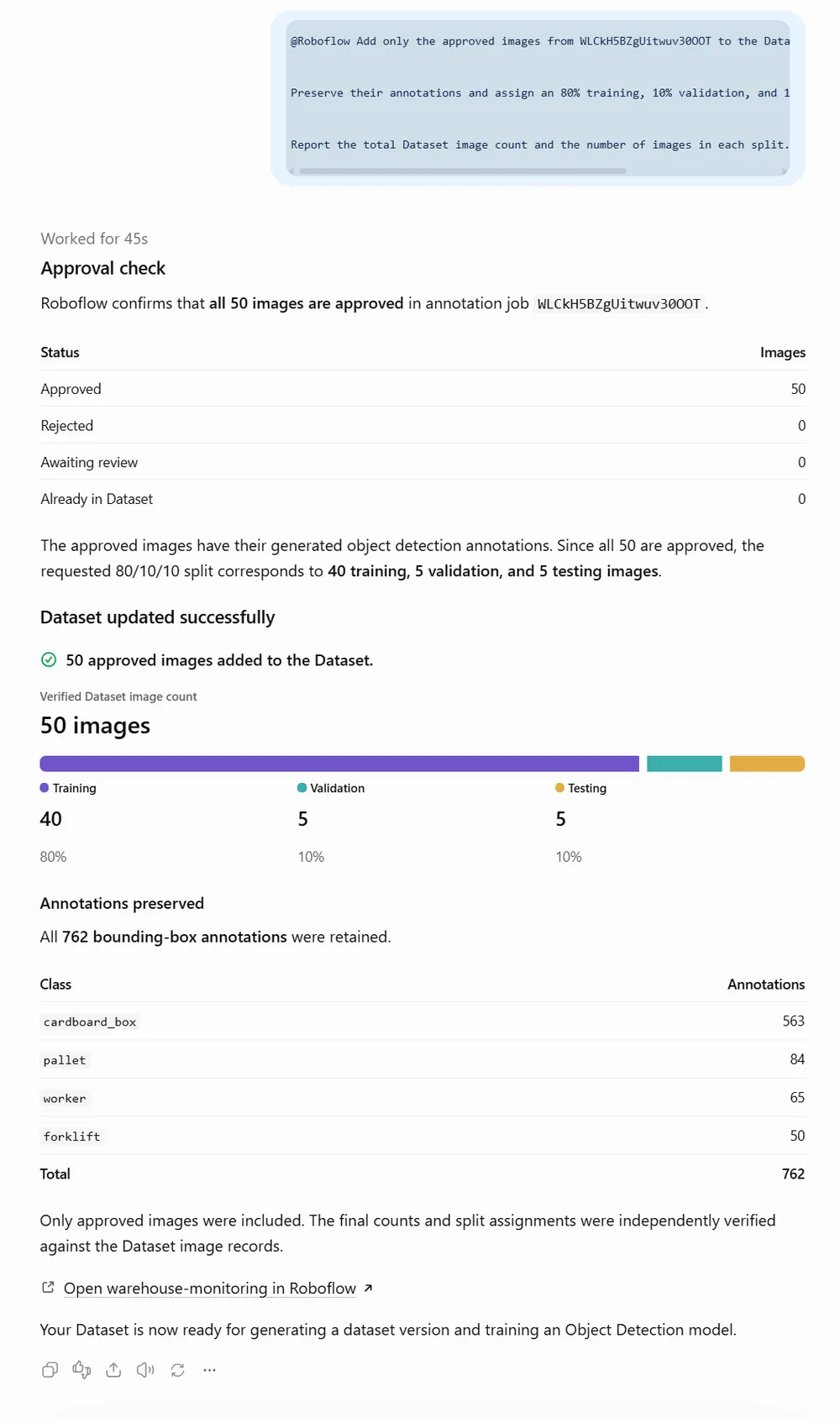
If all 50 images are approved, this split gives 40 training images, 5 validation images, and 5 testing images.
Next, generate a dataset version. A version captures your images, annotations, and processing settings at that point in time, providing a reproducible dataset for training or export.
For this demonstration, use Auto-Orient and resize the images to 640 × 640 pixels with padding to preserve their proportions. Leave augmentation disabled for this first version.
@Roboflow Generate a new dataset version for [PROJECT_ID] using these settings:

- Preserve the current training, validation, and testing splits.
- Apply Auto-Orient.
- Resize to 640 × 640 pixels using padding to preserve the aspect ratio.
- Apply no augmentations.
- Keep all four classes: cardboard_box, pallet, forklift, and worker.
The dataset version will be generated.
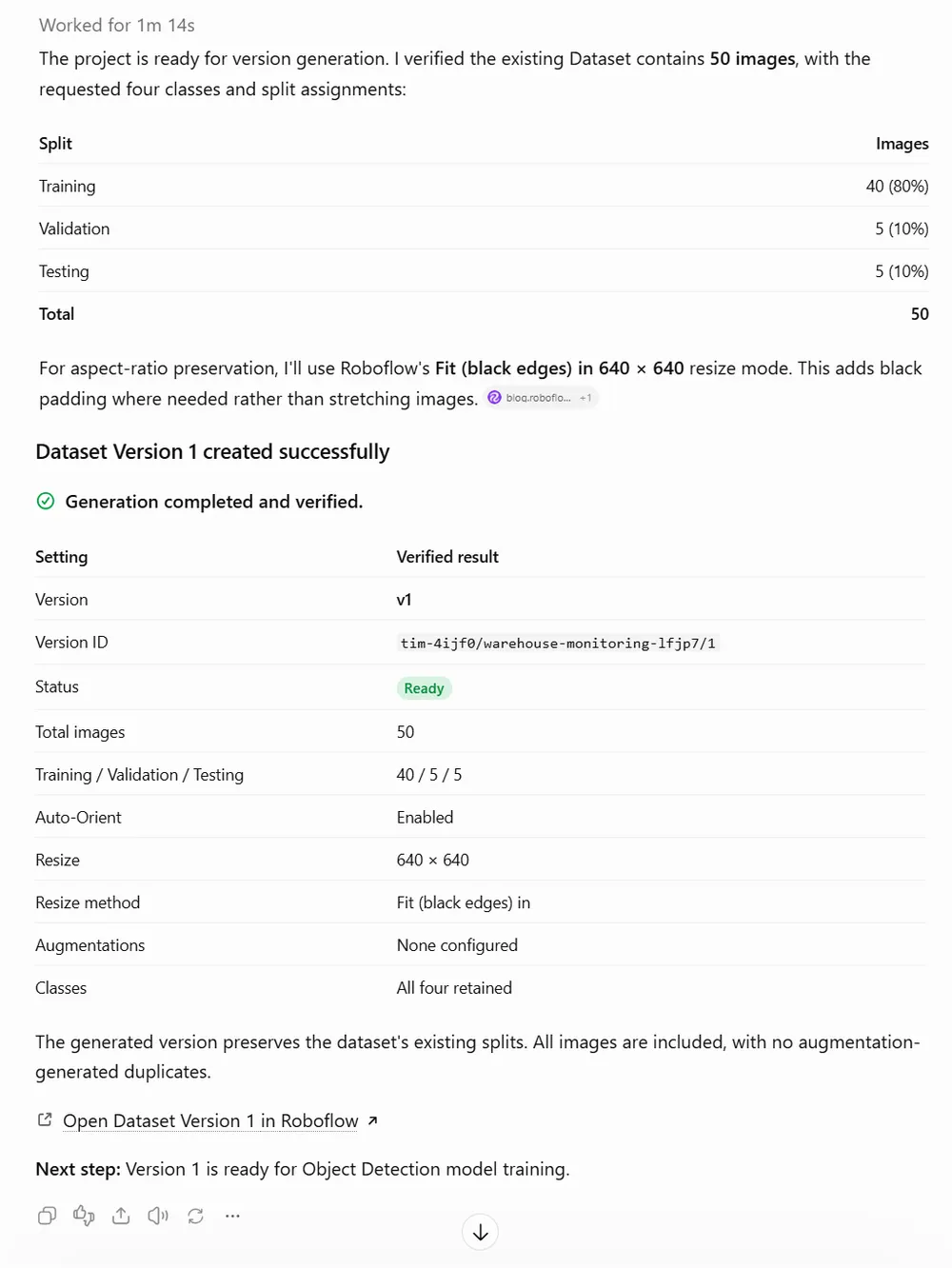
You can see the generated version in Roboflow.
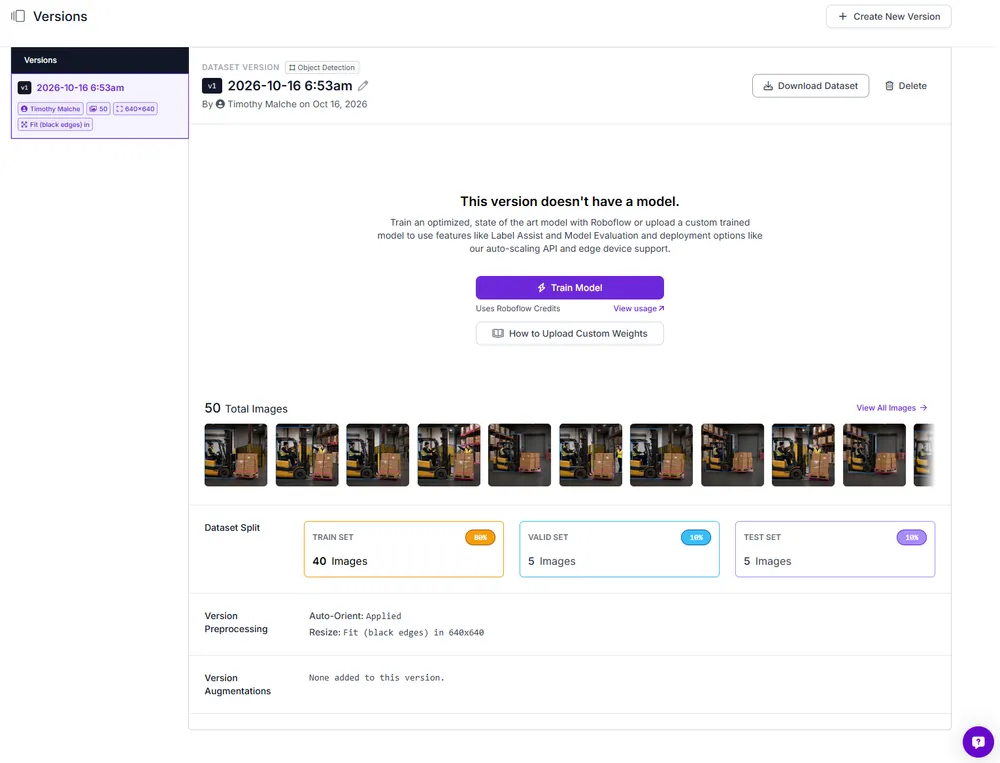
The generated version can then be used to train a model in Roboflow or exported for training elsewhere.
Conclusion
This tutorial showed how to use the Roboflow plugin in ChatGPT to auto-label warehouse images. We used plain-language prompts to find the annotation batch, preview a model, run Auto Label, and generate a dataset version.
Automatic labeling provides a starting point, but reviewing the bounding boxes and class labels remains essential. Once the annotations are corrected and approved, the resulting dataset version is ready for model training in Roboflow or export to another training environment.
Try your first ChatGPT auto-label project today with the Roboflow plugin (opens in a new tab).