How to Use Roboflow in ChatGPT
 Yajat MittalPublished Oct 26, 2026
To use Roboflow in ChatGPT, install the Roboflow plugin, connect your account with OAuth, and type @Roboflow to find a model, run inference on your images, and save the result as a reusable Workflow, all in plain language. When you need more accuracy on your own camera views, have ChatGPT help you label your images, create a dataset version, and train a custom model in Roboflow. The plugin has no extra cost beyond your Roboflow plan.
Building a computer vision application takes more than training a model. You need to collect images, label the objects you want to detect, evaluate your results, and deploy the model to process new images. With the Roboflow plugin for ChatGPT (opens in a new tab), you can work through this process by describing what you want to accomplish in a conversation.
The plugin connects ChatGPT to Roboflow through its Model Context Protocol (MCP) server, giving it access to tools for managing datasets, training models, and running predictions. Roboflow skills provide task-specific guidance to help ChatGPT use these tools throughout your project.
In this guide, we’ll build a model that detects packages in warehouse images. We’ll start by connecting Roboflow to ChatGPT, then upload and label our images, train and evaluate the model, and deploy it to detect packages in new images.
We’ll also cover how to start with a labeled dataset from Roboflow Universe (opens in a new tab) if you don’t have your own images, explain what Roboflow skills are, and show useful ways to apply them throughout your computer vision projects.
How to Set Up Roboflow in ChatGPT
Before we start building our package detection model, we need to connect Roboflow to ChatGPT.
Step 1: Install and Connect the Roboflow Plugin
Open the Roboflow plugin listing (opens in a new tab) in ChatGPT and select Install plugin. You can also find it by opening Plugins in the sidebar and searching for Roboflow. When prompted, select Connect and sign in to your Roboflow account. If you don’t have an account yet, you can create one.
Step 2: Try It in a Conversation
Start a new conversation and type @Roboflow to select the plugin. You can also select it from the + menu in the message box.
To check that the connection works, enter this prompt:
@Roboflow Show me the projects in my workspace.Check that ChatGPT returns the expected workspace and projects. If your workspace is empty, we’ll create your first project in the next section.
Build and Deploy a Model Using Your Own Images
Now that Roboflow is connected to ChatGPT, let’s build a model that detects and counts packages in warehouse images.
For this walkthrough, we’ll use a small selection of images from the Cardboard Boxes dataset by YongaTek on Roboflow Universe (opens in a new tab), which is listed as Public Domain. Although the dataset already includes annotations, we’ll use the images without their existing annotations so we can demonstrate labeling through ChatGPT.
Our project is called “Warehouse Package Detection,” but these demo images show individual cardboard boxes and staged arrangements. For an actual warehouse application, you would use images from the environment where the model will run.
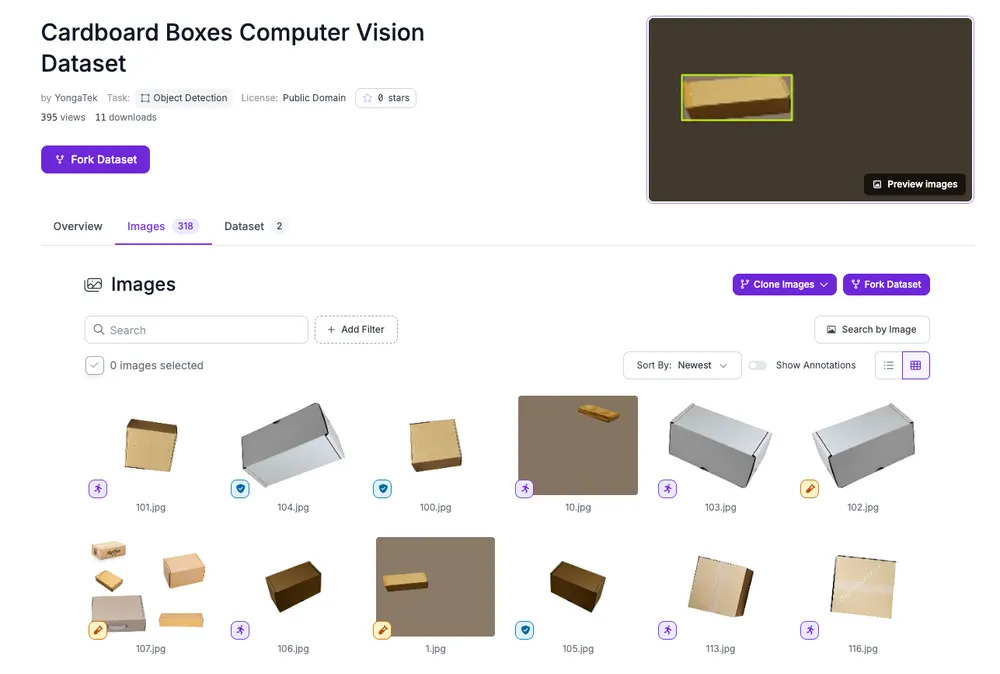
You can follow the same process with your own photos, images from your organization, or other images you have permission to use. Later, we’ll show how to start directly from a labeled Roboflow Universe project using its URL.
Step 1: Create an Object Detection Project
First, we need a project to organize our images, annotations, and model versions. We’ll use object detection because we want to locate individual packages with bounding boxes and count how many appear in each image.
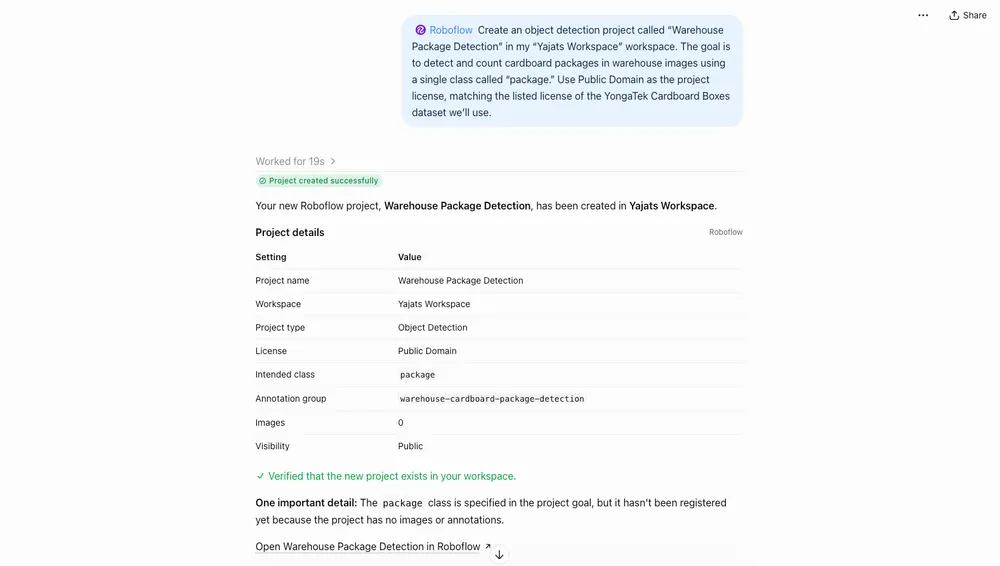
Enter the following prompt, replacing the workspace name with your own:
@Roboflow Create an object detection project called “Warehouse Package Detection” in my “[workspace name]” workspace.

The goal is to detect and count cardboard packages in warehouse images using a single class called “package.”

Use Public Domain as the project license, matching the listed license of the YongaTek Cardboard Boxes dataset we’ll use.
The license in this prompt applies to our selected image source. If you use different images, choose a license appropriate for that source.
Once ChatGPT creates the project, check that the project name, workspace, and project type are correct. We’ll use this project for the remaining steps.
Step 2: Upload Your Images Through ChatGPT
Next, we’ll upload our images to the project. For this walkthrough, we’ll use images from the YongaTek Cardboard Boxes dataset (opens in a new tab), but you can upload your own images or other images you have permission to use.
If you’re following along with this dataset, download the images and leave out any annotation files included in the download. We’ll use the images without their existing annotations so we can demonstrate labeling through ChatGPT.
For this demo, we’ve selected 50 images with different box arrangements, viewing angles, and backgrounds. Place your selected images in a folder and compress it into a ZIP file containing only the images.
Attach the ZIP to your ChatGPT conversation with Roboflow selected, then enter the following prompt:
@Roboflow Upload the images inside the attached ZIP to the “Warehouse Package Detection” project in my “[workspace name]” workspace. Keep the images unlabeled for now.

Wait until processing finishes, then report how many images were uploaded, how many were duplicates, and whether any failed.
Check the response to confirm that all your images were accounted for before moving on to labeling.
ChatGPT’s file uploads are subject to your plan’s limits and the capabilities available in your conversation. If you reach an upload limit, the ZIP isn’t supported, or the dataset is too large to process through the chat, you can upload the images directly to your project in Roboflow and return to ChatGPT to continue.
If you upload directly in Roboflow, enter:
@Roboflow Check the “Warehouse Package Detection” project in my “[workspace name]” workspace.

Confirm how many images it contains and whether they are unlabeled.
Step 3: Label Your Images
With our images uploaded, we’ll ask ChatGPT to use Roboflow’s auto-labeling tools to annotate the packages. Each cardboard box should have its own bounding box and the class label package.
We’ll label five images first so we can check the results before continuing with the full dataset. Enter the following prompt:
@Roboflow Choose a suitable auto-labeling model for the “Warehouse Package Detection” project in my “[workspace name]” workspace and briefly explain your choice.

Label five unlabeled images, including both single-box and multiple-box images.

Use one class called “package.” Draw a separate, tight bounding box around each visible cardboard box. Don’t group multiple boxes into one detection or label shipping labels separately.

Provide a link where I can check the labeling progress and review the annotations in Roboflow. Don’t label the remaining images yet.
You can let ChatGPT choose the auto-labeling model or name one in your prompt. Once the five images are labeled, follow the link to Roboflow and check for missed packages, incorrect detections, and inaccurate bounding boxes. Correct any mistakes and approve the reviewed images before continuing.
If the sample reveals recurring problems, refine the labeling instructions before continuing. Otherwise, return to ChatGPT and enter:
@Roboflow I’ve reviewed and approved the first five images in Roboflow. Use the same auto-labeling model and instructions to label the remaining 45 unlabeled images in “Warehouse Package Detection.”

Provide a link where I can check progress and review the results. Leave the annotations for review rather than approving them automatically.
Once the remaining images are labeled, review them in Roboflow and correct any mistakes. Approve the reviewed images, then add all approved images to the dataset. Roboflow lets you assign training, validation, and test splits when accepting images.
For this demo, we’ll use a 70% training, 20% validation, and 10% test split, giving us 35 training images, 10 validation images, and 5 test images. If you added the images in separate batches, check that the combined split counts match these totals before training.
Step 4: Generate a Dataset Version and Train Your Model
With our labeled images added to the dataset, we’re ready to generate a version and train a model. A dataset version captures the images, annotations, splits, and preparation settings used for training.
For this demo, we’ll apply auto-orientation and resize the images to 512 × 512 pixels using Stretch to. Enter the following prompt:
@Roboflow Generate a dataset version for “Warehouse Package Detection” in my “[workspace name]” workspace.

Check that the split is 70% training, 20% validation, and 10% test. Keep it if it already matches; otherwise, apply that split before generating the version.

Apply auto-orientation and resize to 512 × 512 pixels using Stretch to. Leave additional augmentations off for this demo.

Confirm the version number, preprocessing settings, and final image counts.
Augmentations such as flipping, rotation, and brightness changes can introduce useful variation during training. We’ll skip configuring additional augmentations for this demo, but you can ask ChatGPT to apply settings that suit your images and verify them in Roboflow.
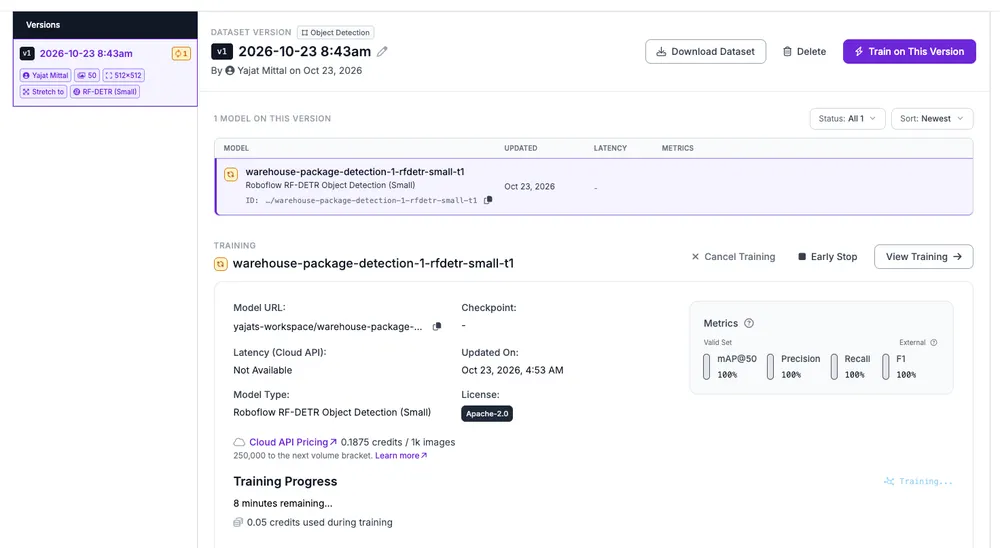
Once the version is ready, we’ll train an RF-DETR Small object detection model using the standard training settings. You can choose another supported model for your own project.
Enter the following prompt, replacing the version number if needed:
@Roboflow Train an RF-DETR Small object detection model using Version 1 of “Warehouse Package Detection” in my “[workspace name]” workspace with the standard training settings.

Confirm that training has started and provide a link where I can monitor its progress in Roboflow.
Training can take some time. Follow the link to monitor progress in Roboflow, or ask ChatGPT for an update. Once training finishes, we’ll evaluate the model and test its predictions.
Step 5: Evaluate Your Model
Once training finishes, we’ll check how well the model detects packages. Enter the following prompt:
@Roboflow Check whether training has finished for the RF-DETR Small model trained on Version 1 of “Warehouse Package Detection” in my “[workspace name]” workspace.

Confirm the training, validation, and test image counts. Summarize the available evaluation results, including mAP, precision, and recall, and explain them in plain language. State which split was used for each result.

Identify any model weaknesses supported by the evaluation results and recommend what to improve first. Provide a link where I can inspect the results and predictions in Roboflow.

If training or evaluation is still processing, or any results aren’t available, let me know.
Precision tells us how often the model’s package detections are correct, while recall measures how many labeled packages it finds. Mean average precision, or mAP, summarizes how well the model detects and locates objects.
Open the results in Roboflow and inspect predictions on held-out images. Look for missed packages, incorrect detections, and inaccurate bounding boxes. These examples help explain the scores and show where the model needs improvement.
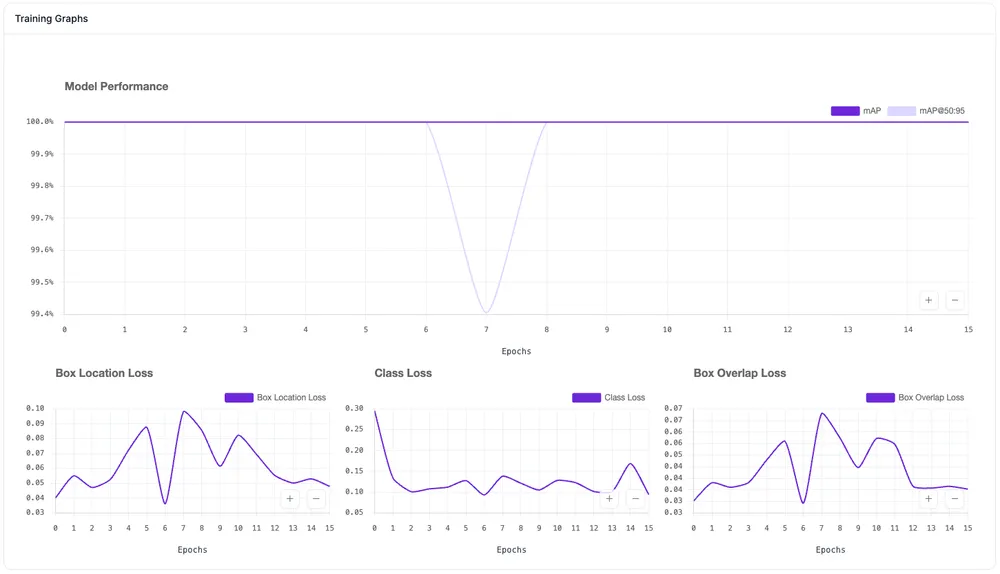
Our model scored 100% on mAP, precision, and recall, but we’re working with a small dataset, and some images look quite similar. These results are encouraging, but we still need to test it on new images to see how well it performs beyond this demo.
Step 6: Deploy and Test Your Model
With training and evaluation complete, we’ll create a Roboflow Workflow to use our trained model, then test it on a new image. The Workflow will detect packages and return their count alongside an annotated image.
Enter the following prompt:
@Roboflow Create a Workflow in my “[workspace name]” workspace using the trained RF-DETR Small model from Version 1 of “Warehouse Package Detection.”

Configure it to accept an image, detect packages, count the detections, and return both the package count and an image with bounding boxes and labels.

Validate and save the Workflow, then provide its link and instructions for running it through Roboflow’s hosted API.
Open the Workflow in Roboflow to inspect the connected blocks and deployment options. Upload a new package image through the Workflow’s testing interface and run it. Compare the predicted count with the visible packages, and check for missed detections or inaccurate bounding boxes.
This gives us a working pipeline and a first look at how the model performs on images outside our demo dataset.
Check out the Workflow here to try the package detection model on your own images.
Alternative: Start with a Labeled Roboflow Universe Dataset
You can also start with an already labeled dataset from Roboflow Universe (opens in a new tab). In our walkthrough, we used images without their annotations. This time, we’ll give ChatGPT the project URL and use the existing labels, skipping the upload and labeling steps.
Choose a dataset with suitable images, classes, and a license that permits your intended use, then enter:
@Roboflow Check this Roboflow Universe dataset’s classes and image count:
[DATASET_URL]

I want to train a package detection model using its existing annotations. Explain whether it fits that task, then fork the dataset into my “[workspace name]” workspace.
Once the dataset is in your workspace, review its annotations and continue with the version generation, training, evaluation, and deployment steps mentioned above.
Using Roboflow Skills in ChatGPT
Roboflow skills are task-specific guides included with the plugin that help ChatGPT carry out computer vision tasks. They cover areas such as data management, training and evaluation, inference, and Roboflow Universe.
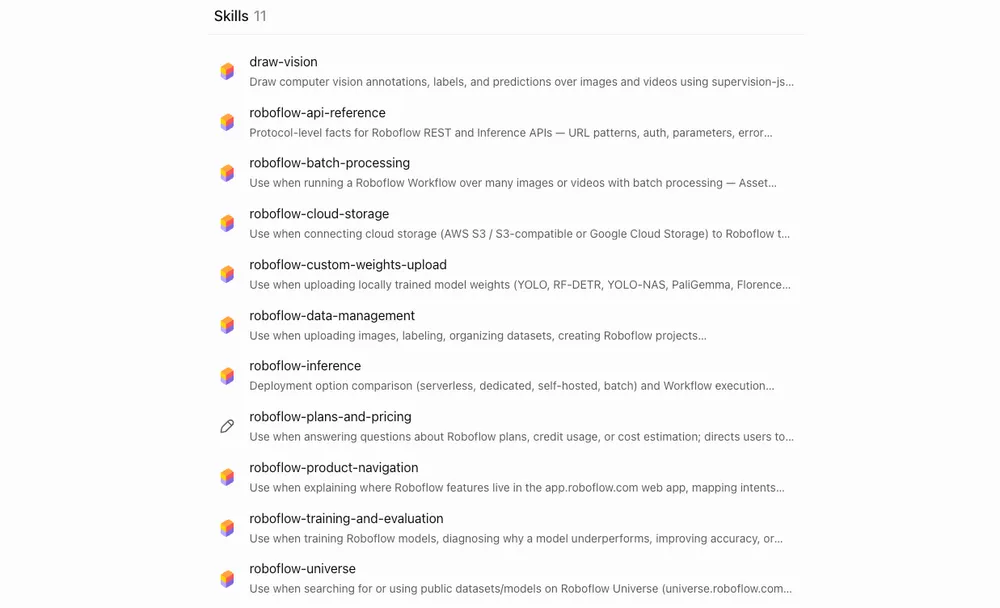
You don’t need to install each skill separately or switch to a different mode. Describe your goal, and ChatGPT can select the relevant skill. If you prefer, you can explicitly mention a skill by name.
For example, you can ask ChatGPT to investigate your model’s weaknesses:
@Roboflow Review the evaluation results for “Warehouse Package Detection.” Identify the main problems supported by the results and recommend what I should improve before retraining.To explicitly request the training and evaluation skill, add “Use the roboflow-training-and-evaluation skill” to the prompt.
You can also ask for help comparing deployment options:
@Roboflow I want to count packages from a warehouse camera. Compare deployment options based on latency, expected image volume, and available hardware. Ask me for any missing information before recommending an approach.Here, you could add “Use the roboflow-inference skill,” or let ChatGPT choose the relevant guidance.
For more open-ended tasks, describe the outcome you need, provide the relevant project name or URL, and include any constraints. Review ChatGPT’s recommendations before asking it to carry out the next steps.
Use Roboflow in ChatGPT
In this guide, we connected Roboflow to ChatGPT and worked through preparing images, labeling packages, training and evaluating a model, and creating a Workflow to use it. We also covered starting with an already labeled Roboflow Universe dataset and using skills for guidance throughout a project.
Our small package dataset demonstrates the process. For your own application, use representative images, review the annotations, and test the model on new inputs. Start with the Roboflow plugin for ChatGPT (opens in a new tab) and adapt the prompts to your task.