Managing Computer Vision Across an Edge Fleet
 Timothy MPublished Oct 29, 2026
To manage a computer vision fleet, give every edge device the same tested release (model, Workflow, and camera settings). Roll each update out to a few stations before the rest, and watch both device health and inspection quality so production examples can improve the next model. Roboflow’s Deployment Manager handles registering devices, assigning streams, staged updates, telemetry, and alerts across the fleet, and Vision Events feeds reviewed production images back into training.
A defect caught on one production line should help improve inspection across the rest of the factory. Getting there requires a connection between the systems that collect images, train models, run inspections, and record what happens in production.
That connection becomes more important as a deployment grows. A new camera (opens in a new tab) changes the field of view. A supplier introduces a different surface finish. A model update improves scratch detection but increases false rejects on another product. Teams need a way to identify these changes, evaluate a response, and deliver it to the right devices.
Roboflow brings dataset management, model training, application development, edge deployment, and production feedback into one platform. In this guide, we’ll use a manufacturing inspection example to show how these pieces fit together: train a defect detector, build an inspection Workflow, validate it on edge hardware, manage deployment across a fleet, and use production examples to improve the next release.
How the Architecture Works
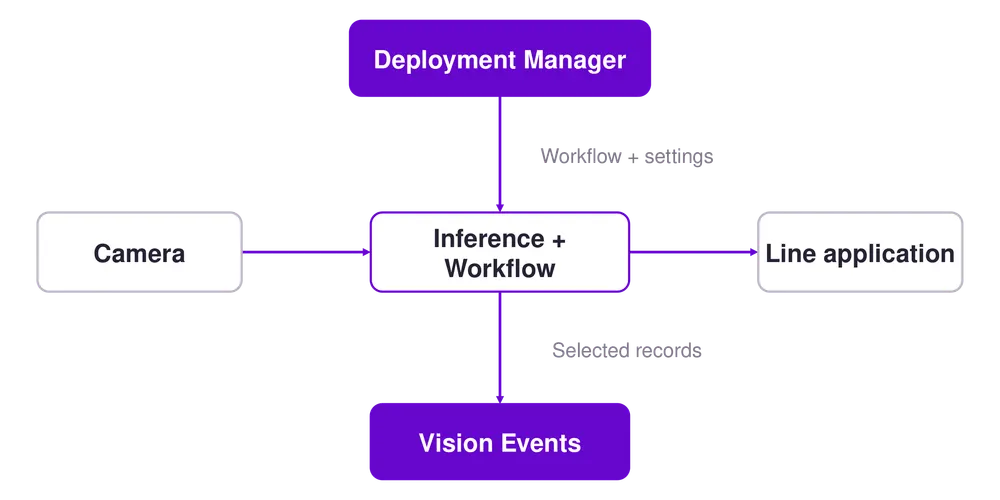
Consider an inspection station that checks manufactured housings for visible damage. Each station has a camera and local compute. The inspection result needs to reach the line application quickly, while engineering needs visibility across all stations.
The architecture assigns each part of that lifecycle a clear role:
| Lifecycle stage | Roboflow component | What it provides |
|---|---|---|
| Prepare data | Projects and Dataset Versions | Labeled images and snapshots of the data used for training |
| Train and assess models | Custom Training and Model Evaluation | Trained models, class metrics, and inspection of failure cases |
| Build and test the application | Workflows and Workflow Evals | Models, decision logic, integrations, and checks against expected outputs |
| Run and manage deployments | Inference and Deployment Manager | Local execution, camera configuration, device management, and telemetry |
| Capture production feedback | Vision Events | Searchable inspection records and images that can return to training |
The inspection path runs on the device. Selected production records go back to Roboflow for review, and approved application changes return to the fleet. For local processing, choose models and Workflow blocks that execute locally; a block that calls an external API still depends on that service.
For this example, you’ll need a Roboflow workspace, representative inspection images, a camera, and an edge device. The fleet management steps require Roboflow Enterprise and hardware that meets the Deployment Manager requirements (opens in a new tab). Remote management requires ongoing connectivity to Roboflow.
Build a Dataset that Represents the Deployment
Start with the conditions the application will encounter: different product variants, production shifts, camera positions, surface finishes, and examples of both acceptable parts and defects.
Keep the source of each image identifiable. Plant, line, camera, product, and capture time provide useful context when a model performs differently across locations. Establish a consistent labeling policy so the same defect receives the same label at every site.
Separate training and evaluation data by production run, physical part, or capture session where possible. Adjacent frames of the same housing should not end up on opposite sides of that split. Otherwise, evaluation may reward recognition of nearly identical images without testing how the model handles new production conditions.
Create a Dataset Version (opens in a new tab) to preserve a snapshot of the images and annotations, along with its preprocessing and augmentation settings.
Begin with a shared model for stations performing the same task. Evaluate its results by camera and product before deciding whether to specialize. If one station consistently misses a defect, first check its image quality and representation in the dataset. Introduce a separate model when the evidence supports it.
This keeps the number of models tied to meaningful differences in the task. A new camera does not automatically need its own training pipeline.
Train a Model and Evaluate the Inspection Task
For the housing example, create an object detection project and label the visible defect types. Use Roboflow Custom Training (opens in a new tab) to train a candidate such as RF-DETR Nano or Small, then compare accuracy and runtime on the hardware you intend to use.
Training can also be started programmatically (opens in a new tab). With the roboflow Python package installed, an existing generated dataset version, and an API key in ROBOFLOW_API_KEY, the following example queues a training job:
import os

from roboflow import Roboflow


rf = Roboflow(api_key=os.environ["ROBOFLOW_API_KEY"])

project = rf.workspace("YOUR_WORKSPACE").project("YOUR_PROJECT")

version = project.version(1)  # Replace with your dataset version.


version.train(

    model_type="rfdetr-nano",

    epochs=100,

    plot_in_notebook=False,

)
Training runs asynchronously on Roboflow’s servers and is billed in credits based on the length of the job (opens in a new tab). Wait for completion before evaluating or selecting the resulting model.
Model Evaluation (opens in a new tab) provides class-level performance, a confusion matrix, and tools for examining failure cases. Use those results to understand which defects the model misses and how confidence thresholds affect its predictions.
Then evaluate the complete inspection application. A detector can produce a correct bounding box while the surrounding logic still sends the wrong pass or fail result.
Workflow Evals (opens in a new tab) lets you define cases with reviewed ground truth, select the Workflow outputs to check, and configure output checks and latency budgets. Runs capture the Workflow definitions and evaluation inputs, making comparisons between candidates easier to trace.
Define release criteria with the people who own the inspection process:
| Check | What to measure |
|---|---|
| Defect detection | Recall for each required defect type |
| False rejection | Acceptable parts incorrectly rejected |
| Application correctness | Final inspection output against reviewed ground truth |
| Coverage | Performance across cameras, products, and operating conditions |
| Timing | Capture-to-decision latency on the target station |
Use validation data to tune thresholds, then assess the chosen configuration on a separate held-out set. Set acceptance limits for the actual process and require them to pass before release. The Latency (Cloud API) (opens in a new tab) value shown for a trained model is not a substitute for measuring the full inspection path on your edge device. It is measured on the Serverless Cloud API and excludes network time.
Build the Inspection Application with Workflows
Roboflow Workflows (opens in a new tab) connects models, processing steps, business logic, and integrations in a visual editor.
For the housing inspection, start with an image input and your trained defect detector. Filter the detections to the relevant inspection area, apply the confidence thresholds established during evaluation, and convert the results into the fields the line application needs.
An example output could include an inspection result, detected defect classes, and the number of defects. Define a review outcome for cases that cannot be decided reliably. If the process needs a second classification stage, add it and evaluate whether it improves the final decision.
Make the application’s assumptions explicit. In particular, an empty list of defect detections should count as a pass only when the application has also established that a valid part was inspected. An empty conveyor or an unusable image needs its own handling.
Connect the result to the consuming application through an appropriate integration.
On a production line, the PLC Writer block (opens in a new tab) can send the inspection result to a PLC. PLC Writer is one of the enterprise integration blocks (opens in a new tab) available on Enterprise plans. The PLC Relay (opens in a new tab) service provides an on-device HTTP API for reading and writing configured PLC tags. Set its protocol, connection details, and writable tags in Deployment Manager.
Keep the image and prediction outputs available for troubleshooting. The Workflow now describes the inspection behavior that you can test and deploy across stations.
Run the Workflow on edge hardware
Roboflow Inference (opens in a new tab) runs models and Workflows on your own hardware. For a local development check, install Docker and the Inference CLI and SDK (opens in a new tab), then start the server:
pip install inference-cli inference-sdk
inference server start
With the server running, call your saved Workflow on a local image:
import os

from inference_sdk import InferenceConfiguration, InferenceHTTPClient


edge = InferenceHTTPClient(

    api_url="http://127.0.0.1:9001",

    api_key=os.environ["ROBOFLOW_API_KEY"],

).configure(InferenceConfiguration(api_key_transport="header"))


inspection = edge.run_workflow(

    workspace_name="YOUR_WORKSPACE",

    workflow_id="YOUR_INSPECTION_WORKFLOW",

    images={"image": "housing-test.jpg"},

)

print(inspection)
Replace the workspace and Workflow identifiers with values from your Workflow’s deployment instructions. This example assumes its image input is named image and uses Inference Server 1.5.0 or newer (opens in a new tab) for header-based API key transport. See Deploy a Workflow (opens in a new tab) for the current SDK setup.
Next, validate the camera path on the intended device. Measure sustained throughput with all planned streams active, and include image decoding, preprocessing, application logic, and downstream communication in the timing test. Warm the model before measuring steady-state performance, and test startup separately.
Deployment Manager also provides an RTSP Simulator (opens in a new tab) service that turns an uploaded video file into a looping RTSP stream. Use it to test the pipeline before a physical camera is installed or to replay a known clip against the Workflow.
For NVIDIA deployments, Deployment Manager provides runtime settings (opens in a new tab) including Auto and TRT (ONNX Runtime with the TensorRT execution provider). Initial TensorRT compilation can take time, so complete it before the production acceptance run. Validate the selected runtime with your actual application and data.
Deploy Updates across the Fleet
After the application passes its checks, register each device in Deployment Manager using the setup method for its device type (opens in a new tab). For Debian devices, run the generated installation command on the device.
Each device gets its own API key (opens in a new tab) when it is added. Removing the device from Deployment Manager revokes that key.
Add a Stream (opens in a new tab) for each camera, select its source, and assign the inspection Workflow. Supported sources include RTSP streams and USB cameras. Enterprise plans can also connect Basler and Lucid industrial cameras. Choose continuous or triggered processing to match how the station acquires images.
In Triggered mode (opens in a new tab), the stream captures frames continuously and runs the Workflow on the latest frame when a trigger arrives. A PLC or local script can call the device’s local HTTP endpoint; the dashboard’s Trigger button is useful for manual tests.
Treat a release as a combination of model, Workflow, runtime, and station configuration. Record the exact trained model ID (opens in a new tab), the Workflow version, the Inference version, and the camera settings used during acceptance testing.
Keep candidate changes in a separate Workflow while testing. Deploy the candidate to a small group of representative stations first, review the results, and expand only after the release criteria are met. Implement this staged rollout through your team’s release process or deployment automation.
Use maintenance windows (opens in a new tab) to control when deployment-affecting configuration changes take effect. Without a configured window, changes apply immediately. A maintenance window controls timing; evaluation and approval determine whether a change should be released.
Workflow version history (opens in a new tab) supports naming and restoring previous versions on Teams Add-On and Enterprise workspaces. Keep the previous approved configuration available and rehearse restoring it on a test station. After any rollout or restoration, verify what each target device is actually running.
For large deployments, the Deployment Manager API (opens in a new tab) provides programmatic access to devices, configuration, streams, logs, and telemetry, allowing these steps to fit into an existing release system.
Monitor device health and inspection quality
A healthy device can still produce incorrect inspections. Monitor the system’s operation and the quality of its decisions separately.
Deployment Manager provides access to device logs, stream status, and resource telemetry. Use these signals to investigate camera disconnects, throughput drops, memory pressure, and other operational failures.
Configure Device Alerts (opens in a new tab) to send email for loss of connectivity to Roboflow, high disk usage, low camera or inference FPS, or a PLC Relay disconnect. Set the recipients and notification frequency in Deployment Manager.
For inspection quality, configure Vision Events (opens in a new tab) to retain useful production records. Events can include images, predictions, source information, and custom metadata.
For the housing application, attach fields such as plant, line, shift, part number, and release identifier. That context lets the team investigate whether a rise in rejected parts is associated with a specific product change, camera, or application release.
The Roboflow Vision Events block (opens in a new tab) can create records from Workflow outputs. Define which inspections to retain and how long to keep them, taking image volume and review capacity into account. Set the event type to quality_check and map the Workflow’s pass or fail decision to qc_result. In a long-running video pipeline, the block sends at most one event per second (opens in a new tab) by default and drops events triggered during the cooldown. Adjust cooldown_seconds to match the inspection rate. This cooldown does not throttle separate HTTP requests.
For devices managed by Deployment Manager, enable Write to Local Event Store (opens in a new tab) in the block. Then enable Vision Events Backup (opens in a new tab) in the device’s Event Store (opens in a new tab) configuration so events synchronize when connectivity returns. Select Records and Files (opens in a new tab) if the cloud records need images for review or training; Records Only leaves those files on the device. The default local retention period (opens in a new tab) is one day, and storage limits can remove files earlier.
Review a sample of accepted parts as well as rejected parts. Confidence and rejection trends can identify changes worth investigating, but measuring missed defects requires ground truth or another trusted inspection result. Operator Feedback (opens in a new tab) lets reviewers mark an event correct, incorrect, or inconclusive and add context.
Turn Production Examples into the Next Release
Suppose operators find that a new surface finish is generating false rejects. Use the event history to collect representative examples, including acceptable parts with that finish and genuine defects that the next model must still detect.
Add images from Vision Events to the training project (opens in a new tab). Compatible predictions can carry over as annotations, but review and correct them before training. A model’s own prediction is a starting point for labeling, not proof that the label is right.
Create a new dataset version, train a candidate, and rerun the evaluation cases. Add cases for the new finish while preserving coverage of earlier products and defects. Compare both improvements and regressions before moving the candidate into the deployment process.
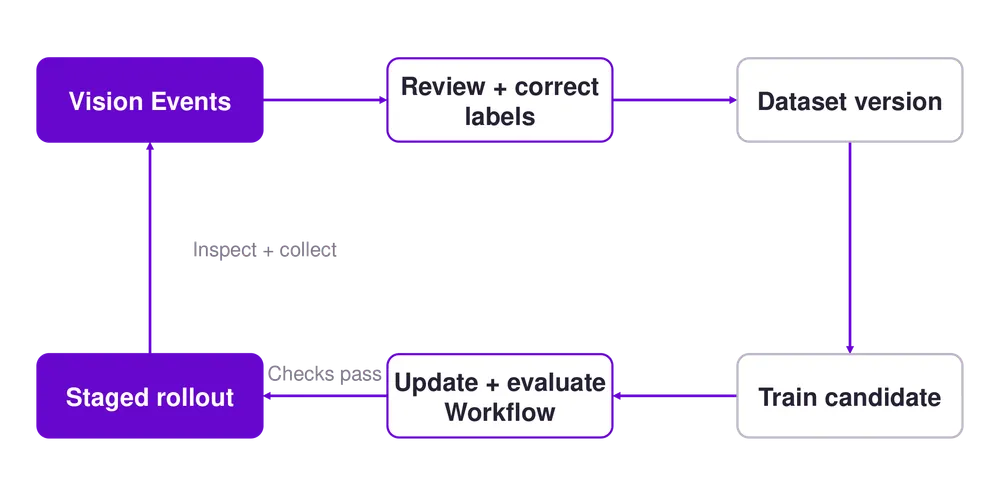
For an edge deployment, this event collection and review process closes the learning loop. Roboflow’s separate project-level Active Learning feature (opens in a new tab) requires a cloud deployment; use the appropriate collection path for where inference runs.
Retraining frequency should follow the evidence. A new defect class or a material change in production may justify a new model. A dirty lens may require maintenance. Investigating the failure first helps the team choose the right intervention.
Plan Connectivity for the Production Environment
Keep local inference requirements separate from remote management requirements. Deployment Manager needs connectivity for remote management and monitoring.
Allow outbound HTTPS/TLS on port 443 (opens in a new tab) to api.roboflow.com and repo.roboflow.com. For Roboflow EU workspaces, use repo.roboflow.eu in place of repo.roboflow.com.
For sites that need offline inference, Roboflow Enterprise offers a Docker-based Offline Mode (opens in a new tab) with cached weights for up to 30 days after the required online setup. When fewer than seven days remain, the server attempts to renew the weights’ lease once per hour (opens in a new tab). A successful renewal resets the lease to 30 days. Plan cache renewal and application updates around that operating window.
Also review every Workflow dependency. Local model execution does not make a cloud API call or an event upload work without a connection. Test the station’s expected behavior during a network interruption before rollout.
Start with One Complete Inspection Lifecycle
Choose one inspection task and establish the full process: representative data, a trained model, an evaluated Workflow, a local deployment, production records, and a reviewed path back to training.
Once that process works on a station, extend it to additional lines with consistent configuration and explicit release criteria. Each deployment then contributes examples that can improve the next model, while every update remains connected to the evidence used to approve it.
Get started with Roboflow to build your first inspection Workflow, or talk with our team about managing deployments across your edge fleet.