Bring Vision AI into Ignition with Roboflow
 Riaz ViraniPublished Nov 15, 2026
Ignition is one of the most common SCADA platforms in manufacturing, and Roboflow works with both its Vision and Perspective modules. The fastest way to bring vision into Ignition is to embed the Device HMI that already runs on your Roboflow edge device. If you want to build your own screens, you can pull in the live video, send results to Ignition as OPC UA tags, and query every inspection from the device’s Event Store.
Walk onto almost any factory floor and look at the screens on the wall. There's a good chance they're running Ignition.
If you’re putting computer vision on a production line, its results need to show up on those screens. A model can catch every defect, but if its results live in a browser tab nobody on the floor opens, very little changes. The results need to show up where operators already look, next to the line speed, the alarms, and the reject counter.
In this guide, I'll walk through every way to bring Roboflow into Ignition (opens in a new tab), from a five-minute embed to fully custom screens. I tested each one on Ignition 8.1 with a demo bottle line, and you'll see that line throughout.
What is SCADA, and why Ignition?
SCADA stands for Supervisory Control and Data Acquisition, and it's the software layer that sits on top of a plant.
A typical line has dozens of machines, each run by a PLC (a small industrial computer) and a handful of sensors. SCADA collects data from all of them and turns it into something people can use: screens that show what every machine is doing, alarms when something goes wrong, a history of everything that happened, and controls to start, stop, or adjust the line. The screens operators use are called HMIs, short for human-machine interfaces.
Ignition, made by Inductive Automation, is one of the most widely used SCADA platforms in manufacturing. It comes with two ways to build those screens:
- Vision, the original module, runs screens in a desktop client.
- Perspective, the newer module, runs them in a web browser, on anything from a control room monitor to a tablet.
Plenty of plants run both, with years of Vision screens alongside newer Perspective projects.
Two ways to connect Roboflow to Ignition
We build Roboflow to put vision results into the tools teams already use, so no one has to adopt another app.
Many of our customers run their plants on Ignition, so we made sure Roboflow works with both Vision and Perspective. There are two ways to do it:
- Embed the Roboflow Device HMI. It's the fastest way, and it takes a few minutes.
- Grab the individual pieces (live video, results, and inspection history) and build them into your own Ignition screens.
Most teams start with the first and grow into the second. Let's look at both.
Embed the Roboflow device HMI
Every edge device managed in Roboflow Deployment Manager (opens in a new tab) already runs an operator screen called the Device HMI. It shows the live camera feed with your Workflow's annotations, the pass rate, and a list of recent detections, and it lives at a web address on the device.
To put it in Ignition, add an Inline Frame component to a Perspective view and point it at that address. There are no scripts to write, no tags to create, and nothing to install on the Ignition gateway.
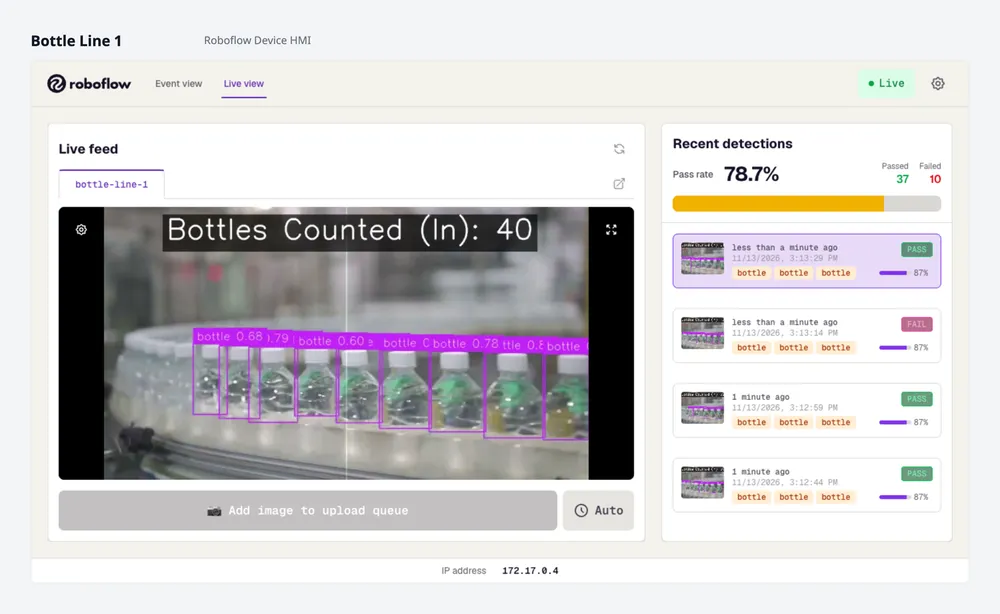
If you only want the video, the HMI also has a page for a single camera, full screen, which makes a nice tile on a bigger dashboard. In Vision, the Web Browser component does the same job as Perspective's Inline Frame.
For click-by-click steps in both Perspective and Vision, see Embed the Device HMI (opens in a new tab) in our docs.
The HMI stays a Roboflow screen inside your Ignition view, so Ignition can display it but can’t read values out of it. When you want vision results to drive alarms, feed a PLC, or sit inside screens you've designed yourself, it's time to grab the pieces.
Build your own: Grab the pieces you need
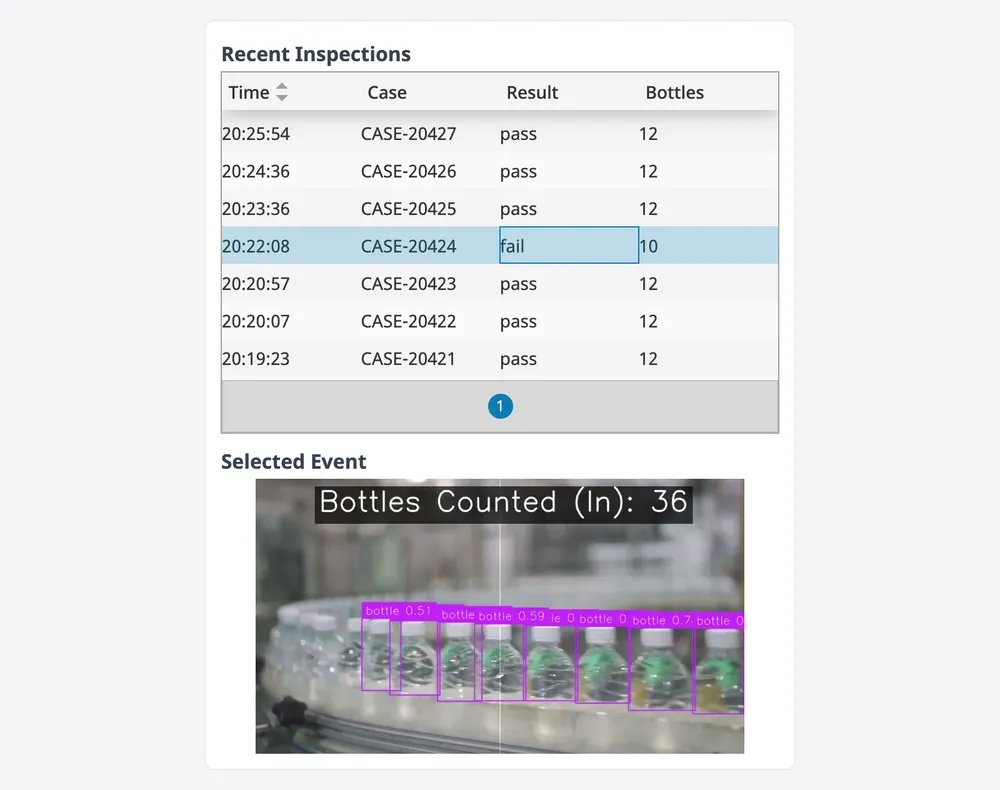
Here's the custom screen I built for the demo line. The live video is on the left, recent inspections are on the right, and clicking a failed case shows the exact image the model judged. Every piece on this screen uses features Ignition already has.
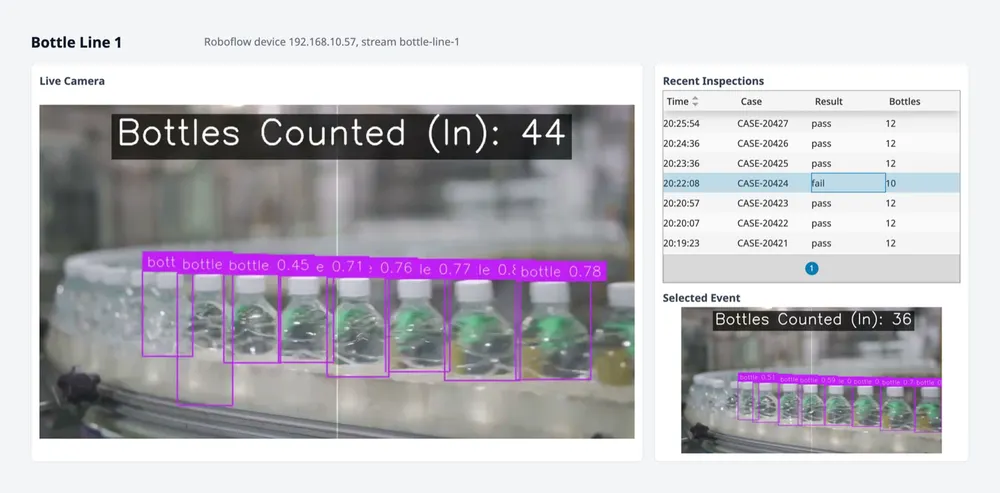
Let's build it up one piece at a time.
Step 1: Live Video
Every stream on a Roboflow device publishes its annotated video at a URL on the device. In Perspective, drop an Image component onto a view and set its source to that URL. The video starts playing right in the Designer. If you prefer the Video Player component, turn on Live Feed and it plays the same stream.
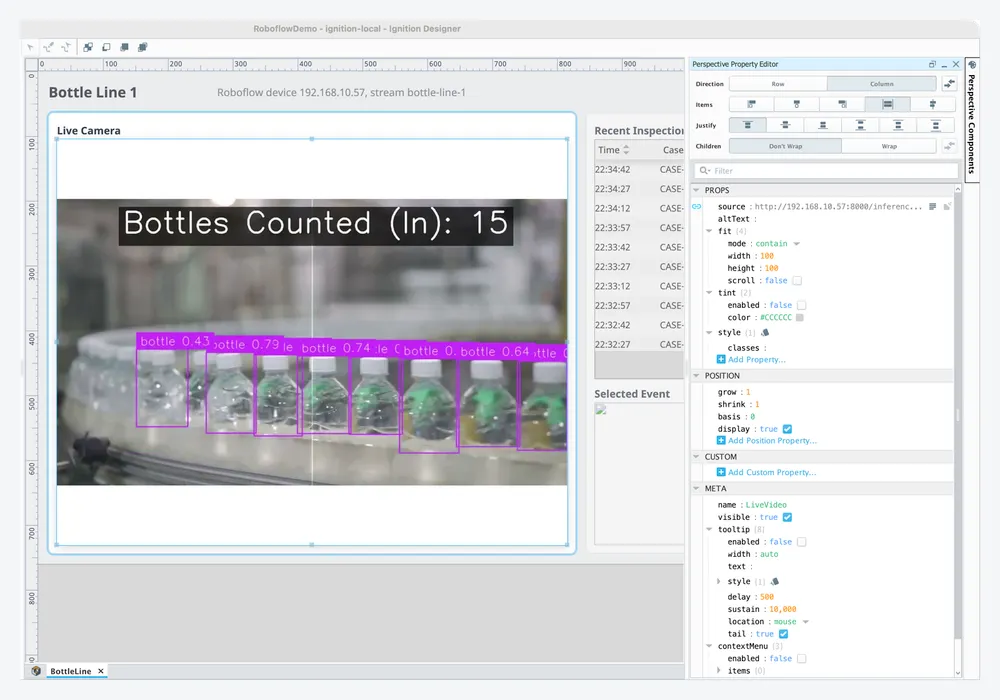
Vision works too. Its built-in IP Camera Viewer plays the same URL, and turning on Scale Video fits the picture to the component.
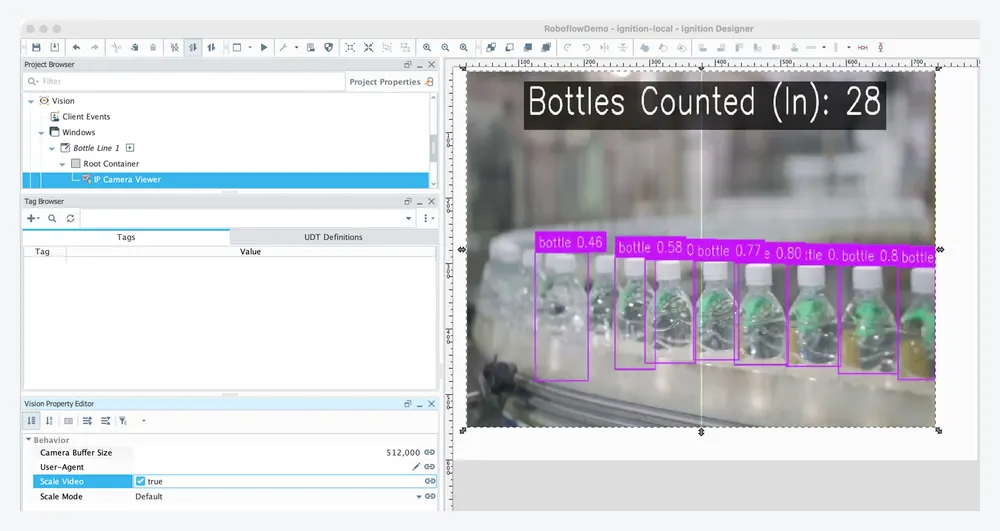
One tip: every screen showing the video opens its own stream from the device. If a dozen screens watch the same line, switch them to a still frame that refreshes once a second. That cuts the load from a dozen video streams to one still image per screen per second.
Our Live Video (opens in a new tab) guide has the click-by-click setup: the stream URLs, the Designer settings for Perspective and Vision, and the once-a-second still frame.
Step 2: Live Data over OPC UA
Operators watch the video, but Ignition alarms, scripts and PLC signals need values, and in a plant those travel over OPC UA, the standard industrial protocol that Ignition, PLCs, and most factory equipment already speak.
Add an OPC UA Writer block to your Workflow in the Roboflow Workflow editor, and it sends each result over OPC UA: a pass or fail, a count, a confidence score. You can write it to the OPC UA Server that runs on the Roboflow device and have Ignition read it from there, or write it straight into Ignition's own OPC UA server. Either way, each result becomes an Ignition tag. Ignition can also go the other direction and ask the device to inspect a part on demand, for example when a sensor sees a part arrive.
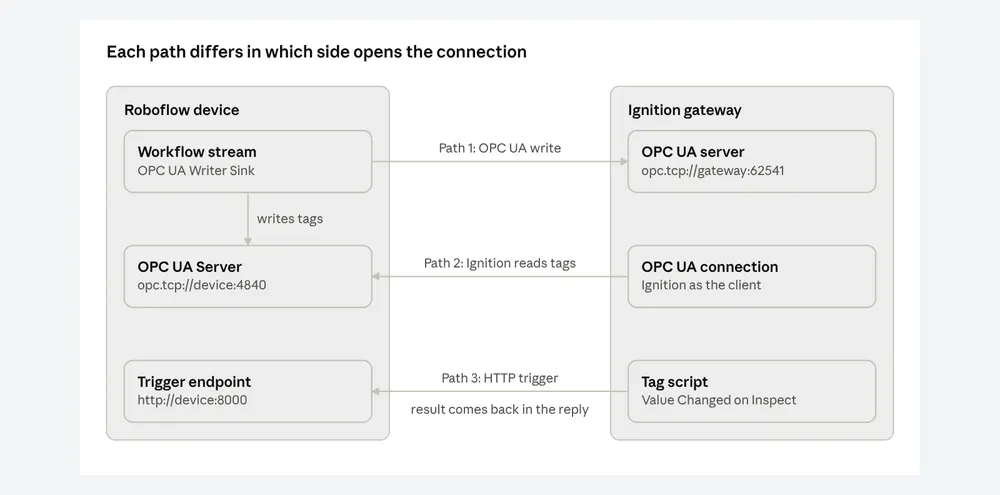
Once a result is a tag, it's standard Ignition from there. Alarm on a defect, log every count with tag history, or pass a reject signal to the PLC that runs the line.
Each path has its own click-by-click guide in our docs, from the Workflow editor settings to the Ignition tags and scripts: Write Results to Ignition (opens in a new tab), Read the Roboflow OPC UA Server (opens in a new tab), and Trigger an Inspection from Ignition (opens in a new tab).
Step 3: Historical Data on the Device
Tags hold only the latest value. To show a supervisor which cases failed this shift and what they looked like, you need every inspection.
Each Roboflow device keeps an Event Store, a record of every event your Workflow writes, images included. For recent history, you can query it live. In Perspective, an HTTP binding polls the device every few seconds and fills a table, with no database in between. Add a start time to the request and the table shows just the current shift.
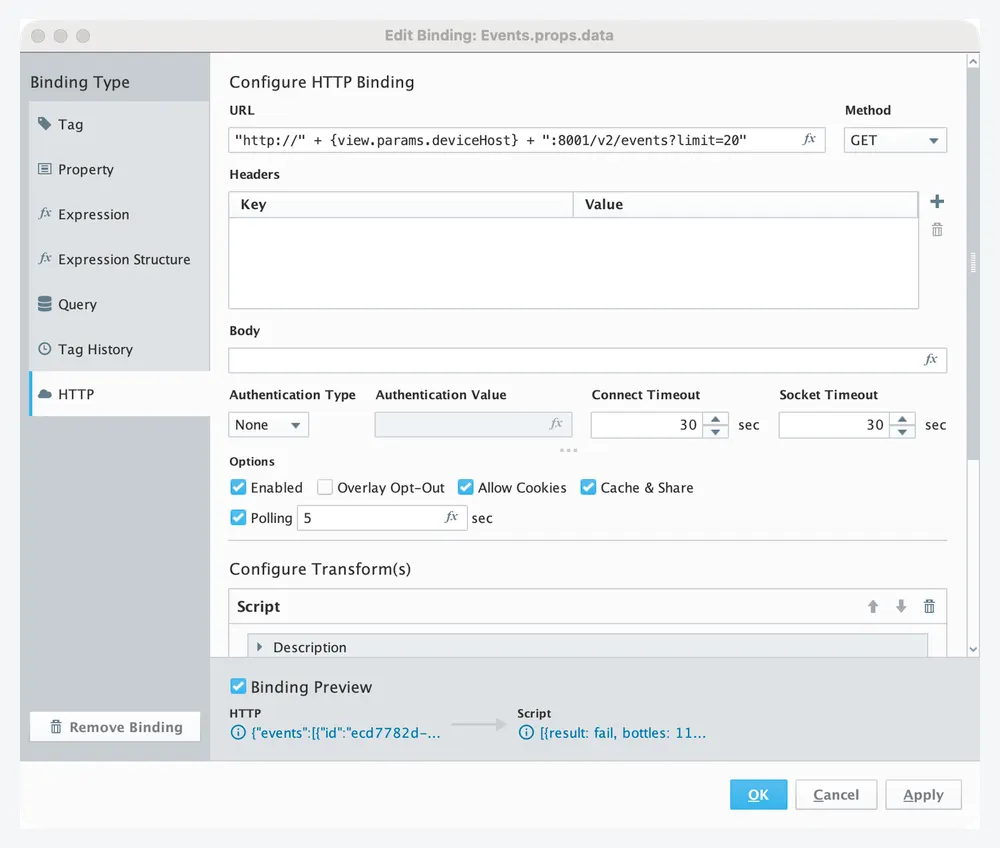
Click a row, and the view pulls that event's image from the device. Operators can see why a case was rejected without leaving the screen.
For history that needs to outlast the device's storage, or reports that span several lines, copy the events into your own SQL database. A short gateway timer script does it every few seconds, so the data is there whether or not anyone has a screen open.
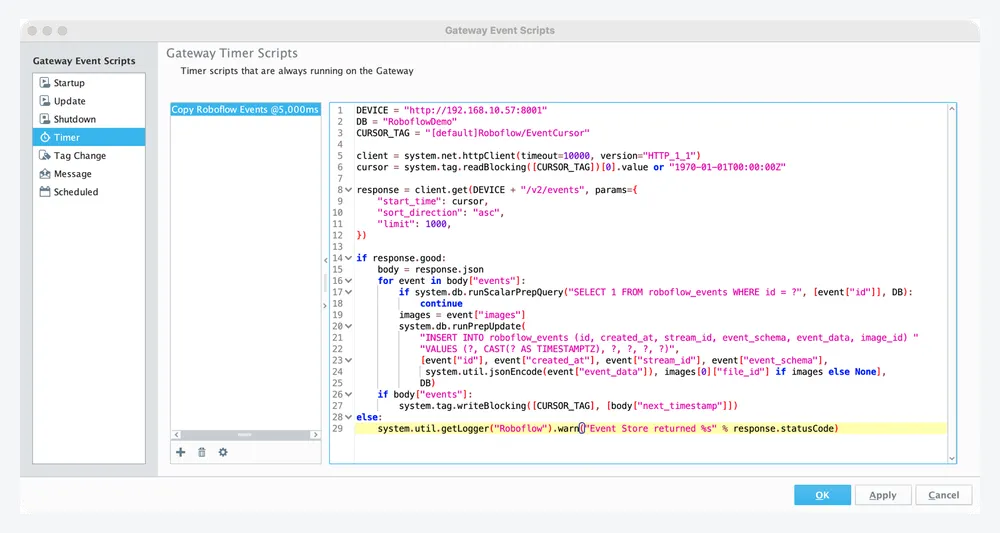
Our Historical Data (opens in a new tab) guide has the click-by-click setup, including the HTTP binding, the shift filter, the row-click image, and the complete timer script.
Choosing your approach
It depends on what you need the screen to do:
- You want vision on the floor today: embed the Device HMI.
- Operators should watch the line inside screens you designed: pull in the live video.
- A result should start something, like an alarm, a reject, or a counter: send it over OPC UA.
- You need to answer "what happened, and show me": query the Event Store, and copy it to SQL for long-term history.
You can combine them. A common path is to embed the HMI on day one, then add OPC UA tags for alarms and the Event Store behind a shift quality report.
Network requirements
The HMI, the video, and event images load in the operator's browser, not on the Ignition gateway, so every operator computer needs to reach the Roboflow device. And if your Perspective sessions run over HTTPS, browsers will block plain HTTP content. Either put an HTTPS reverse proxy in front of the device, or serve those screens over HTTP on the plant network.
Get Started Connecting Roboflow to Ignition
Roboflow edge devices, the OPC UA blocks, and the Event Store are part of Roboflow Enterprise. If your plant runs on Ignition, follow our Docs (opens in a new tab) and talk to our team about putting vision on the screens your operators already use.