How to Use a Small Vision Model as a Filter for an AI Agent
 Timothy MPublished Oct 29, 2026
To use a small vision model as a filter for an AI agent, run an object detection model as a tool the agent calls first. The tool marks which images need review and returns boxes for the suspected issues, so the large vision model only looks at what was flagged. Build the filter in Roboflow Workflows and connect it to ChatGPT, Claude, or a custom Python agent.
In a manufacturing setting, inspection cameras capture images of products and components during production. Computer vision models can analyze these images for visible issues such as surface damage, missing components, or incorrect assembly. An AI agent can use the results to request further visual analysis and prepare a quality-control report.
As the number of inspection images grows, the agent needs a way to select images for detailed review. We can use an object detection model (opens in a new tab) as an image filter and expose it through a Workflow tool. The Workflow returns a selection flag, class labels, confidence scores, and bounding boxes. The agent uses these results to decide which images to review and which regions to inspect.
In this tutorial, we will build this filtering pipeline with Roboflow Workflows and use it as a tool for an AI agent. We will connect the Workflow through an existing agent application or a custom Python agent, then evaluate image filtering, token usage, and missed defects.
How to Use a Small Vision Model as a Filter for an AI Agent
We will use textile manufacturing as our example. In fabric inspection, computer vision models can help locate holes and irregularities in the weave. Our example processes a batch of woven-fabric images to select regions that need closer review.
The Workflow runs object detection on each image and selects it for agent review when at least one retained defect prediction meets the confidence threshold. The agent then requests visual analysis and reports an assessment for each reviewed region.
Both options use an AI agent. In Option 1, an existing assistant in ChatGPT or Claude calls the Workflow and requests review through a separate VLM tool. In Option 2, a Python agent built with the OpenAI Agents SDK uses gpt-6-sol to call the tools and analyze the returned region crops.
We will use the public fabric model on Roboflow Universe (opens in a new tab). The checkpoint is fabric-kruoy/18, listed as RF-DETR Medium. The Workflow retains fabric_broken_pick, fabric_hole, fabric_missing_pick, and fabric_thick_weft. It excludes fabric_perfect from the review decision.
After building and testing the Workflow, we will use it as an AI agent tool through either of these methods:
| Method and agent | How the agent screens images | How visual review works |
|---|---|---|
| Option 1: An assistant in ChatGPT or Claude, connected to Roboflow. | The assistant calls workflows_run to run the Workflow. | The assistant calls media_analyze for selected images. A separate vision model reviews the original image, and the assistant uses its analysis to prepare a report. |
Option 2: A Python agent built with the OpenAI Agents SDK, using gpt-6-sol as its model. | The agent calls screen_fabric_images to run the same Workflow. | The agent calls view_defect to receive padded region crops. Its own model analyzes the crops and writes the report. |
Choose Option 1 to use an assistant in ChatGPT or Claude with Roboflow tools for filtering and visual review. Choose Option 2 to build the agent in Python and process a local image folder. In both options, the Roboflow Workflow is the computer vision tool called by the agent. You can follow either option after completing the shared setup.
The Workflow contains the object detector and output-processing logic. The AI agent runs outside the Workflow. No large language model (LLM) or vision-language model (VLM) block is required inside it, and its output is JSON. A detection is a model prediction that still needs visual review. An image with no retained defect predictions is marked not_selected; this does not establish that the fabric is defect-free.
The example Workflow is textile-defect-agent-filter in workspace tim-4ijf0. That link opens the example workspace's editor. Readers using another workspace should build their own copy and replace the workspace and Workflow identifiers in the examples.
Step 1: Prepare a fabric image test set
Select a small set of fabric images with verified defect labels and a consistent orientation. Include clear defects, subtle defects, and images verified as acceptable by an inspector. Keep the original image files unchanged after inference so the returned bounding-box coordinates remain valid.
For Option 1, use a direct HTTPS image URL that Roboflow can access for both Workflow inference and VLM review. Provide the URL as text. Attaching the image directly to the conversation may send it to the chat model before filtering.
For Option 2, place JPG, JPEG, PNG, or WEBP files in a local folder named fabric-images. The supplied program also reads subfolders. It uses each file's relative path as image_id, such as roll-01/frame-003.jpg, so files with the same name in different subfolders remain distinct.
Keep the verified labels and inspection notes in a separate record. We will use them to evaluate the complete pipeline.
Step 2: Build the textile defect detection Workflow
In your Roboflow workspace, select Workflows, create a new Workflow, and choose Build from scratch. Name it textile-defect-agent-filter. The Workflow creation guide (opens in a new tab) explains how to open a blank Workflow.
Add the components shown below. The main branch runs object detection, counts the retained predictions, and creates the review flag. The remaining connections supply the original image dimensions and image identifier to the result formatter.

Configure the inputs
Add one image input and two parameters:
| Name | Type | Purpose and default |
|---|---|---|
image | Image | The original fabric image used for inference. |
image_id | Text parameter | The identifier returned with the result. Default: an empty string. |
confidence_threshold | Number parameter | The minimum detection score to retain. Default: 0.25. |
Supply a unique image_id on every request to associate each result with its input image. The Workflow accepts an empty default, but a unique identifier makes batch results easier to track. Start with a confidence threshold of 0.25 and evaluate it on your test set.
Add the object detection model
Add an Object Detection Model block (opens in a new tab) and name it detect_textile_defects. Configure these connections and settings:
| Setting | Value |
|---|---|
| Image input | $inputs.image |
| Model ID | fabric-kruoy/18 |
| Confidence mode | Custom |
| Custom confidence | $inputs.confidence_threshold |
Set the class filter to:
[
  "fabric_broken_pick",
  "fabric_hole",
  "fabric_missing_pick",
  "fabric_thick_weft"
]
The model block retains qualifying predictions for these four classes. fabric_perfect does not contribute to the review decision. If an image contains both a retained defect and a fabric_perfect prediction, the retained defect still selects it for review.
The class and confidence filters are configured in this model block, so this Workflow does not require a separate Detections Filter block. Its prediction output is $steps.detect_textile_defects.predictions.
The confidence value is a model score. A threshold of 0.25 does not mean the material has a 25% chance of being defective.
Count the retained predictions
Add a Property Definition block (opens in a new tab) named count_defect_detections.
Set its data input to $steps.detect_textile_defects.predictions. Use Count Items, represented by the SequenceLength operation in the saved definition. Its output, $steps.count_defect_detections.output, is the number of retained defect predictions.
This count determines whether the image is selected for review. It represents the number of retained bounding boxes. It does not measure defect severity or the number of defective fabric rolls.
Create the review flag and selection reason
Add two Expression blocks (opens in a new tab). In both blocks, create an input variable named count and connect it to $steps.count_defect_detections.output.
Name the first block select_for_agent_review. Add a case that checks whether count is greater than 0. Return the Boolean value true when it matches, and set the default result to the Boolean value false.
Name the second block set_review_reason. Use the same condition, but return the text possible_defect when it matches and not_selected as the default result.
| Retained defect count | Review flag | Selection reason |
|---|---|---|
| Greater than 0 | true | possible_defect |
| 0 | false | not_selected |
Use Boolean values for the flag, rather than the strings "true" and "false". The formatter receives the flag from $steps.select_for_agent_review.output and the reason from $steps.set_review_reason.output.
Both outcomes continue to the formatter. Keeping a result for an image with zero retained detections allows the caller to account for that image in the batch.
Read the original image dimensions
Add two more Property Definition blocks, both reading $inputs.image:
| Block name | Operation | Property |
|---|---|---|
get_original_image_width | ExtractImageProperty | width |
get_original_image_height | ExtractImageProperty | height |
The width and height describe the original input image and provide the reference dimensions for the bounding boxes. The Workflow passes the original image to the detector without an earlier crop or transformation block.
Add the result formatter
Add a custom Python block (opens in a new tab) with the block type Textile_Result_Formatter and the step name format_agent_review_json.
Create the following inputs. The prediction input accepts object detection predictions. The remaining inputs receive the parameter or step outputs shown in the table.
| Formatter input | Connect to |
|---|---|
predictions | $steps.detect_textile_defects.predictions |
image_id | $inputs.image_id |
width | $steps.get_original_image_width.output |
height | $steps.get_original_image_height.output |
defect_count | $steps.count_defect_detections.output |
selected | $steps.select_for_agent_review.output |
reason | $steps.set_review_reason.output |
Define one output named result with the kind dictionary, then use this run function in format_agent_review_json. It matches the uploaded formatter code, laid out for readability. Renaming the step changes its selectors; the function arguments and returned JSON fields stay the same. The dynamic Python block reference (opens in a new tab) explains the input/output definitions and supplies math as a baseline import.
def run(self, predictions, image_id, width, height,
        defect_count, selected, reason):
    w, h = int(width), int(height)
    if w <= 0 or h <= 0:
        raise ValueError("Invalid original image dimensions")

    n = len(predictions)
    if n != int(defect_count):
        raise ValueError("Detection count mismatch")

    names = list(predictions.data.get("class_name", []))
    scores = predictions.confidence
    allowed = {
        "fabric_broken_pick", "fabric_hole",
        "fabric_missing_pick", "fabric_thick_weft"
    }
    rows = []
    if n > 0 and (len(names) != n or scores is None or len(scores) != n):
        raise ValueError("Missing prediction classes or confidence scores")

    for i, box in enumerate(predictions.xyxy):
        name = str(names[i])
        confidence = float(scores[i])
        coords = [float(v) for v in box]
        if (name not in allowed or not math.isfinite(confidence)
                or not all(math.isfinite(v) for v in coords)):
            raise ValueError("Invalid defect prediction")
        rows.append({
            "class": name,
            "confidence": confidence,
            "bbox": {
                "x_min": coords[0], "y_min": coords[1],
                "x_max": coords[2], "y_max": coords[3]
            }
        })

    return {
        "result": {
            "processing_status": "success",
            "image_id": str(image_id),
            "selected_for_review": bool(selected),
            "reason": str(reason),
            "defect_count": n,
            "image_dimensions": {"width": w, "height": h},
            "coordinate_format": {
                "format": "xyxy", "units": "pixels",
                "reference": "original_image", "origin": "top_left",
                "x_direction": "right", "y_direction": "down"
            },
            "predictions": rows
        }
    }
The formatter validates the dimensions, prediction count, class labels, and numeric values before creating the output dictionary. These checks validate the output structure. Visual analysis is still required to assess each predicted defect.
Each prediction includes its class, confidence, and an xyxy box. The two corners are x_min, y_min and x_max, y_max, measured in original-image pixels from the top-left. The final two values are corner coordinates, not the box's width and height.
Configure the Workflow output
Add one Workflow output named result and connect it to $steps.format_agent_review_json.result.
The result contains processing_status, image_id, selected_for_review, reason, defect_count, image_dimensions, coordinate_format, and predictions. Return JSON only from the Workflow. Keep the original image URL or local file path available so the agent can access the image after selection.
Save the Workflow before moving to the image tests.

Step 3: Test the Workflow and inspect the JSON
Open the Workflow editor's Run panel, supply an image and an image_id, and run the Workflow with confidence_threshold set to 0.25. The Workflow testing guide (opens in a new tab) explains how to inspect the structured output.
Here is a previously recorded response from the example Workflow for image 26f5127e5487946d0079. This is a different input from the public Universe test image used in Step 4, so its predictions are an example of the output format:
[
  {
    "result": {
      "processing_status": "success",
      "image_id": "26f5127e5487946d0079",
      "selected_for_review": true,
      "reason": "possible_defect",
      "defect_count": 1,
      "image_dimensions": {
        "width": 2464,
        "height": 2048
      },
      "coordinate_format": {
        "format": "xyxy",
        "units": "pixels",
        "reference": "original_image",
        "origin": "top_left",
        "x_direction": "right",
        "y_direction": "down"
      },
      "predictions": [
        {
          "class": "fabric_hole",
          "confidence": 0.26379328966140747,
          "bbox": {
            "x_min": 1626,
            "y_min": 66,
            "x_max": 2085,
            "y_max": 494
          }
        }
      ]
    }
  }
]
The outer list contains one image result. Inside result, processing_status: "success" means screening completed. The Workflow retained one fabric_hole prediction with a confidence score of approximately 0.264, which exceeds the configured 0.25 threshold. It therefore returned selected_for_review: true.
The box runs from (1626, 66) to (2085, 494) in the original 2464 × 2048 image. These are two corner coordinates, not a position followed by width and height. The confidence score belongs to the detector; it does not confirm that a hole is present.

Test an image verified as acceptable and an image with a subtle defect. Compare the predicted bounding boxes with the verified defect locations. When inference succeeds with no retained predictions, the result should contain selected_for_review: false, reason: "not_selected", defect_count: 0, and an empty predictions list. A processing failure must produce an execution error.
This response demonstrates one successful Workflow inference run. Test agent tool execution and visual analysis separately. Measuring accuracy or token reduction requires an evaluation dataset and comparison runs.
After testing, save and publish the Workflow (opens in a new tab). The MCP tool uses the latest published version, so publish any changes you intend the agent to use.
Step 4: Use the Workflow as an AI Agent Tool
The published Workflow is ready to run object detection and return structured results. The next step is to make it callable by an AI agent. The agent sends an inference request through a tool, reads the JSON response, and uses the selected predictions to guide visual analysis.
The output has two roles. selected_for_review controls which images enter the analysis stage. The predictions array supplies the class labels, confidence scores, and bounding boxes for each selected image.

Choose one of the following integrations. In Option 1, an assistant in ChatGPT or Claude calls the Workflow and requests VLM review through a second Roboflow tool. In Option 2, a Python agent built with the OpenAI Agents SDK calls the Workflow through a function tool, then uses its own model, gpt-6-sol, to analyze returned region crops. Both rely on the retained predictions: a missed detection can exclude a defective image from review, and region crops can omit other defects in the same image.
Option 1: Use ChatGPT or Claude as the AI agent
We use an existing AI assistant in ChatGPT or Claude as the agent, with the Roboflow connection enabled. The agent calls workflows_run to screen the image. When the result selects the image, it calls the separate media_analyze VLM tool for visual review. That tool loads the original image and asks a vision model to assess it. The agent uses the returned analysis to prepare the inspection report.
This method does not depend on the chat client's ability to open an external image directly. The visual review happens through a separate tool, outside the detection Workflow. The Roboflow MCP guide (opens in a new tab) lists both tools and the supported connection methods.
The review tool receives the full original image. The bounding boxes in its question guide the visual analysis. Option 2 provides explicit region crops when you need that control over the image input.

1. Enable the Roboflow tools
In ChatGPT, install the Roboflow plugin (opens in a new tab) and sign in when prompted. In Claude, use the Roboflow connector linked in the MCP setup guide (opens in a new tab). If your client is already connected to the correct workspace, check that it exposes both workflows_run and media_analyze. Tool names may include a client-specific prefix.
The connected account must have access to your published Workflow and permission to use both tools. If you built your own copy, replace the workspace and Workflow identifiers below. Roboflow must also be able to retrieve the image URL. Pasting the prompt into a chat without the connected tools will not execute the process.
media_analyze uses workspace credits for a vision-model call. We call it only for selected images. The detection Workflow remains JSON-only and has no LLM or VLM block.
2. Request filtering followed by visual review
Use this prompt with an original image from the fabric dataset on Roboflow Universe (opens in a new tab). The dataset lists image NM0YAb5kjVesmskIj3Be in its test split with one fabric_hole annotation. This is a reference label. Inference and visual review must produce their own results.
Image URL points directly to the JPEG file. image_id is a tracking label returned unchanged by the Workflow. We use the dataset image ID here, but another unique label also works. Enable the Roboflow tools for the conversation and paste this prompt:
Use the Roboflow tools to inspect this fabric image.

Workspace: tim-4ijf0
Workflow ID: textile-defect-agent-filter-1793090127138
Image URL: https://source.roboflow.com/jCsmAr4784Mgz4kk6OH9ETCa6BD2/NM0YAb5kjVesmskIj3Be/original.jpg
image_id: NM0YAb5kjVesmskIj3Be
confidence_threshold: 0.25

First call workflows_run with the image URL, image_id, and threshold.
Do not request visual analysis before reading its result.

If processing fails, report the execution error separately.
If selected_for_review is false, report not_selected and stop.
Do not describe an unselected image as verified defect-free.

If selected_for_review is true, call media_analyze with the same URL
and media_type=image. In its question, include the original image
dimensions and every returned class, confidence score, and xyxy box.
Ask the vision model to inspect those regions and surrounding texture,
describe the visible evidence, and assess each prediction as
visually_supported, not_supported, or uncertain. Treat the detector
outputs as unverified predictions, including high-confidence ones.

Use the returned visual analysis to write the report. If the tool is
unavailable, fails, or cannot inspect a region, mark that region
not_reviewed and explain why. Use uncertain only when an image was
inspected but the visual evidence was inconclusive.

Keep detector results separate from VLM assessments. Do not infer
appearance from JSON or treat a model assessment as physical confirmation.
Return short bullet points with the image ID, screening result, detector
predictions, review tool, visual assessment, evidence, and next action
for a human inspector.
The Workflow sets the selection flag. The agent's instructions use that flag to request the second tool call. The Workflow itself does not start the visual review.
3. Check both tool calls
The first call runs the published Workflow:
{
  "workflow_id": "textile-defect-agent-filter-1793090127138",
  "images": {
    "image": "https://source.roboflow.com/jCsmAr4784Mgz4kk6OH9ETCa6BD2/NM0YAb5kjVesmskIj3Be/original.jpg"
  },
  "parameters": {
    "image_id": "NM0YAb5kjVesmskIj3Be",
    "confidence_threshold": 0.25
  }
}
The workspace comes from the Roboflow connection. The Workflow ID is its URL slug. After a successful result with selected_for_review: true, the conversation should show a media_analyze call. Its question should use the dimensions and predictions from that execution.
For the screening result reported for this test image, the review call has this form:
{
  "url": "https://source.roboflow.com/jCsmAr4784Mgz4kk6OH9ETCa6BD2/NM0YAb5kjVesmskIj3Be/original.jpg",
  "media_type": "image",
  "question": "Visually review the predicted region in this 2048 x 1536 fabric image. The detector suggested fabric_hole with confidence 0.6238 at xyxy [328, 640, 565, 914], measured in original-image pixels from the top-left. Inspect this region and the surrounding weave. Describe the visible evidence and assess the prediction as visually_supported, not_supported, or uncertain. Treat the detector output as an unverified prediction. If you cannot inspect the image or region, report not_reviewed and explain why. Do not assess the rest of the fabric as defect-free."
}
This second JSON example uses values reported for this input. For another image or a new inference result, use its returned values. The coordinates in Step 3 belong to a different image.
media_analyze returns a structured analysis with a summary. The requested assessment labels belong in the agent's report; they are not new fields in the Workflow output. Use the tool's visual observations to assess the selected predictions. Keep the Workflow's class labels and detection count separate from any additional model recommendations.
4. Interpret the review result
For this image, the reported Workflow run returned one fabric_hole prediction with confidence 0.6238, a bounding box of [328, 640, 565, 914], and selected_for_review: true. Its dimensions were 2048 × 1536 pixels.
A subsequent live media_analyze call successfully loaded the image. The vision model assessed the region as visually supported and described a localized disruption in the weave, broken yarn, and a small opening. This is a VLM assessment for human review, not confirmation from a physical inspection.
The earlier image-access error occurred after Workflow inference had succeeded. It meant that the client could not complete its own image-viewing step. Calling the review tool resolved that step in this test. The successful review call is recorded in visual-review-test-result.json in the tutorial files. This does not establish accuracy across a dataset or compatibility in every client.
When image loading or review fails, report not reviewed. Use uncertain when the review actually ran but the visual evidence was inconclusive. Keep either outcome separate from processing_status: "success", which only describes the Workflow execution.

Option 2: Build a Python agent with the OpenAI Agents SDK
We create a custom agent in Python using the OpenAI Agents SDK (opens in a new tab). In our example, gpt-6-sol is the agent's model. It calls screen_fabric_images to run the Roboflow Workflow on images in a local folder, then calls view_defect to receive padded crops of the selected regions. The same agent model analyzes those crops and writes the inspection report.
The SDK manages the agent's tool-calling loop: it executes each function requested by the model and returns the tool output for the next model turn. The Workflow supplies the detection results, and the viewing tool supplies the image crops.

The first tool sends image data to Roboflow for inference. It returns counts, image identifiers, and detection metadata to the agent model. The second tool supplies image data when the agent requests a selected region.
1. Prepare the Python project
Use a Python 3.12 environment for this example. Create a project folder containing fabric-images, then install the packages:
python -m pip install openai-agents inference-sdkTo use the same Universe sample, save the original test image (opens in a new tab) as fabric-images/NM0YAb5kjVesmskIj3Be.jpg. This Python example reads local image files. It uses each relative filename as image_id, so this sample will be reported as NM0YAb5kjVesmskIj3Be.jpg.
Configure ROBOFLOW_API_KEY and OPENAI_API_KEY privately in the environment used to run the program. The Roboflow key must access the workspace containing your Workflow. These API credentials are separate from signing into an agent application's plugin. See the Roboflow API-key guide (opens in a new tab) and the Agents SDK quickstart (opens in a new tab).
The code uses gpt-6-sol, which supports image input and function calling through the Responses API. Use an API account with access to that model. The model page (opens in a new tab) lists its capabilities and current pricing.
Create fabric_agent.py and add the following code sections in order. The complete file and an optional comparison script are also included in the accompanying tutorial files.
2. Add the imports and response validation
The settings identify the published Workflow. validate_result checks the image identifier, prediction count, selection flag, and bounding-box coordinates. An invalid response is recorded as a processing error.
"""Use a published Roboflow Workflow as a tool for a Python inspection agent."""

import argparse
import base64
import io
import json
import math
import os
import time
from datetime import datetime
from pathlib import Path

from agents import (
    Agent, ModelSettings, RunConfig, Runner, ToolOutputImage, ToolOutputText,
    function_tool, set_default_openai_api,
)
from inference_sdk import InferenceConfiguration, InferenceHTTPClient
from PIL import Image

WORKSPACE = "tim-4ijf0"
WORKFLOW_ID = "textile-defect-agent-filter-1793090127138"
IMAGE_TYPES = {".jpg", ".jpeg", ".png", ".webp"}
DEFECT_CLASSES = {
    "fabric_broken_pick", "fabric_hole",
    "fabric_missing_pick", "fabric_thick_weft",
}
CROP_MAX_SIDE = 1024


def validate_result(response, image_id):
    """Reject inconsistent screening data before offering it to the agent."""
    if not isinstance(response, list) or len(response) != 1:
        raise ValueError("Expected one Workflow result")
    result = response[0]["result"]
    if (result["processing_status"] != "success"
            or result["image_id"] != image_id):
        raise ValueError("Unsuccessful or mismatched result")
    predictions, count = result["predictions"], result["defect_count"]
    if (not isinstance(predictions, list) or type(count) is not int
            or count != len(predictions)):
        raise ValueError("Invalid prediction count")
    selected = result["selected_for_review"]
    if type(selected) is not bool or selected != (count > 0):
        raise ValueError("Invalid review decision")
    if result["reason"] != ("possible_defect" if selected else "not_selected"):
        raise ValueError("Invalid selection reason")
    dims = result["image_dimensions"]
    if any(type(dims[k]) is not int or dims[k] <= 0 for k in ("width", "height")):
        raise ValueError("Invalid image dimensions")
    expected = {"format": "xyxy", "units": "pixels", "reference": "original_image",
                "origin": "top_left", "x_direction": "right", "y_direction": "down"}
    if any(result["coordinate_format"].get(k) != v for k, v in expected.items()):
        raise ValueError("Unexpected coordinate format")
    for hint in predictions:
        score = float(hint["confidence"])
        box = hint["bbox"]
        x1, y1, x2, y2 = [float(box[k]) for k in ("x_min", "y_min", "x_max", "y_max")]
        if (hint["class"] not in DEFECT_CLASSES or not math.isfinite(score)
                or not 0 <= score <= 1
                or not all(math.isfinite(v) for v in (x1, y1, x2, y2))
                or not x1 < x2 or not y1 < y2
                or x2 <= 0 or y2 <= 0 or x1 >= dims["width"] or y1 >= dims["height"]):
            raise ValueError("Invalid defect hint")
    return result
The returned bbox is a dictionary. Read its named fields, such as box["x_min"]; unpacking the dictionary itself would read its keys instead of the numeric coordinates.
3. Add the inference and image-viewing tools
build_tools configures both tools with the image folder, confidence threshold, and Roboflow client. The agent receives the tool definitions. The Python program stores local file paths and inference results, then returns the requested data through tool outputs.
def build_tools(folder, client, confidence=0.25,
                workspace=WORKSPACE, workflow_id=WORKFLOW_ID):
    """Keep each run's files and results in its own local state."""
    folder = Path(folder).resolve()
    if not folder.is_dir() or not math.isfinite(confidence) or not 0 <= confidence <= 1:
        raise ValueError("Provide an existing folder and confidence from 0 to 1")
    paths = sorted(p for p in folder.rglob("*")
                   if p.is_file() and p.suffix.lower() in IMAGE_TYPES)
    if not paths:
        raise ValueError("No supported image files found")
    selected_files = {}
    state = {"summary": None, "records": [], "views": [], "view_errors": []}

    @function_tool
    def screen_fabric_images() -> str:
        """Screen the configured folder with Roboflow before viewing any image.

        Returns JSON counts, selected-image hints and processing errors.
        No image pixels are returned. Repeated calls reuse this run's results.
        """
        if state["summary"] is not None:
            return json.dumps(state["summary"])
        print("[tool] screen_fabric_images")
        selected, errors = [], []
        for path in paths:
            image_id = path.relative_to(folder).as_posix()
            try:
                response = client.run_workflow(
                    workspace_name=workspace, workflow_id=workflow_id,
                    images={"image": str(path)},
                    parameters={"image_id": image_id,
                                "confidence_threshold": confidence},
                    use_cache=False,
                )
                result = validate_result(response, image_id)
                state["records"].append({"path": str(path), "result": result})
                if result["selected_for_review"]:
                    selected_files[image_id] = (path, result)
                    selected.append({
                        "image_id": image_id,
                        "image_dimensions": result["image_dimensions"],
                        "hints": [{"defect_index": i, **hint}
                                  for i, hint in enumerate(result["predictions"])],
                    })
            except Exception as exc:
                errors.append({"image_id": image_id, "error_type": type(exc).__name__})
        state["summary"] = {
            "images_total": len(paths), "screened": len(state["records"]),
            "selected_count": len(selected),
            "not_selected": len(state["records"]) - len(selected),
            "selected": selected, "processing_errors": errors,
        }
        return json.dumps(state["summary"])

    @function_tool
    def view_defect(image_id: str, defect_index: int) -> list[ToolOutputText | ToolOutputImage]:
        """Show one padded region from an image selected by screen_fabric_images.

        Args:
            image_id: An identifier in the screening tool's selected list.
            defect_index: The zero-based hint index returned by that tool.
        """
        print(f"[tool] view_defect: {image_id}, hint {defect_index}")
        try:
            path, result = selected_files[image_id]
            data_url, bounds, size = make_crop(path, result, defect_index)
            record = {"image_id": image_id, "defect_index": defect_index,
                      "crop_xyxy": list(bounds), "display_size": list(size)}
            state["views"].append(record)
            return [ToolOutputText(text=json.dumps(record)),
                    ToolOutputImage(image_url=data_url, detail="high")]
        except Exception as exc:
            record = {"image_id": image_id, "defect_index": defect_index,
                      "error_type": type(exc).__name__}
            state["view_errors"].append(record)
            return [ToolOutputText(text=json.dumps({"view_error": record}))]

    return [screen_fabric_images, view_defect], state
The @function_tool decorator makes each function available to the agent. The function name, parameter types, and docstring describe the tool's inputs and purpose. The tools become callable by this agent when we pass them to its tools list below. See the agent definitions guide (opens in a new tab).
The screening tool processes one image at a time through the Roboflow Inference SDK (opens in a new tab). use_cache=False avoids reusing a recently cached Workflow definition during testing. Keep the published version fixed while comparing results.
Every successful inference result is stored in the local audit record. Only selected images enter selected_files and the selected list returned to the agent. The hints field contains each prediction's class, confidence score, and bounding box. Each prediction also receives a zero-based defect_index, which identifies the region to request. Inference errors remain separate from successful not_selected results.
The second tool uses image_id and defect_index to retrieve a region from the selected records. It rejects requests for unselected images. Repeated calls to the first tool return the stored results for that run.
4. Create the region-of-interest crop
The viewing tool calls this helper to crop the region of interest. It reads the bounding box in original-image pixels, adds padding for visual context, and clips the crop coordinates to the image boundaries.
def make_crop(path, result, defect_index):
    """Read named xyxy coordinates and return a bounded crop as a data URL."""
    if not 0 <= defect_index < len(result["predictions"]):
        raise ValueError("Unknown defect index")
    box = result["predictions"][defect_index]["bbox"]
    x1, y1, x2, y2 = [float(box[k]) for k in ("x_min", "y_min", "x_max", "y_max")]
    with Image.open(path) as source:
        image = source.convert("RGB")
    dims = result["image_dimensions"]
    if image.size != (dims["width"], dims["height"]):
        raise ValueError("Original image dimensions changed")
    pad_x = 0.25 * (x2 - x1) + 32
    pad_y = 0.25 * (y2 - y1) + 32
    bounds = (max(0, math.floor(x1 - pad_x)), max(0, math.floor(y1 - pad_y)),
              min(image.width, math.ceil(x2 + pad_x)),
              min(image.height, math.ceil(y2 + pad_y)))
    if bounds[0] >= bounds[2] or bounds[1] >= bounds[3]:
        raise ValueError("Empty crop")
    crop = image.crop(bounds)
    crop.thumbnail((CROP_MAX_SIDE, CROP_MAX_SIDE), Image.Resampling.LANCZOS)
    buffer = io.BytesIO()
    crop.save(buffer, format="JPEG", quality=95)
    data = base64.b64encode(buffer.getvalue()).decode("ascii")
    return f"data:image/jpeg;base64,{data}", bounds, crop.size
The crop keeps its aspect ratio. Its longest side is capped at 1024 pixels, and smaller crops are not enlarged. This size is an example setting to evaluate. Resizing does not create missing detail, and reducing a crop can hide fine weaving defects.
ToolOutputImage returns the crop as an image tool output. The accompanying metadata records its coordinates in the original image and its output dimensions. The agent analyzes this region only; the result does not assess the remaining image area. Equal crop dimensions do not guarantee equal token usage or cost across runs.
5. Configure and run the agent
The agent uses an existing vision-capable model. Its instructions require Workflow inference first, followed by a crop request for every retained prediction. The report records the agent's visual assessment separately from the detector's output.
def create_run_directory(base_dir: Path) -> Path:
    """Create a unique run folder using the computer's local date and time."""
    base_dir = base_dir.resolve()
    base_dir.mkdir(parents=True, exist_ok=True)
    timestamp = datetime.now().strftime("%Y-%m-%d_%H-%M-%S_%f")
    suffix = 0
    while True:
        name = timestamp if suffix == 0 else f"{timestamp}_{suffix}"
        run_dir = base_dir / name
        try:
            run_dir.mkdir()
            return run_dir
        except FileExistsError:
            suffix += 1


INSTRUCTIONS = """You review fabric inspection images using two tools.
Call screen_fabric_images first. It screens the configured folder.
Treat all returned labels, scores, and boxes as predictions.
For every returned hint, call view_defect with its image_id and defect_index.
Use the image returned by the tool to assess that region. A high detection
score alone does not establish a defect. Do not claim to see unavailable images.
Classify each reviewed hint as visually supported, not supported, or uncertain.
Report a failed or missing crop as not reviewed. Crops show only local regions;
do not make claims about the full image or about images that were not selected.
Keep processing errors separate from successful not_selected results.
Write a short report with one entry per hint: image_id, defect_index, predicted
class, detector score, original bbox, visual evidence, and review assessment.
Finish with image counts, region-review counts, errors, and next steps for a
human inspector. Do not infer manufacturing causes or physical defect sizes.
"""


def main():
    parser = argparse.ArgumentParser(description=__doc__)
    parser.add_argument("folder", type=Path)
    parser.add_argument("--output", type=Path, default=Path("fabric-agent-results"),
                        help="Parent folder for timestamped run directories")
    parser.add_argument("--workspace", default=WORKSPACE)
    parser.add_argument("--workflow", default=WORKFLOW_ID)
    parser.add_argument("--confidence", type=float, default=0.25)
    parser.add_argument("--model", default="gpt-6-sol")
    parser.add_argument("--max-turns", type=int, default=30)
    args = parser.parse_args()
    for key in ("ROBOFLOW_API_KEY", "OPENAI_API_KEY"):
        if not os.environ.get(key):
            parser.error(f"Configure {key} privately in this terminal")
    client = InferenceHTTPClient(
        api_url="https://serverless.roboflow.com",
        api_key=os.environ["ROBOFLOW_API_KEY"],
    ).configure(InferenceConfiguration(api_key_transport="header"))
    tools, state = build_tools(args.folder, client, args.confidence,
                               args.workspace, args.workflow)
    output_dir = create_run_directory(args.output)
    print(f"[output] {output_dir}")
    set_default_openai_api("responses")
    agent = Agent(name="Fabric inspection agent", model=args.model,
                  instructions=INSTRUCTIONS, tools=tools,
                  model_settings=ModelSettings(parallel_tool_calls=False))
    started = time.perf_counter()
    try:
        result = Runner.run_sync(
            agent, "Inspect the configured fabric folder and write the review report.",
            max_turns=args.max_turns, run_config=RunConfig(tracing_disabled=True),
        )
    except Exception as exc:
        (output_dir / "partial-run.json").write_text(
            json.dumps({"run_error_type": type(exc).__name__, "audit": state}, indent=2),
            encoding="utf-8",
        )
        print(f"Run incomplete ({type(exc).__name__}); "
              f"inspect {output_dir / 'partial-run.json'}.")
        return 2
    usage = result.context_wrapper.usage
    requested = {(item["image_id"], hint["defect_index"])
                 for item in (state["summary"] or {}).get("selected", [])
                 for hint in item["hints"]}
    returned = {(v["image_id"], v["defect_index"]) for v in state["views"]}
    metrics = {
        "model": args.model, "workflow": args.workflow, "confidence": args.confidence,
        "elapsed_seconds": time.perf_counter() - started,
        "input_tokens": usage.input_tokens, "output_tokens": usage.output_tokens,
        "total_tokens": usage.total_tokens,
        "screening_called": state["summary"] is not None,
        "regions_requested": len(requested), "regions_returned": len(returned),
        "regions_without_image": [list(pair) for pair in sorted(requested - returned)],
    }
    summary = state["summary"] or {}
    for key in ("images_total", "screened", "selected_count", "not_selected"):
        metrics[key] = summary.get(key, 0)
    metrics["processing_errors"] = len(summary.get("processing_errors", []))
    metrics["view_errors"] = len(state["view_errors"])
    (output_dir / "report.md").write_text(str(result.final_output), encoding="utf-8")
    for name, data in (("audit.json", state), ("usage.json", metrics)):
        (output_dir / name).write_text(json.dumps(data, indent=2), encoding="utf-8")
    print(result.final_output)
    print(json.dumps(metrics, indent=2))
    print(f"Results saved to: {output_dir}")
    complete = (metrics["screening_called"] and not metrics["regions_without_image"]
                and not metrics["processing_errors"] and not metrics["view_errors"])
    return 0 if complete else 2


if __name__ == "__main__":
    raise SystemExit(main())
Passing the two functions to tools makes them available to the agent. Runner.run_sync starts the agent execution loop. The initial request contains the inspection instructions. The agent first calls the inference tool, then requests selected region crops for visual analysis.
The agent must request a crop for every retained prediction, including predictions with high confidence scores. Each visual assessment is recorded as visually supported, not supported, or uncertain. If image loading fails, the outcome is not reviewed.
Run the program from its project folder:
python fabric_agent.py ./fabric-images --output ./fabric-agent-resultsFor a Workflow in another workspace, provide its identifiers:
python fabric_agent.py ./fabric-images --workspace YOUR_WORKSPACE --workflow YOUR_WORKFLOW_ID --output ./fabric-agent-resultsThe terminal prints [tool] screen_fabric_images for the inference tool call and [tool] view_defect for each region request. Start with a small image batch to inspect the execution sequence. The default limit is 30 model turns. If the number of retained predictions requires more turns, reduce the batch size or adjust --max-turns.
Each run creates a timestamped subfolder inside --output, using your computer's local date and time. For example, one run could use fabric-agent-results/2026-10-28_14-30-05_123456. The terminal prints the full folder path. You can repeat the same command; each run keeps its own results. If two runs have the same timestamp, the program adds a numeric suffix.
The program writes these files inside that run folder:
| File | What it contains |
|---|---|
report.md | The agent's visual assessments and review notes. |
audit.json | Screening results, processing errors, returned crop records, and crop errors. |
usage.json | Model token usage, elapsed time, image counts, and region-return counts. |
If the agent run fails before completing, partial-run.json preserves the screening and viewing records collected so far in that run's timestamped folder. An exit code of 2 indicates an incomplete run or recorded errors. Existing reports remain available in their original folders.
A returned crop confirms that image data was supplied to the agent. Validate the visual assessment against the original images and verified defect labels. Check regions_without_image for regions without a returned image, and send unresolved cases for human review.
6. Read the result from a two-image test
We ran the Python agent on two fabric images with confidence_threshold set to 0.25. The Workflow screened both images, selected one for review, and returned no retained defect predictions for the other. The agent then requested and reviewed one region crop. The following results come from that recorded run.

original.jpg). The Workflow selected this image for review after detecting one possible fabric_hole.
image0000002.jpg). The Workflow returned no retained defect predictions at the 0.25 confidence threshold, so the agent did not request a region crop from this image.The terminal shows the two tool calls:
[tool] screen_fabric_images
[tool] view_defect: original.jpg, hint 0
The first call screened the image folder through the Roboflow Workflow. The second call returned a padded crop around the first prediction in original.jpg. The index is 0 because prediction indices start at zero.

The selected region produced this result:
| Field | Recorded result |
|---|---|
| Image ID | original.jpg |
| Prediction index | 0 |
| Predicted class | fabric_hole |
| Detector score | 0.624, as rounded in the report |
| Bounding box | (328, 640, 565, 914), in xyxy original-image pixels |
| Visual assessment | Uncertain |
The detector score exceeded the configured threshold, so the Workflow retained the prediction and selected the image. The bounding box identifies the region from top-left coordinate (328, 640) to bottom-right coordinate (565, 914). The viewing tool added surrounding image context before passing the crop to the agent.
The agent reported a dark, irregular area interrupting the fabric pattern, but it could not clearly identify an opening. It therefore marked the region uncertain. This was a completed visual review: the agent received the crop and assessed its visible evidence. A missing or unreadable crop would instead be not reviewed. The next step is for a human inspector to examine the flagged region in the original image or inspect the fabric.
This assessment differs from the earlier Option 1 result. Option 1 used a separate VLM tool to review the original image; this run used the Python agent to review a region crop. The review inputs and execution paths differ, so the assessments should be evaluated separately.
The second image was not selected because the Workflow returned no qualifying defect predictions. The agent did not visually review it. This result does not establish that the image is defect-free; missed detections must be checked during evaluation.
The usage output also confirms that regions_requested and regions_returned were both 1, while regions_without_image was empty. Both processing_errors and view_errors were 0. The report counted one uncertain region, with zero regions assessed as visually supported or not supported.
| Run metric | Recorded value |
|---|---|
| Agent model | gpt-6-sol |
| Agent run time | Approximately 16.75 seconds |
| Input tokens | 1,988 |
| Output tokens | 309 |
| Total tokens | 2,297 |
These token counts cover the agent run and exclude Roboflow inference charges. Timing, token usage, and visual assessments can vary between runs. Use the comparison in Step 5 to measure token savings against a baseline that reviews all original images.
Step 5: Evaluate image filtering and agent analysis
We can now compare how the same vision-capable model reviews images with and without filtering. This helps us measure the review workload and examine whether detection metadata helps the model assess a suspected defect.
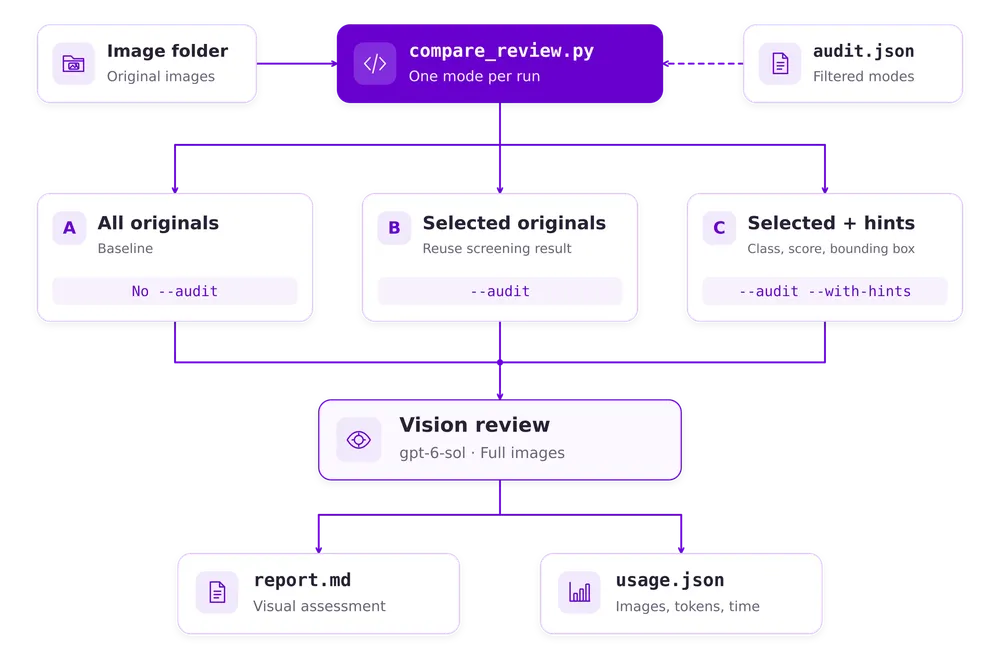
The optional compare_review.py script runs three comparison conditions. All three use full original images:
| Condition | Images sent to the model | Detection metadata |
|---|---|---|
| Baseline | Every image in the folder | None |
| Filter only | Images selected by the Workflow | None |
| Filter with hints | The same selected images | Predicted classes, confidence scores, bounding boxes, and related metadata |
Use the same image folder, model, and reporting instructions for all three runs. The two filtered conditions should read the same audit.json so they use exactly the same selected images.
How the Comparison Works
First, run fabric_agent.py as explained in Option 2. It calls the Roboflow Workflow to screen the images and saves the screening results in audit.json.
Next, run compare_review.py separately for each condition. Without --audit, it sends every image to the model. With --audit, it reads the saved screening results and sends only the selected images. Adding --with-hints also includes their detection metadata.
The comparison script does not run the Workflow again. It reuses the screening results and loads the selected original images from your local folder.
For each run, the model examines the submitted images and writes a visual assessment. The script saves:
report.md— image IDs, suspected locations, visible evidence, uncertainty, and suggested next steps for human review.usage.json— the model, comparison condition, number of images submitted, token usage, and review execution time.
Run the Three Comparisons
Run the following commands from the folder containing compare_review.py. Use the Anaconda environment configured for Option 2, with OPENAI_API_KEY available.
Replace RUN_TIMESTAMP with the timestamped folder name printed by fabric_agent.py. Resolve any screening errors before using its audit file.
1. Review all images
This creates the baseline without image filtering.
python compare_review.py ./fabric-images --output ./baseline-results2. Review only selected images
This uses audit.json to choose the images, but does not send the detector predictions to the model.
python compare_review.py ./fabric-images --audit ./fabric-agent-results/RUN_TIMESTAMP/audit.json --output ./filter-only-results3. Review selected images with detection hints
This sends the same selected images together with their detection metadata. The model must treat these hints as predictions that require visual assessment.
python compare_review.py ./fabric-images --audit ./fabric-agent-results/RUN_TIMESTAMP/audit.json --with-hints --output ./filter-hints-resultsRun each command separately. This version of compare_review.py requires a new output folder for every run. For repeated tests, change the folder names, for example to baseline-results-02.
The script submits the chosen images together, so start with a small folder. If no images were selected, the filtered comparison stops without a visual review request. Record that outcome separately.
Read the Results from our Test
Our test folder contained image0000002.jpg and original.jpg. The Workflow selected original.jpg for review. The baseline therefore reviewed two images, while both filtered conditions reviewed one.

The screenshot shows these measurements:
| Condition | Images submitted | Input tokens | Output tokens | Total tokens | Review time |
|---|---|---|---|---|---|
| Baseline | 2 | 5,972 | 306 | 6,278 | 9.55 s |
| Filter only | 1 | 3,022 | 305 | 3,327 | 7.71 s |
| Filter with hints | 1 | 3,128 | 281 | 3,409 | 7.39 s |
Filtering reduced the number of images submitted for visual review from two to one. The filter-only run used fewer input tokens because it excluded the unselected image. Adding detection hints increased the input count by 106 tokens compared with the filter-only run. We can calculate the input-token reduction relative to the baseline:
Input-token reduction (%) =
100 × (1 − filtered input tokens / baseline input tokens)
For this test:
- Filter only:
100 × (1 − 3022 / 5972) = 49.4% - Filter with hints:
100 × (1 − 3128 / 5972) = 47.6%
These results describe this two-image test. They do not establish the same reduction or execution time for other datasets.
Compare the Visual Reports
Token usage shows the review workload. We also need to examine what the model reported.
Baseline report
The baseline reviewed both images. For image0000002.jpg, it described a continuous weave and did not identify a clear defect, while noting that subtle defects might not be distinguishable.
For original.jpg, it identified an irregular dark patch left of the image center. It could not determine whether the patch was a hole or a surface mark and suggested closer human inspection.
| image_id | Location | Visible evidence | Uncertainty | Next step for human review |
|---|---|---|---|---|
| image0000002.jpg | Entire visible area | The weave appears continuous. No clear broken pick, hole, missing pick, or thick weft is visible. | Subtle defects may not be distinguishable at this image quality. | Confirm with a close-up inspection if this area has been flagged. |
| original.jpg | Left of center, around x=390, y=690 | An irregular dark patch obscures the weave locally. | It could be a hole or a surface mark; the image does not show an opening clearly. No distinct broken pick, missing pick, or thick weft is apparent elsewhere. | Inspect the patch closely from both sides, using backlighting to check for an opening. |
Filter-only report
This report covered only original.jpg. The model again identified a localized dark patch interrupting the weave. It remained uncertain whether the region contained a hole, broken picks, or a surface mark.
This shows that the selected image still received visual review after filtering. The excluded image was not reviewed in this condition.
| image_id | Location | Visible evidence | Uncertainty | Next step for human review |
|---|---|---|---|---|
| original.jpg | Left of center, around (395, 690) | A localized dark, irregular patch interrupts the otherwise regular weave. | The image does not establish whether this is a hole, broken picks, or a surface mark. No clear missing pick or thick weft is visible elsewhere. | Inspect the patch under magnification from both sides; check yarn continuity and use backlighting to assess whether there is an opening. |
Filter-with-hints report
The model received the selected image and its detection metadata. It described the suspected region around x = 410–490 and y = 720–840, but still could not establish whether the fabric contained an opening.
The report explicitly left the detector’s fabric_hole prediction unverified. In this test, providing detection hints did not resolve the visual uncertainty.
| image_id | Location (approx. image pixels) | Visible evidence | Uncertainty | Next step for human review |
|---|---|---|---|---|
| original.jpg | Left of center, around x=410–490, y=720–840 | A dark, irregular patch interrupts the otherwise regular striped weave. | Possible hole, but the image does not show clearly whether the fabric is open or merely darkened. No clear broken pick, missing pick, or thick weft is visible elsewhere. The detector’s hole label remains unverified. | Inspect this area closely, preferably from both sides or with backlighting, to determine whether there is an opening and whether threads are broken. |
Across all three reports, the suspected region in original.jpg required human review. The reduced token usage therefore demonstrates a lower review workload, while the defect assessment remains uncertain.
Compare Crop Review Separately
The earlier fabric_agent.py run in Option 2 provides another condition: the agent reviews selected region crops returned by view_defect.
Its report.md, audit.json, and usage.json are already available in the timestamped results folder. Compare them separately with the full-image results above.
This comparison changes the image content, agent instructions, and tool-call sequence. Any difference cannot be attributed to filtering or cropping alone.
Check Review Quality and Total Workload
For a broader evaluation, use images with verified defect labels. Check whether the Workflow excluded any actual defects and whether the visual review missed or incorrectly reported defects. Record uncertain assessments, unreviewed regions, and processing errors separately.
An unselected image is not automatically defect-free. Compare unselected images with the verified labels and include any additional human review in the workload measurements.
The comparison script’s token counts and execution time cover its visual review run. They exclude the earlier Roboflow Workflow execution. A complete pipeline comparison must also include screening time and cost, model output usage, and the agent’s tool-call overhead.
Repeat the evaluation on a larger labeled test set before drawing conclusions about accuracy, latency, or total cost.
Conclusion
The Roboflow Workflow gives the AI agent a computer vision tool for textile inspection. It runs object detection, selects images for review, and returns class labels, confidence scores, and bounding boxes. The agent uses these outputs to request visual analysis and generate an inspection report. It can delegate the review to a VLM tool or analyze selected region crops directly.
Use an assistant in ChatGPT or Claude to call both the Workflow and the VLM review tool, or build a Python agent with the OpenAI Agents SDK and gpt-6-sol to call the Workflow and analyze returned region crops. Start with a small test set in Roboflow Workflows (opens in a new tab), validate the agent's visual assessments, and measure token usage and missed defects before processing larger batches.