Fine-Tune NVIDIA Cosmos 3 Edge on Your Own Video
 Erik KokaljPublished Oct 20, 2026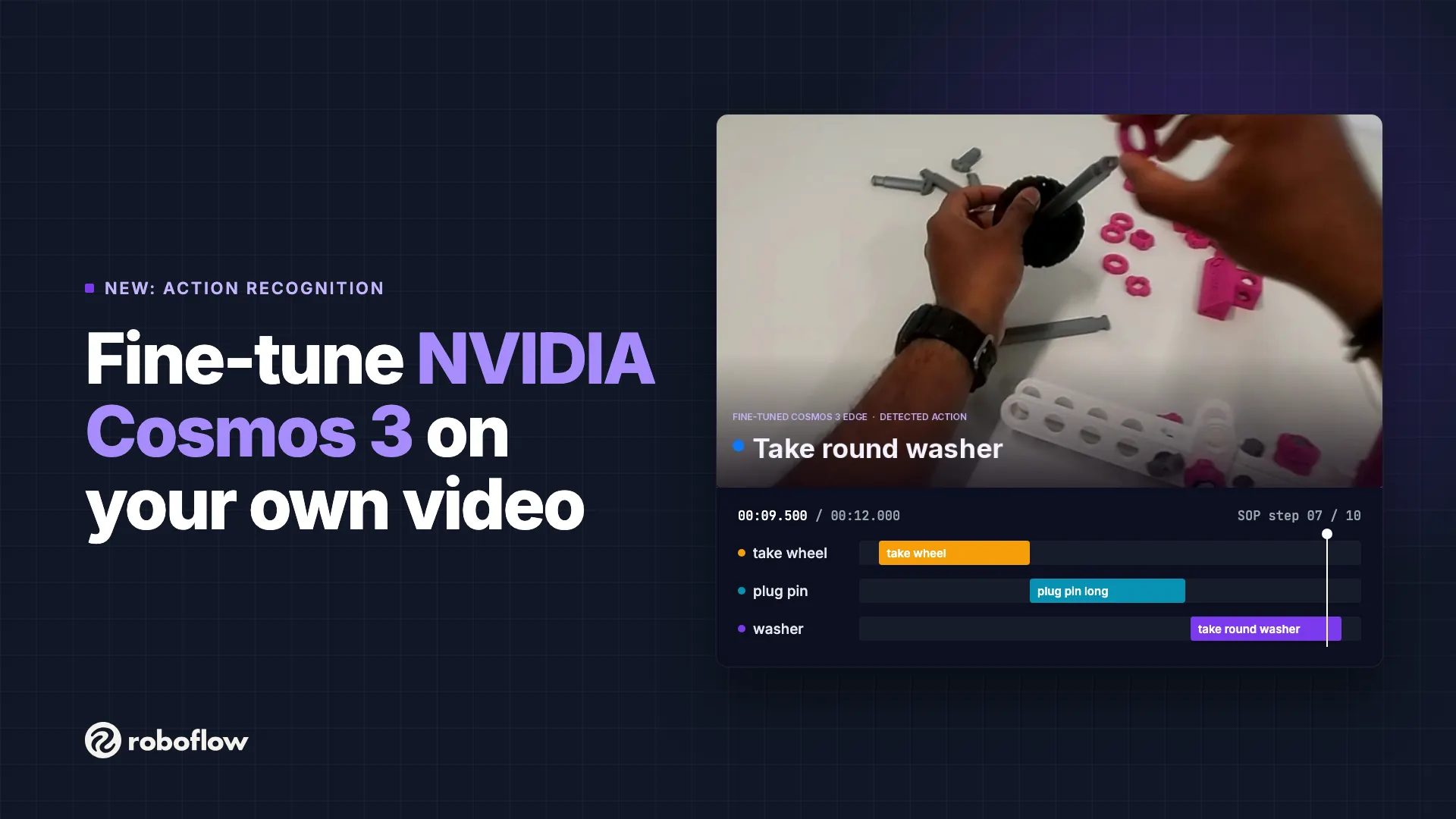
You can now fine-tune NVIDIA Cosmos 3 Edge on your own video data in Roboflow. Label when each action happens in your videos, train in a few clicks, and get back a model that returns a timeline of actions for any new clip.
Off the shelf, Cosmos 3 Edge already reasons well about physical scenes. But a general model doesn't know your line, your parts, or the order your operators are supposed to follow. Fine-tuning teaches it your actions, so it can answer questions like:
- Did the operator finish every step of the assembly procedure, in order?
- How long does each step take, and where do cycles slow down?
- Was a step skipped, repeated, or done out of sequence?
This is Action Recognition: finding which actions happen in a video and when. It's a new project type in Roboflow, and Cosmos 3 Edge is the model behind it.
See it on an assembly line
Footage: IndustReal dataset (Schoonbeek et al., WACV 2024), Apache-2.0, modified.
This model was trained on footage of people assembling a toy car, one step at a time. For each new clip, it marks which of the 10 assembly steps is happening and when. In the video, the top timeline is the ground truth and the bottom one is the model's prediction. Put that next to your standard operating procedure (SOP) and you can flag a skipped step, a step done twice, or a step done out of order, with a timestamp you can jump to.
The same setup works for any task with a defined sequence: kitting, packing, machine changeovers, or quality checks at a station.
Step 1: Create an Action Recognition project
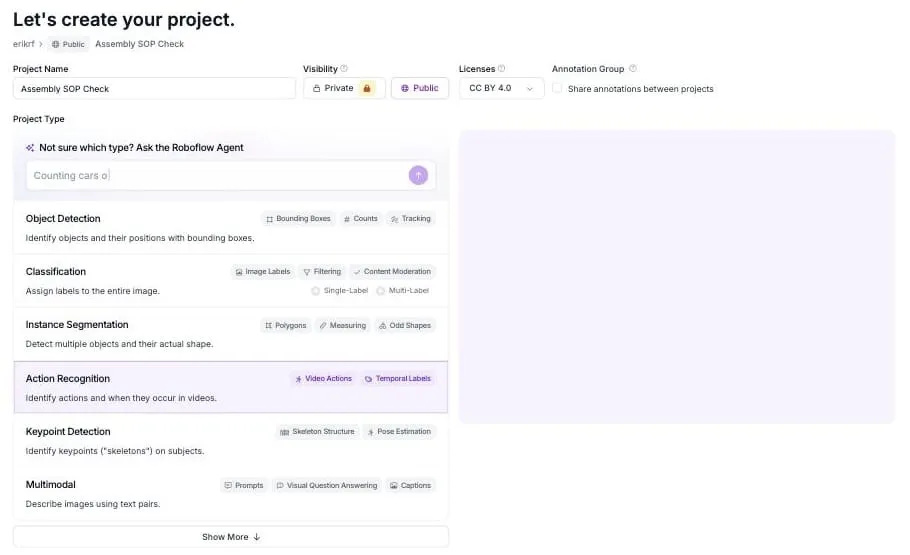
In app.roboflow.com, click "New Project" and pick "Action Recognition" as the project type. Then go to "Upload Data" and add your videos.
Use clips from the camera you plan to run in production, with the same angle and lighting. A few dozen short videos that each show the full task are enough to start. You can add more later and retrain the model for better accuracy.
Step 2: Label actions on the timeline
For Action Recognition, you don't draw bounding boxes, but instead you mark time ranges. Open a video from "Annotate" and you get the video editor with the clip on top and a timeline below it (with one row per action class).
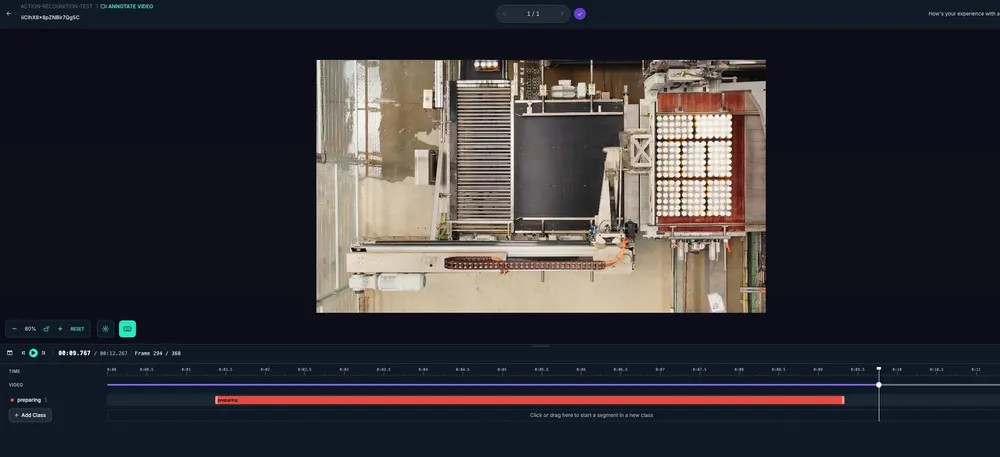
To label an action, drag across the empty timeline row from where the action starts to where it ends, then name the class (ex: preparing). The segment shows up as a colored bar in that class's row.
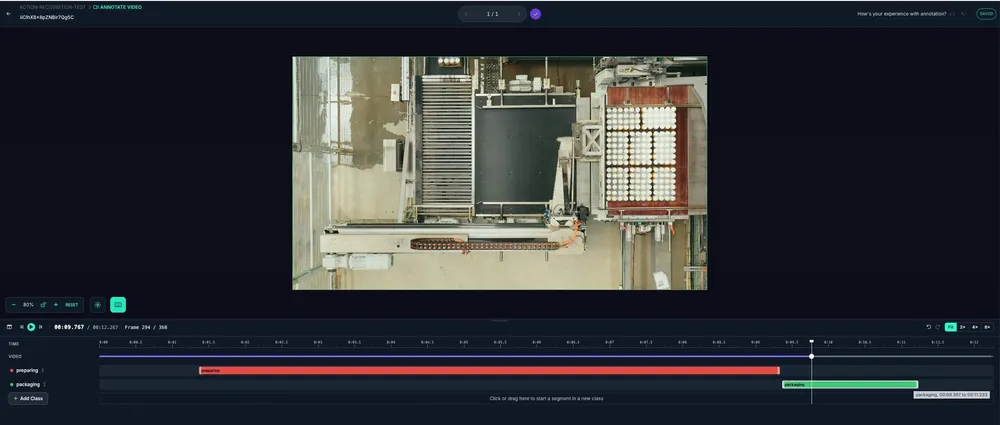
Each class gets its own row, so one video can hold many actions. To tighten a segment, drag either edge. For frame-exact edits, move the playhead to the frame you want, right-click the segment, and choose "Set In" or "Set Out". Changes save automatically.
Tip: start each segment on the first movement of the action and end it when the action is done. Leave out the idle time in between. Clean edges teach the model where one step ends and the next begins.
Learn more in the video segment annotation docs.
Step 3: Train Cosmos 3 Edge
When your videos are labeled, create a dataset version from "Versions". Then click "Train on This Version" and pick "Cosmos 3" with model size "Edge".
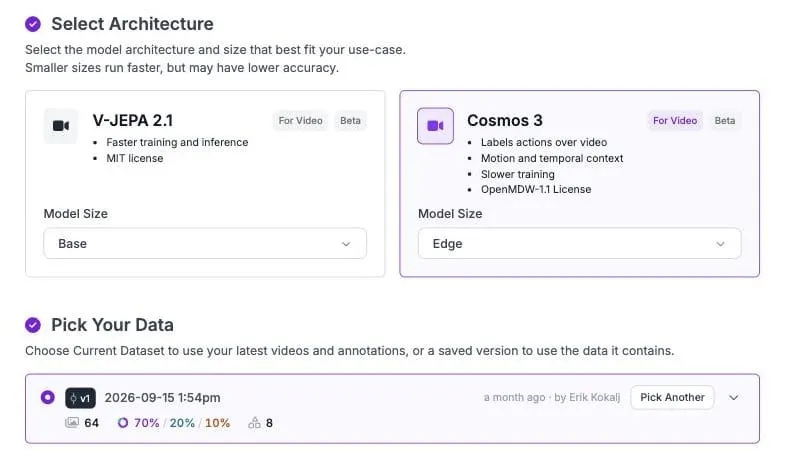
Compared to V-JEPA 2.1, Cosmos 3 Edge trains slower but uses more motion and time context, which helps when two steps look alike in a single frame and differ only in how they move.
Training options
The defaults work for most projects, so you can skip straight to "Start Training". If you want to tune the run, open "Customize Training Recipe".
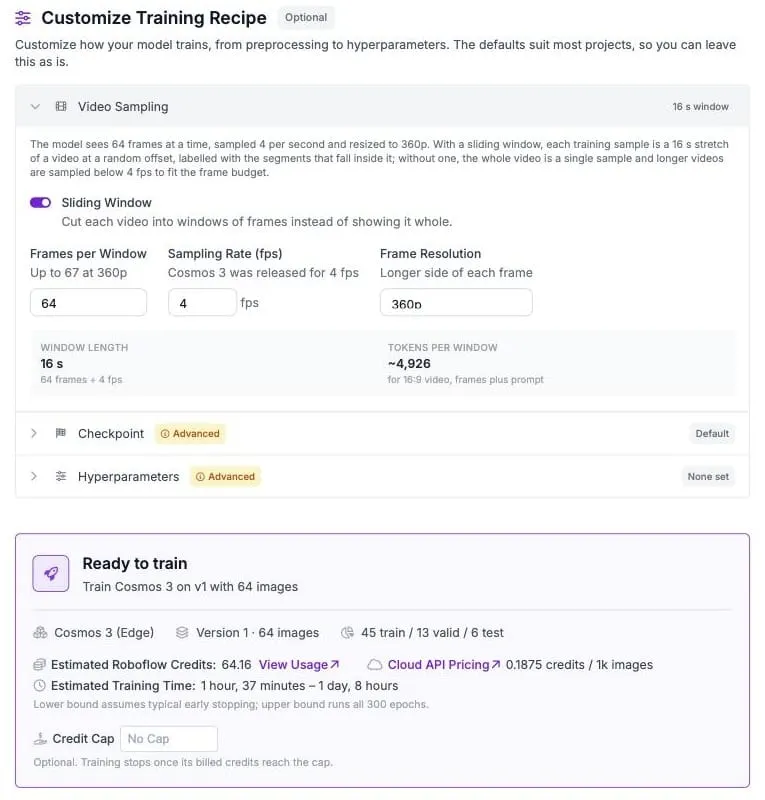
Video Sampling controls what the model sees in each training sample:
- Sliding Window: cuts each video into windows instead of showing it whole. Leave it on for long videos. Each window is a random stretch of the video, labeled with the segments inside it.
- Frames per Window: how many frames the model sees at once (default 64).
- Sampling Rate (fps): how many frames per second to sample (default 4, the rate Cosmos 3 was released for).
- Frame Resolution: the long side of each frame, from 240p to 720p (default 360p).
The panel shows the result as you change things. With the defaults, each window covers 16 seconds of video. Make sure one window is long enough to hold your longest action.
Before you start, "Ready to train" shows the estimated credits and training time for your settings. You can also set a "Credit Cap" so the run stops when it reaches that budget. Under "Checkpoint" and "Hyperparameters" you can start from an earlier run or change the number of epochs.
Learn more about training a model.
Step 4: Run your model on new video
When training finishes, you get an email and the model shows up under "Models". Copy its model ID from the version page, then send it a clip through the Serverless Cloud API. You get back a timeline of the actions it found.
import os
from inference_sdk import InferenceHTTPClient

client = InferenceHTTPClient(
    api_url="https://serverless.roboflow.com",
    api_key=os.environ["ROBOFLOW_API_KEY"],
)

result = client.infer_on_video(
    "station-4-shift-2.mp4",
    model_id="your-workspace/your-model-id",
)
print(result["timeline"])
From there, compare the timeline to your SOP: check that every step is present, in the right order, and within its target time. Send the result to a dashboard, a line alert, or your MES.
If you'd rather ask the model about a scene in plain language, the base Cosmos 3 Edge model is also available through the API and as the "Cosmos 3" block in Workflows.
Get started
Create an Action Recognition project, label a few dozen clips, and train Cosmos 3 Edge today. Sign up for Roboflow to get started, or talk to sales about running it across your sites.