Computer vision answers · Video Analytics
How do I get a running total for a whole video or shift with computer vision, not just a count of what’s in the current frame?
Every item that passes, from the start of the shift to the end.
Short answer
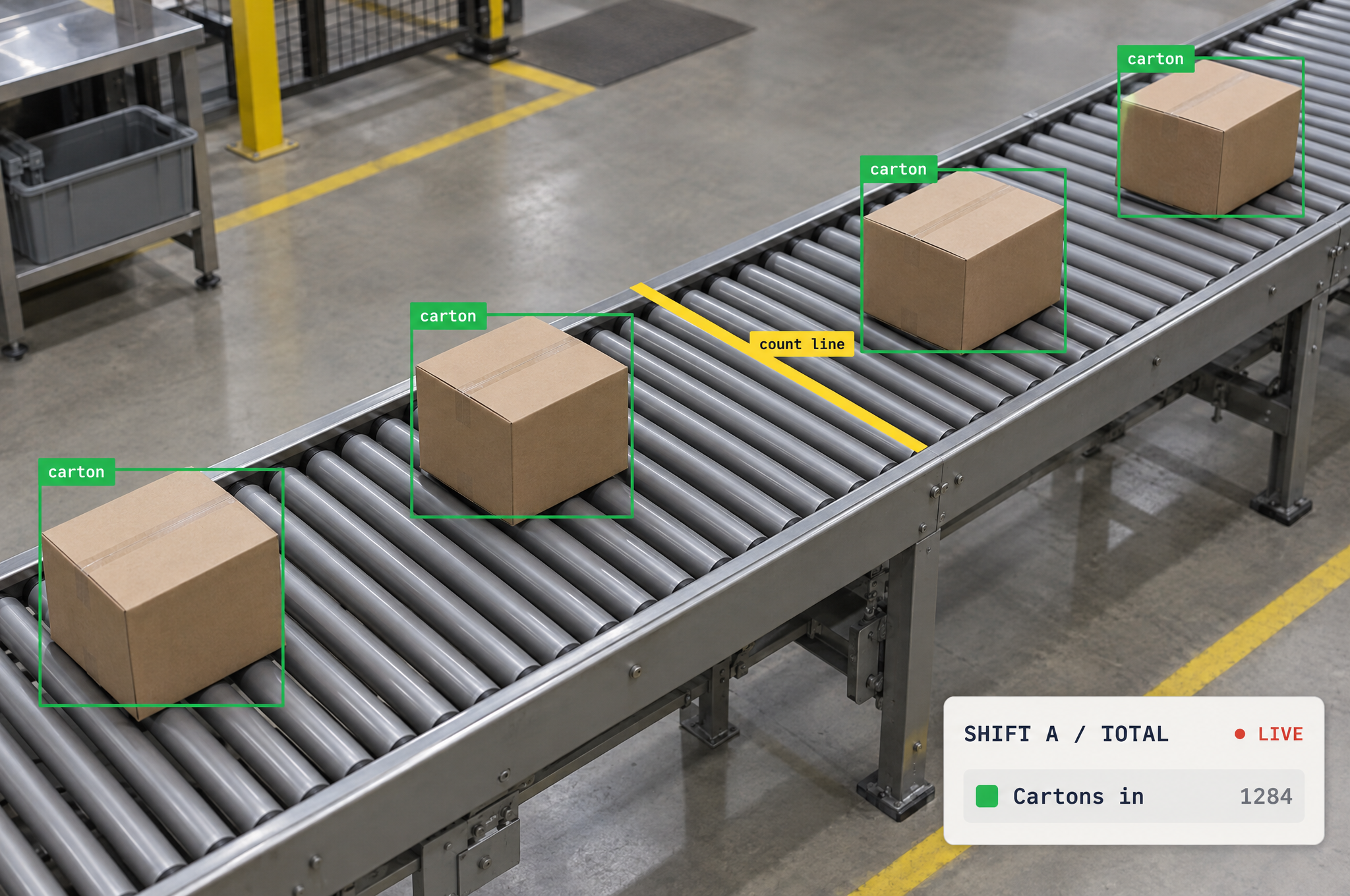
Train a detection model with Roboflow for free, track each object across frames so it keeps the same ID, and count it once as it crosses a line. The line's count keeps adding up for the whole video or shift, instead of resetting with every frame. Put the line where every object passes exactly once and moves cleanly across it, away from where items pile up or stop, so nothing crosses twice.
Skip the setup. Describe your images.
Describe your images and what you need to find. The agent sets up labeling, training and deployment with you.
Key facts
- What you need
- A fixed camera, a detection model and object tracking
- What you get
- One total per shift, plus counts in and out by class
- Image sources
- Live camera streams and recorded video
- Runs on
- Cloud API, or an edge device or server running Docker
How to build a running total, step by step
Six steps from a camera on the line to one total for every shift.
Connect Roboflow to your coding agent, ChatGPT or Codex
Record video of a full shift
Label your objects and train a detection model
Track each object so it is counted once
Count every object that crosses a line
Pythonimport supervision as sv from inference import get_model from trackers import ByteTrackTracker model = get_model("your-project/1") tracker = ByteTrackTracker() line = sv.LineZone(start=sv.Point(640, 0), end=sv.Point(640, 720)) for frame in sv.get_video_frames_generator("shift_0600.mp4"): detections = sv.Detections.from_inference(model.infer(frame, confidence=0.4)[0]) line.trigger(tracker.update(detections)) print("total in:", line.in_count, "total out:", line.out_count) # total in: 1284 total out: 0Rather not write code? Ask the Roboflow agent to set this up for you
Total it up by shift in a Workflow
Why 2 million engineers build on Roboflow
Label faster
Auto-label with SAM 3 or your own model, then fix the misses instead of drawing every box.
RF-DETR
Roboflow’s open-source real-time detection model, built for accuracy (opens in a new tab) on small objects.
Logic built in
Counting, zones, tracking and alerts are ready-made Workflow blocks, so there is less code to write.
Your model, your weights
Use your trained weights on every plan, including free, through the open-source Inference package.
Run it anywhere
Self-host on a workstation, Docker, an on-prem GPU or an edge device, or call the cloud API.