OpenRouter Vision Models in Roboflow
 Mostafa IbrahimPublished Nov 12, 2026
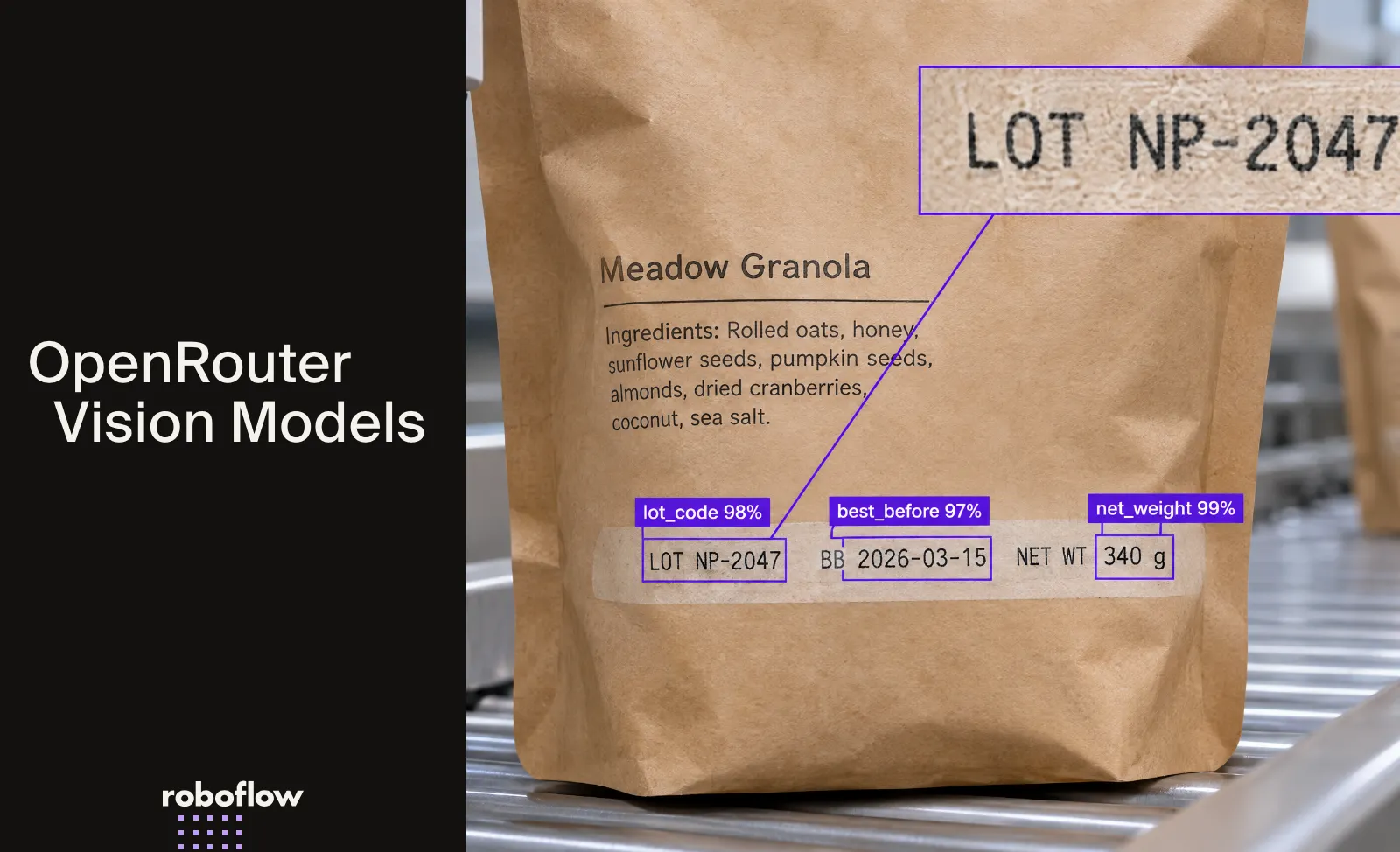
To compare OpenRouter vision models, run them side by side on your own images in Roboflow Workflows: connect one image to several OpenRouter blocks, switch models by changing the model ID, and compare answers, token counts, and response time in a single run. Add RF-DETR to detect and crop objects before the VLM call, then deploy the same pipeline through the Serverless API or on live video streams.
Testing a vision-language model from another provider often means changing your code before you can try it on an image.
OpenRouter gives you access to hundreds of models through one API. In Roboflow Workflows, you can run models in a visual pipeline. We'll build a workflow that sends the same image to three vision models and see how their answers differ. We'll also compare response times and check the input and output token counts.
What Are OpenRouter Vision Models?
OpenRouter offers more than 300 models from different providers. Some of these are vision-language models (VLMs), which accept images along with text prompts to analyze visual content. For example, a VLM can read text on a product package or identify its product category. It can also describe the objects in a scene. The accuracy of the result depends on the model and the image.
Working with providers separately means managing different API keys and request formats. You could also need to change how your code reads their responses. Providers can handle failed requests differently, which affects how you write retry logic. OpenRouter gives you a common way to send requests to supported models. You can switch between vision models by changing the model ID instead of rewriting the integration.
Run OpenRouter Vision Models in Roboflow Workflows
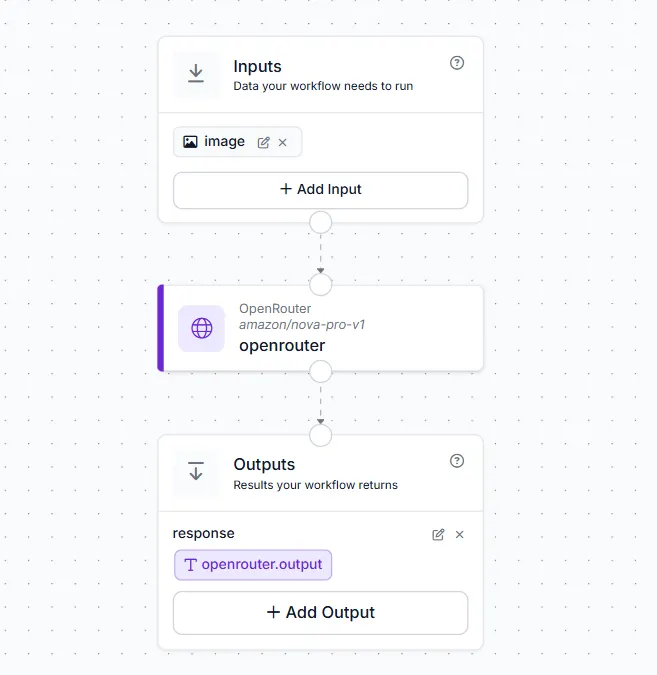
Roboflow Workflows is a visual editor where you can connect computer vision models with processing steps. Start by creating a new Workflow in your Roboflow workspace with an image input. Add the OpenRouter block to the pipeline and connect it to the image input. Then connect the OpenRouter block to Outputs to return the model's response.
Configure the OpenRouter block
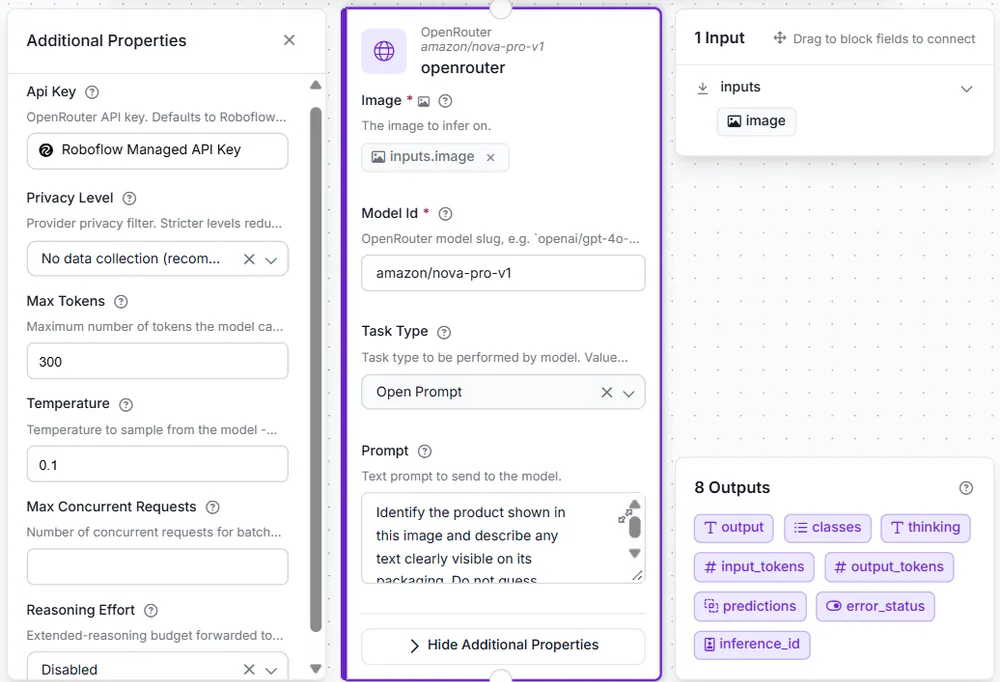
Click the OpenRouter block to open its settings. For this example, I selected Amazon Nova Pro (amazon/nova-pro-v1) in the Model ID field. The prompt tells the model what to look for in the image, such as text printed on product packaging.
You can adjust the temperature to control how much responses vary and set max tokens to limit the length of the output. Reasoning effort controls how much reasoning a model uses, if supported. The privacy level setting lets you choose how providers can handle your request data.
Choose how to pay
By default, Roboflow's OpenRouter block uses a Roboflow-managed API key, with usage charged through Roboflow credits. If you want to be billed directly by OpenRouter instead of using Roboflow credits, enter your personal OpenRouter API key in the block's API Key field.
What You Can Do with an OpenRouter Vision Model
Depending on the model, the OpenRouter block can handle open prompts, optical character recognition (OCR), visual question answering, short and detailed image captions, single-label and multi-label classification, object detection, and structured JSON answers.
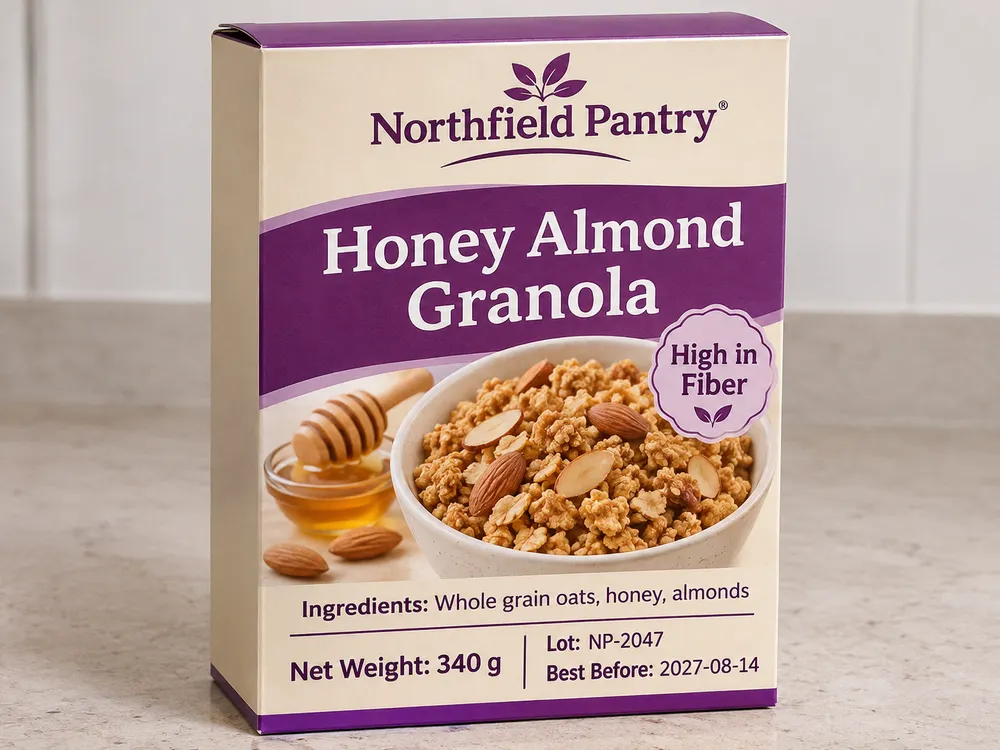
I tested three of these tasks with Amazon Nova Pro using a fictional Northfield Pantry granola package.
Read a product label with OCR
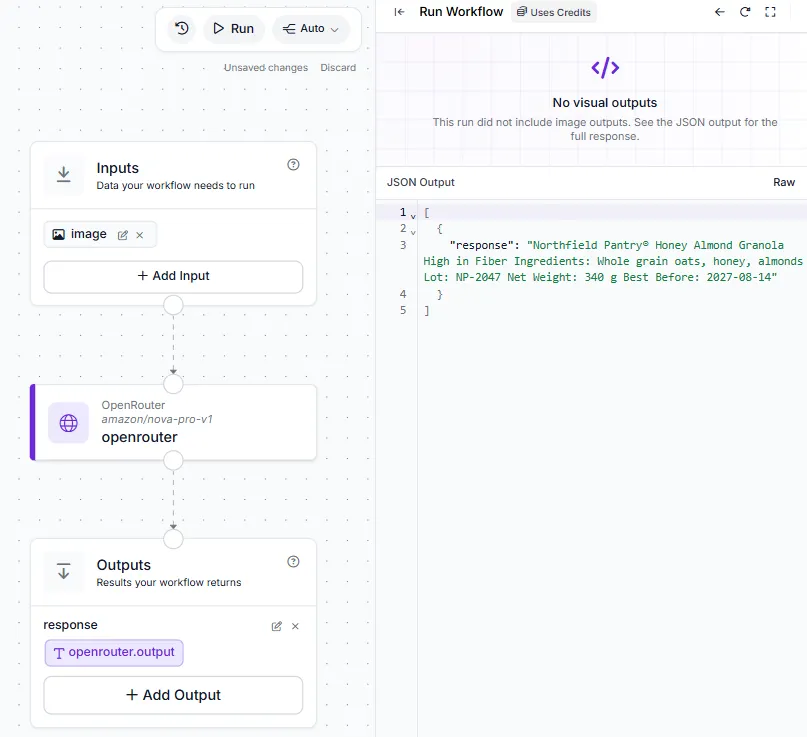
I uploaded the packaging image and asked the model to read the printed text. It correctly recognized the product name, ingredients, 340 g weight, lot code NP-2047, and best-before date 2027-08-14.
Classify product images
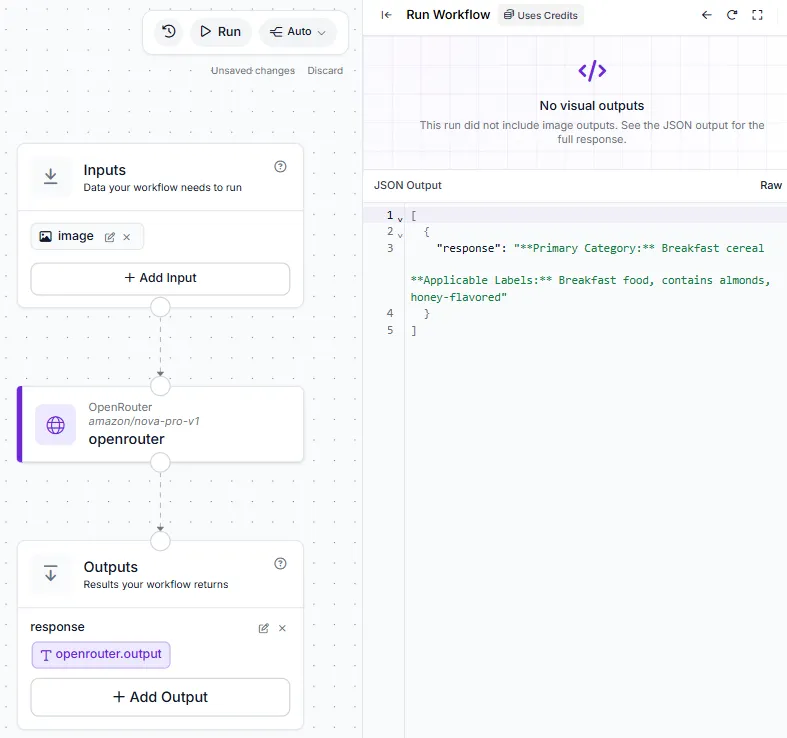
For classification, I provided a list of categories and possible labels. The model selected breakfast cereal as the primary category. It also assigned breakfast food, contains almonds, and honey-flavored as additional labels. Single-label classification selects one category, while multi-label classification can return several.
Extract information into JSON
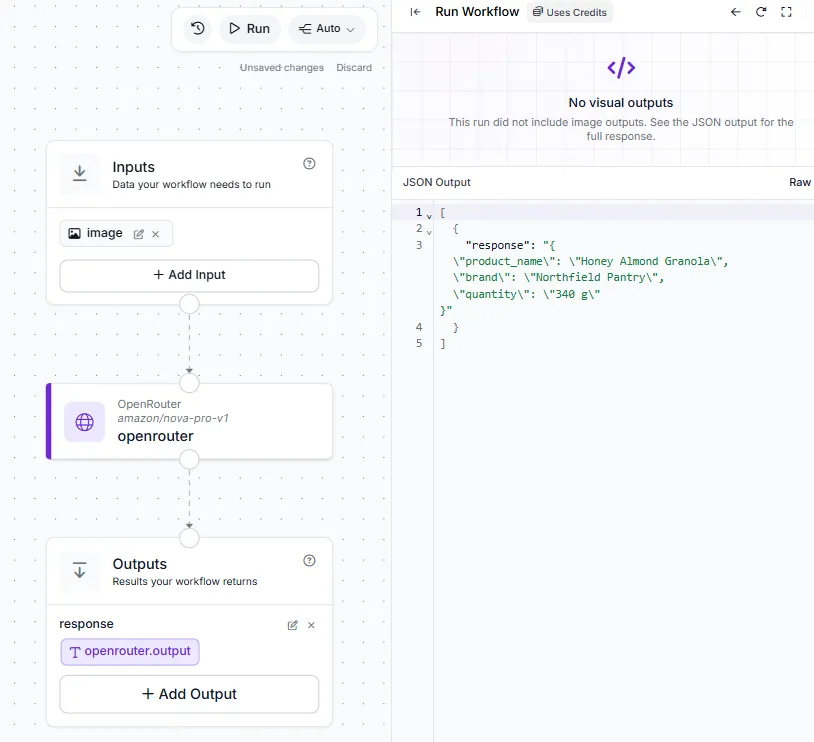
I also asked the model to extract product_name, brand, and quantity. It returned Honey Almond Granola, Northfield Pantry, and 340 g in a JSON-formatted string. These values could be used to fill product details in an inventory system.
Tutorial: Compare Vision Models on the Same Image
To compare three vision models, I used the same image and prompt for each one. This let me compare their answers and token usage under similar conditions.
Step 1: Prepare an image for testing
I reused the fictional Northfield Pantry granola package image. It has a clear product name and several printed details that the models can read.
Step 2: Create a Roboflow Workflow
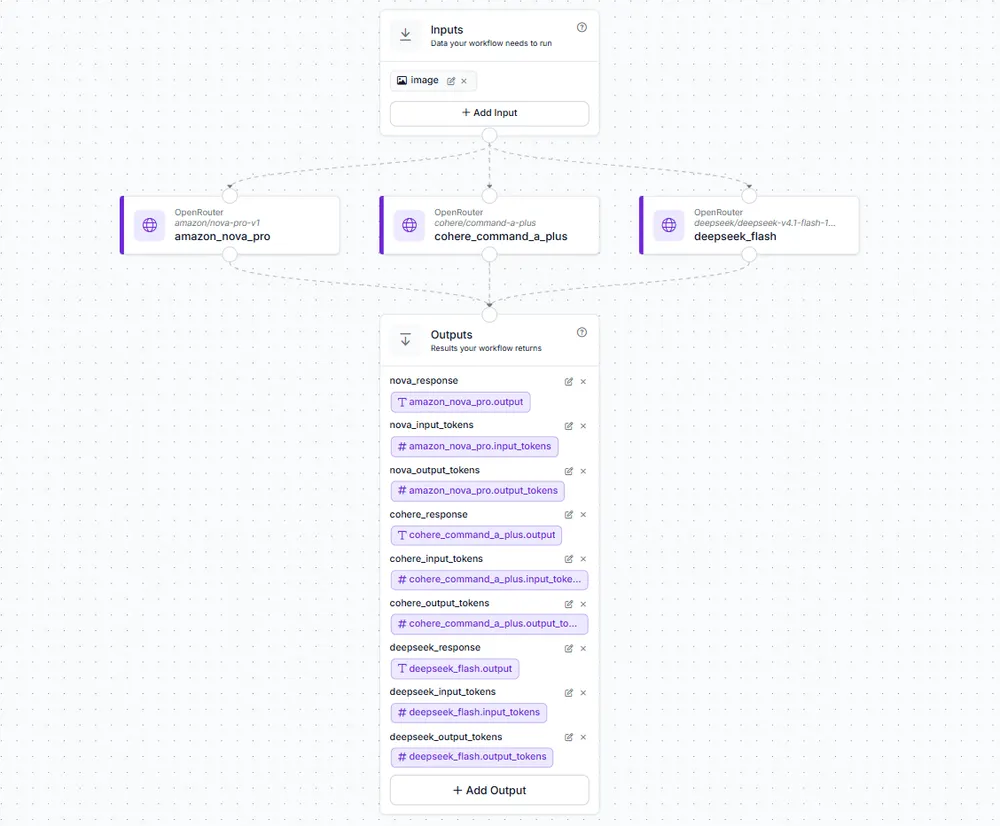
I created a new Workflow with one image input and three OpenRouter blocks. Each block connects directly to the same image input, allowing the models to process it independently.
Connect each model's response and token counts to Outputs. Give each output a separate name so the results are easy to identify.
Step 3: Configure three vision models
For this comparison, I selected three vision models from different providers:
- Amazon Nova Pro: amazon/nova-pro-v1
- Cohere Command A+: cohere/command-a-plus
- DeepSeek V4.1 Flash 1017: deepseek/deepseek-v4.1-flash-1017
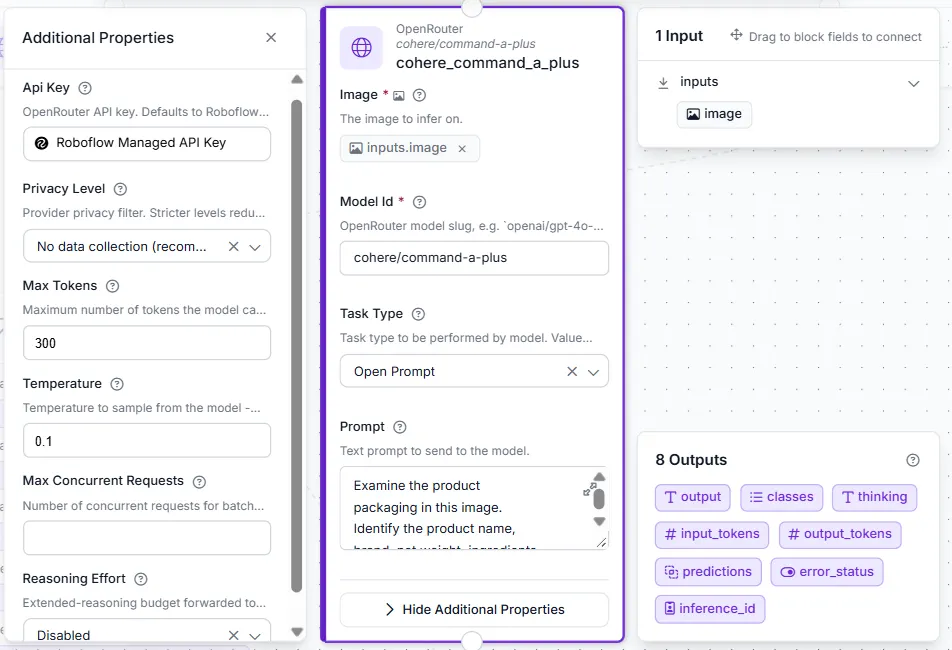
All three blocks used Open Prompt, a temperature of 0.1, and a maximum of 300 output tokens. I kept the Roboflow-managed API key and the No data collection privacy setting. Reasoning effort was disabled.
I used this same prompt for every model:
Examine the product packaging in this image. Identify the product name, brand, net weight, ingredients, lot code, best-before date, and product claim.

Return each field on a separate line in the format Field: Value. Only report information visible on the package. If something is unreadable, write "Not readable". Do not guess or add explanations.
This keeps the task consistent while changing the model.
Step 4: Run the Workflow
I uploaded the packaging image and ran the Workflow. The Output panel showed the response from each model, along with its input and output token counts.
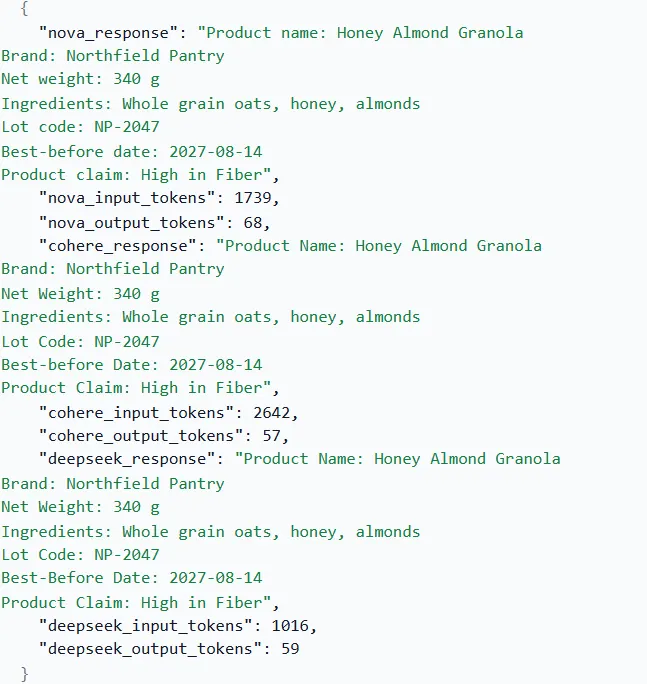
To measure response time, each model was tested separately three times using the same image and prompt. The median Workflow processing time was calculated for each model. These results include Workflow overhead because the OpenRouter blocks do not return individual model latency.
Step 5: Compare the results
The following table shows the results from the three-model Workflow and the separate timing tests.
| Model | Fields correct | Median Workflow time | Input tokens | Output tokens |
|---|---|---|---|---|
| Amazon Nova Pro | 7/7 | 3.386 s | 1,739 | 68 |
| Cohere Command A+ | 7/7 | 3.132 s | 2,642 | 57 |
| DeepSeek V4.1 Flash 1017 | 7/7 | 3.392 s | 1,016 | 59 |
All three models correctly extracted the seven fields from the packaging image. The main differences were in token usage and processing time.
DeepSeek used the fewest input tokens, while Cohere used the most. Cohere also had the shortest median Workflow processing time, although the differences between the models were small.
These results come from a single image and don't show which model performs best overall. Testing more images with different levels of difficulty would help determine that. Token counts can help estimate usage costs, which depend on each model's pricing.
Combine Vision Models with a Detector
RF-DETR (opens in a new tab) is an object detection model that finds objects and their locations in an image. You can use these detections to focus a vision-language model on specific regions instead of sending the entire image.
For this example, I used the public pretrained RF-DETR Nano (opens in a new tab) model, which can detect common objects, including bottles. It returned bounding boxes around the bottles. The Dynamic Crop block (opens in a new tab) then extracted each bottle and passed the crops to Amazon Nova Pro through the OpenRouter block.
For production use, test the model on your production line images and fine-tune it if detection accuracy is too low.
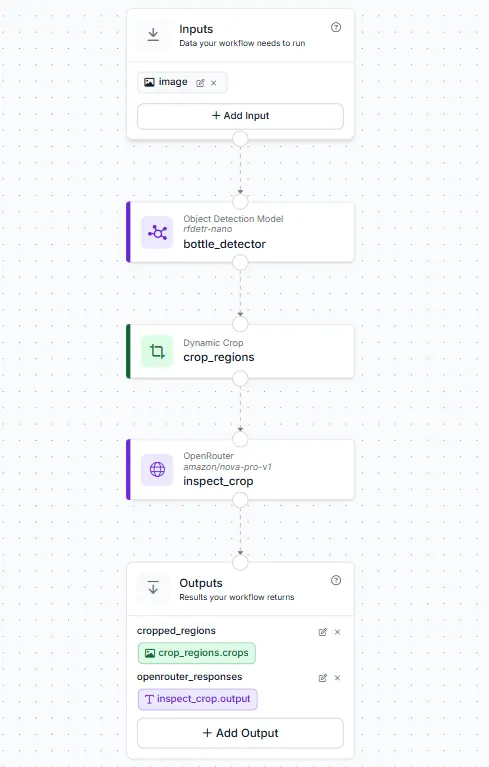
Nova Pro identified the turquoise bottle's label as undamaged and detected a tear in the violet bottle's label.
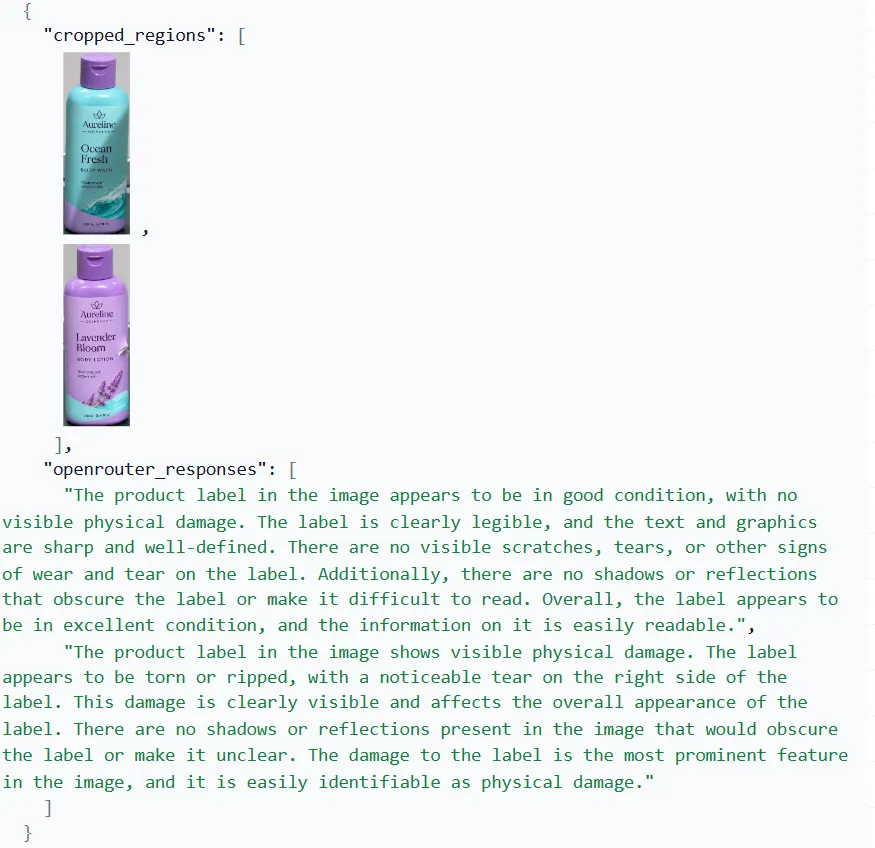
To check whether cropping reduced token usage, I tested the full image and the two bottle crops in separate Workflows using the same model and prompt.
| Image sent to Nova Pro | Input tokens | Total tokens |
|---|---|---|
| Full image with both bottles | 1,700 | 1,731 |
| Two bottle crops combined | 2,080 | 2,158 |
The two crops used 22.4% more input tokens than the full image. Each crop required a separate model call, repeating the prompt and adding to the total usage.
Cropping may save tokens when an object takes up a small part of a large image, especially if only one crop needs processing. With multiple objects, separate crop requests can use more tokens, as they did in this test. If no objects are detected, the Workflow can skip the VLM call if configured to do so.
You can also route images between cheaper and more expensive AI models, sending difficult cases to a more capable model when needed.
Deploy it
Once your Workflow is saved and published, click Use to access its deployment instructions.
You can run the published Workflow through Roboflow's Serverless API. The API request needs your workspace ID, Workflow ID, Roboflow API key, and an image input.
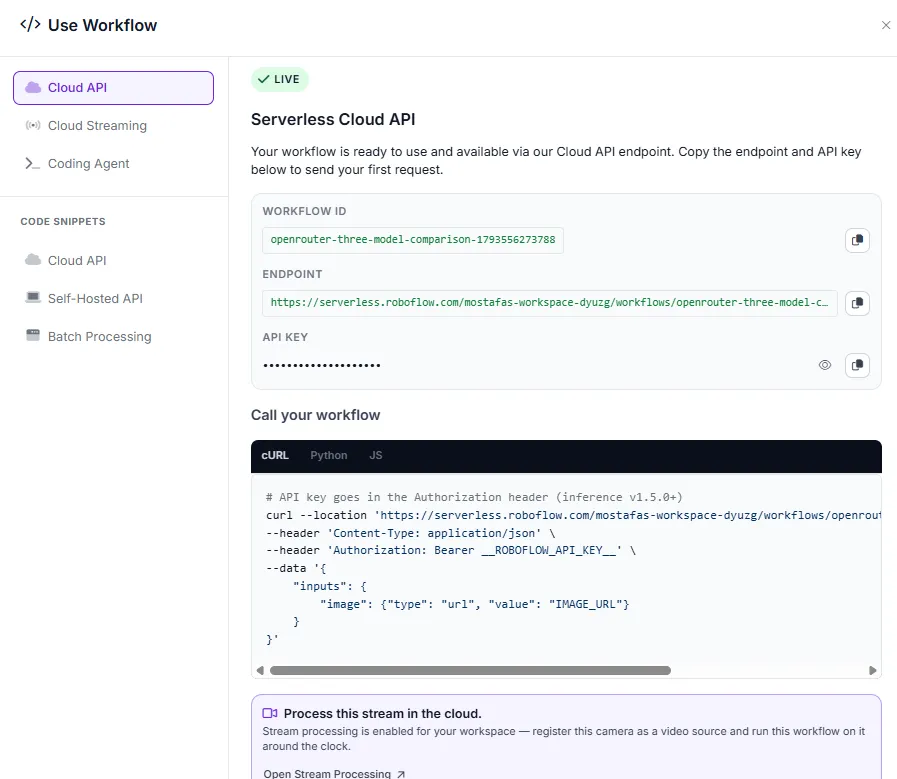
Roboflow Workflows can also process frames from video files and live RTSP streams using Roboflow Inference (opens in a new tab). This lets the same vision pipeline analyze images from a video feed.
Get Started with OpenRouter Vision Models
I used the OpenRouter block in Roboflow Workflows to compare three vision models on the same packaging image. All three extracted the seven requested fields. Input tokens ranged from 1,016 for DeepSeek to 2,642 for Cohere. Median Workflow processing times ranged from 3.13 to 3.39 seconds. These results are based on one image, so testing more images would give a clearer comparison.
To try this yourself, open Roboflow Workflows, add an OpenRouter block, choose a vision model, and test it on an image from your own project.
Further Reading: