Label by Example: Few-Shot Auto Labeling from Your Own Labeled Images
 Iuri de SilvioPublished Nov 24, 2026
When you need a vision model that's more accurate, faster, or cheaper to run than a pre-trained one, you'll probably want to fine-tune a model on your data. Doing that requires labeled example images, and labeling has long been the step where many projects get stuck. Drawing boxes by hand across hundreds or thousands of images takes time, people, and skill that many teams don't have.
Auto Label changed that. You type the names of the objects you want to find, and a vision-language model like Gemini or GPT draws the boxes for you. Let's say you have 100 images with 80 objects in each. That's 8,000 boxes, drawn in a matter of minutes. Auto Label made it possible for many more teams to fine-tune models that are ready to deploy in the cloud or on their devices.
But a text prompt only works when the class name describes the object. A class name like "car" or "forklift" says what the object looks like. "PIP" on a hand X-ray or "fishplate" on a railway track doesn't. And even when the model knows the object, the name doesn't say where you want the box to end. When that happens, the labels come back wrong, and you're back to drawing boxes by hand.
That is why we built Label by Example. It's a switch in Auto Label that shows the model a few images you've already labeled alongside the images it labels, so you can show the model what you mean when words fall short. If the model misses an object, you click it in the preview, and that image becomes another example. Projects that text prompts couldn't label well, like finger joints on an X-ray or fasteners on a railway track, can now get the same head start.
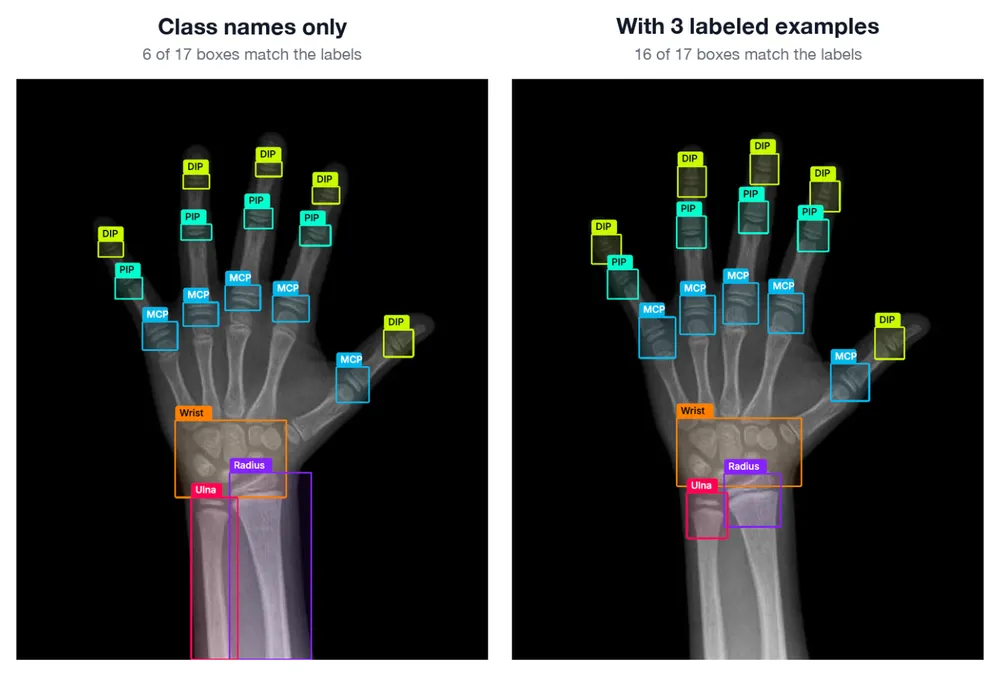
Here is the same hand X-ray, labeled by the same model without and with three labeled examples from its project:
Class names and labeling conventions
Take the hand X-ray dataset from RF20-VL, a few-shot benchmark built from real Roboflow Universe datasets. Its classes are DIP, PIP and MCP, the names of finger joints, plus Radius, Ulna and Wrist. A model that reads only those names does the sensible thing: it draws thin boxes on the joint lines and runs Radius and Ulna down the whole forearm. That's the left image above.
This dataset labels them its own way. Each joint box takes in the ends of the bones on both sides of the joint, not just the joint line, and the Radius and Ulna boxes cover only the ends of the forearm bones, next to the wrist. The model's boxes follow a fair reading of the names, but they don't match this dataset's labels.
You could write those rules into a prompt, if you knew to write them and found the words. Or you can give the model three labeled X-rays that follow them. Real projects are full of this. Class names are short, sometimes a code or an abbreviation, and the conventions that keep a dataset consistent are written down only in its labels.
How Label by Example works
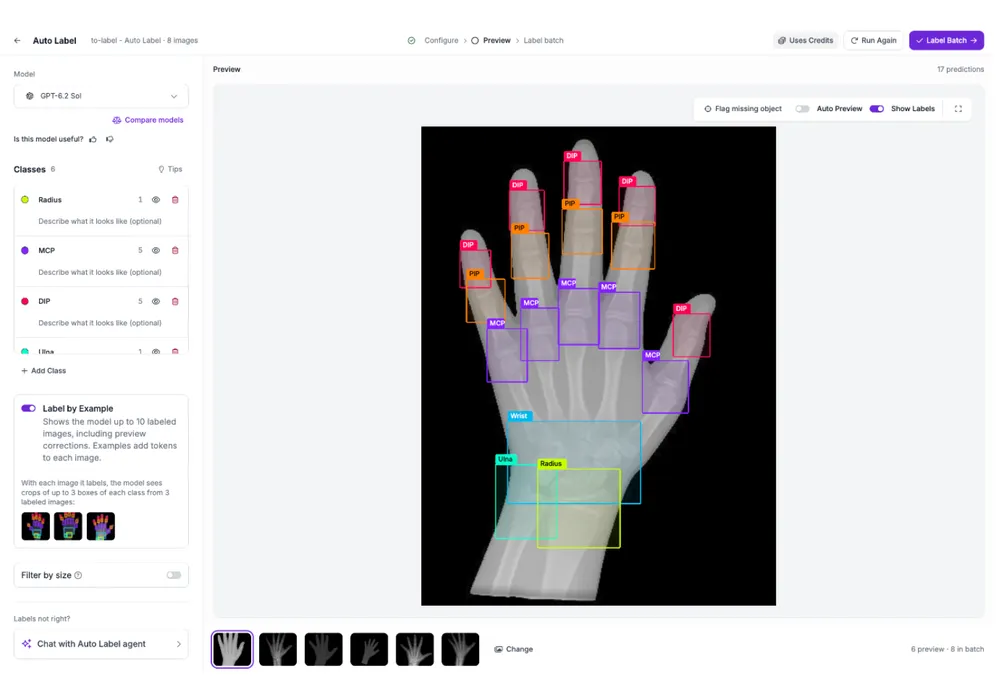
Label by Example is a switch on the Auto Label preview page. It works on object detection projects. When you turn it on, Roboflow picks the examples from your project's dataset:
- Only images accepted into the dataset count. Images still in review are left out, because their labels may come from an earlier Auto Label run that nobody checked.
- The picker goes for coverage: about 3 boxes of each class, using up to 10 images. When two images add the same coverage, the less crowded one wins, and images with more than 200 boxes are skipped.
- The card shows the picked images with their boxes before you run anything, and you can click one to see it larger. If no example shows a class, the card names it, so you know which classes still run on text alone.
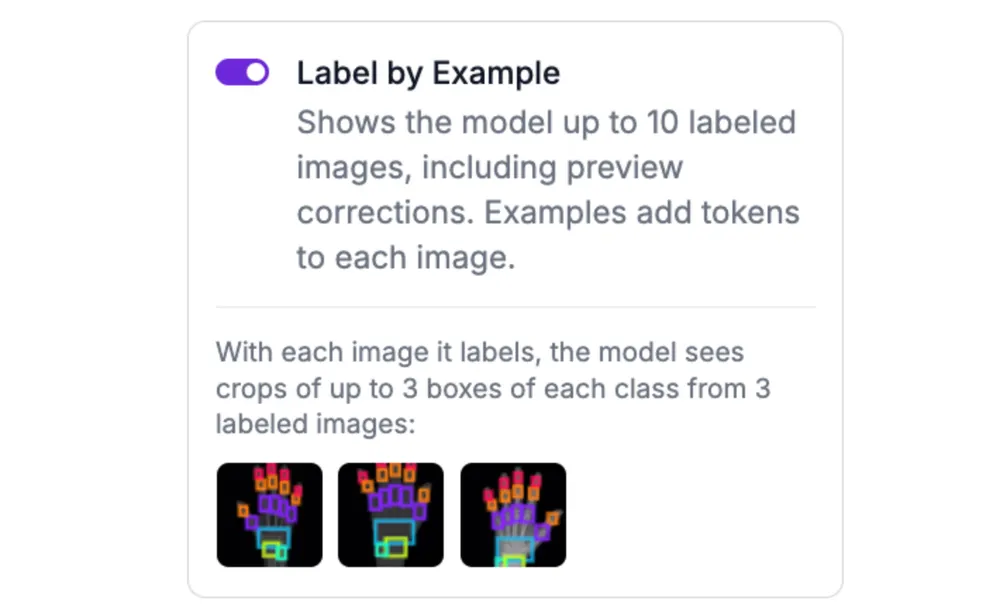
Previews and the batch job use the same examples, so what you check in the preview is what the job does. Turning the switch on or off marks the preview out of date until you run it again. With the switch off, Auto Label sends and charges exactly what it did before.
How each model receives examples
Each provider gets the examples in the form that worked best for it in our tests, for accuracy and for cost:
- Gemini 4 Argon and Gemini 4 Carbon get each example image whole, with its boxes and labels drawn on it.
- GPT-6.1 Terra, GPT-6.2 Sol and GPT-6.2 Astra get crops of the labeled objects: the largest boxes, up to 3 per class, grouped by class.
Both come with a short instruction that says what the examples are, and that they aren't part of the task: the model returns boxes for the target image only.
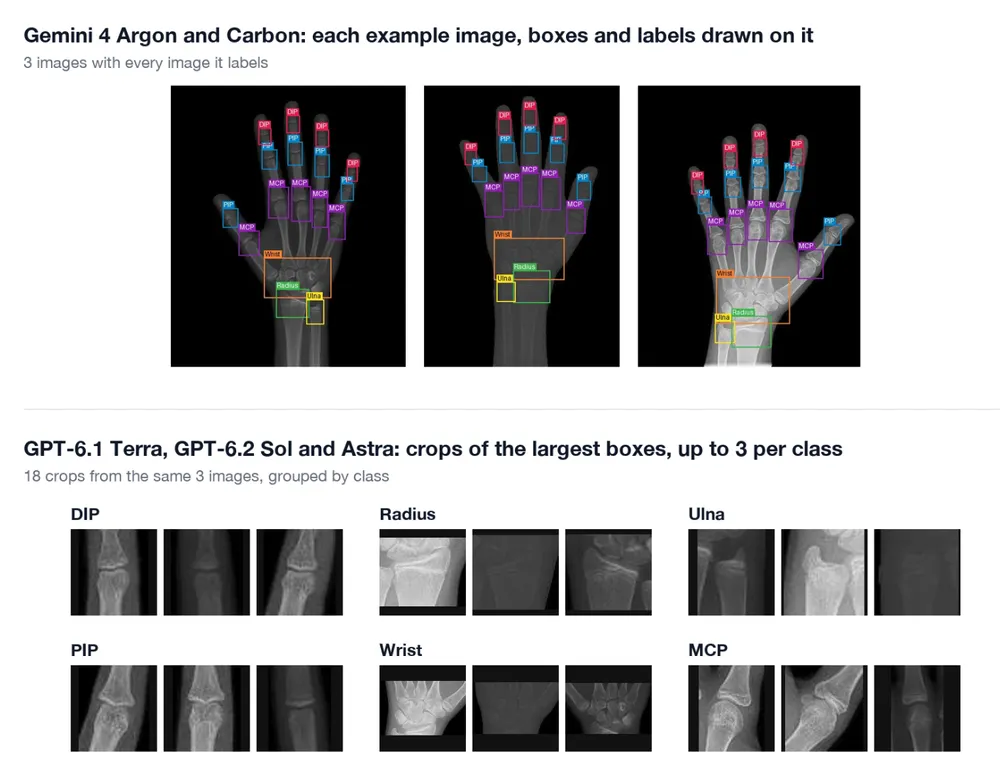
For GPT-6.1 Terra we tried both forms. Crops scored the same F1 as whole boxed images (0.68 vs 0.69 on average) at two thirds of the price, so OpenAI models get crops.
Adding examples from a preview
Previews are where you check the model before a batch, and they're also a quick way to add examples. If the preview misses an object, click Flag missing object, point at the object and pick its class. Roboflow finds the object from your click, adds its box to the boxes the preview already drew on that image, and uses the image as one more labeled example. If Label by Example was off, flagging turns it on, and if Auto Preview is on, the preview runs again with the new example.
This is also how a project with no labeled images can start: flag what the preview misses, and those images become its first examples. Picked and flagged together, the model sees at most 10 example images.
Results
We measured Label by Example on RF20-VL datasets (opens in a new tab) where class names say little: hand X-rays, railway fishplates (defective and intact fishplates, fasteners, missing fasteners) and wood defects (cracks, knots, holes). Each model labeled the same 40 test images per dataset twice, with class names only and with the same labeled examples, and we scored F1 at IoU 0.5 against each dataset's own labels.
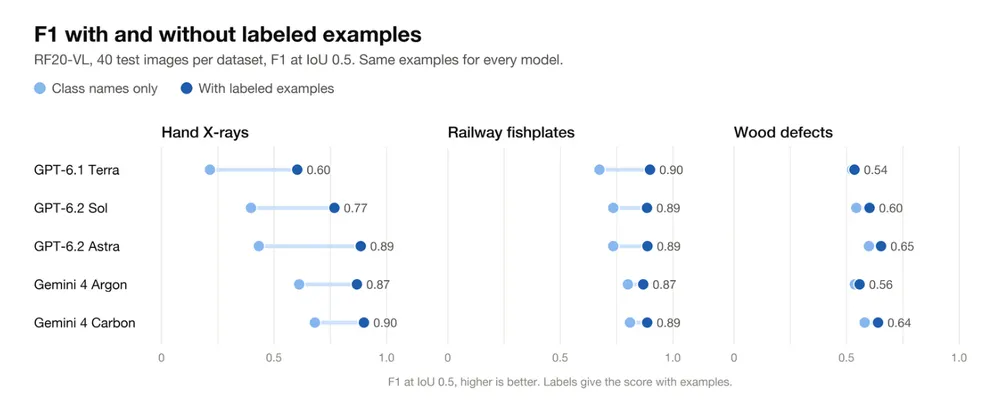
| Model | Hand X-rays | Railway fishplates | Wood defects | Average |
|---|---|---|---|---|
| GPT-6.1 Terra | 0.22 → 0.60 | 0.67 → 0.90 | 0.53 → 0.54 | 0.47 → 0.68 |
| GPT-6.2 Sol | 0.40 → 0.77 | 0.74 → 0.89 | 0.54 → 0.60 | 0.56 → 0.75 |
| GPT-6.2 Astra | 0.43 → 0.89 | 0.74 → 0.89 | 0.60 → 0.65 | 0.59 → 0.81 |
| Gemini 4 Argon | 0.61 → 0.87 | 0.80 → 0.87 | 0.54 → 0.56 | 0.65 → 0.77 |
| Gemini 4 Carbon | 0.68 → 0.90 | 0.81 → 0.89 | 0.58 → 0.64 | 0.69 → 0.81 |
Every model got better on average, by 0.12 to 0.22 F1. The gains are largest where the names say least: on hand X-rays GPT-6.2 Astra went from 0.43 to 0.89, and GPT-6.1 Terra almost tripled, from 0.22 to 0.60. Examples also close most of the gap between models. With class names only, Gemini 4 Carbon beats GPT-6.2 Astra on X-rays by 0.25 F1; with examples the two are within 0.02.
In the app
The benchmark runs outside the app, so we also checked the product itself. We previewed six hand X-rays in Auto Label with GPT-6.2 Sol, once with class names only and once with Label by Example picking 3 labeled images, and scored the previews against the dataset's labels. Without examples, 40 of the 102 boxes matched; with them, 85 (F1 0.39 → 0.83). The X-ray at the top of this post is one of the six.
Examples from dissimilar images
In another test we swapped the picked examples for the labeled images least similar to the ones being scored. X-ray F1 held: 0.85 with the picked examples and 0.86 with the least similar ones, on Gemini 4 Argon. Examples from different-looking images in the same project worked as well as close matches. We haven't tested examples from a different camera or domain.
Early usage
In the first 60 hours after launch, 447 people turned Label by Example on. Images auto labeled with examples were also approved in review 91% of the time, against 77% for images labeled without them. Those are different projects, so take it as a signal rather than a controlled test.
Limitations
Wood defects barely moved: +0.01 to +0.06 F1, within the noise of 40 images for four of the five models. The defects are small, and seeing a few labeled cracks doesn't make a thin crack easier to find. Label by Example helps most on datasets like the X-rays, where the model can find the objects but doesn't know your labeling rules.
We made it a switch, off by default, because on some datasets you'd pay for extra tokens and get little back. Preview a few images with it on and off to see whether it helps on yours.
A few limits today:
- Object detection only. Segmentation and classification projects don't have the switch yet.
- Five models: GPT-6.1 Terra, GPT-6.2 Sol, GPT-6.2 Astra, Gemini 4 Argon and Gemini 4 Carbon, with box output. SAM 3 and the other Gemini models don't take examples.
- At most 10 example images, taken from images accepted into the dataset or flagged in a preview.
What it costs
Examples are extra input the model reads with every image, so a job with examples costs more. How much depends on the provider:
- GPT models see small crops. In the benchmark, list price per 1,000 images went up 13 to 18%. Each class adds crops, so a project with many classes pays more than that.
- Gemini models see whole images, so input tokens per image go up three to four times: about 1,500 with class names only, 4,800 to 5,800 with examples.
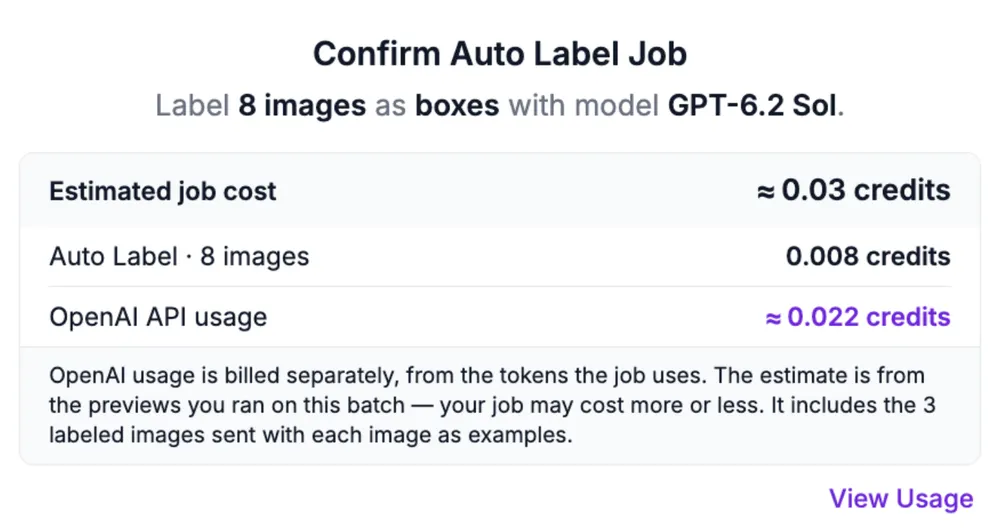
The start modal's estimate comes from the previews you ran on that batch, examples included, so you see the price before the job starts.
Tips for good examples
- Label the examples the way you want the output. The model copies what it sees: how tight the boxes are, what counts as one object, which parts belong in the box.
- Box every object in an example. Gemini models are told that every object of your classes in an example image is boxed, so one left without a box teaches them to skip objects like it.
- Cover every class. If the card says no example shows a class, label an image that has it and accept it into the dataset.
- Accept the images into the dataset. Images still in review aren't used.
- A few images are enough. The picker aims at about 3 boxes per class, so a handful of carefully labeled images does the job.
- Flag on images the model got mostly right. The boxes the preview drew on that image become part of the example along with the one you flag, mistakes included.
- Compare before a big batch. Preview the same images with the switch on and off. Previews run on a few images, so the comparison is cheap, and it tells you whether examples help on your data.
How to auto label images with examples
- Label a handful of images in your object detection project, covering every class, and accept them into the dataset.
- Open Auto Label on a batch of images to label and pick a model that takes examples: GPT-6.1 Terra, GPT-6.2 Sol, GPT-6.2 Astra, Gemini 4 Argon or Gemini 4 Carbon.
- Turn on Label by Example and check the picked images on the card.
- Look at the preview. Flag anything the model missed, and compare with the switch off.
- Click Label Batch. The start modal shows the estimate, examples included.
Label by Example is live in Auto Label today. Try it on the classes your prompts can't describe, and run a preview to see how many more boxes the model gets right.