Video Classification AI

Classify whole clips, every frame, or entire video libraries, with models you train or zero-shot models you can try today.
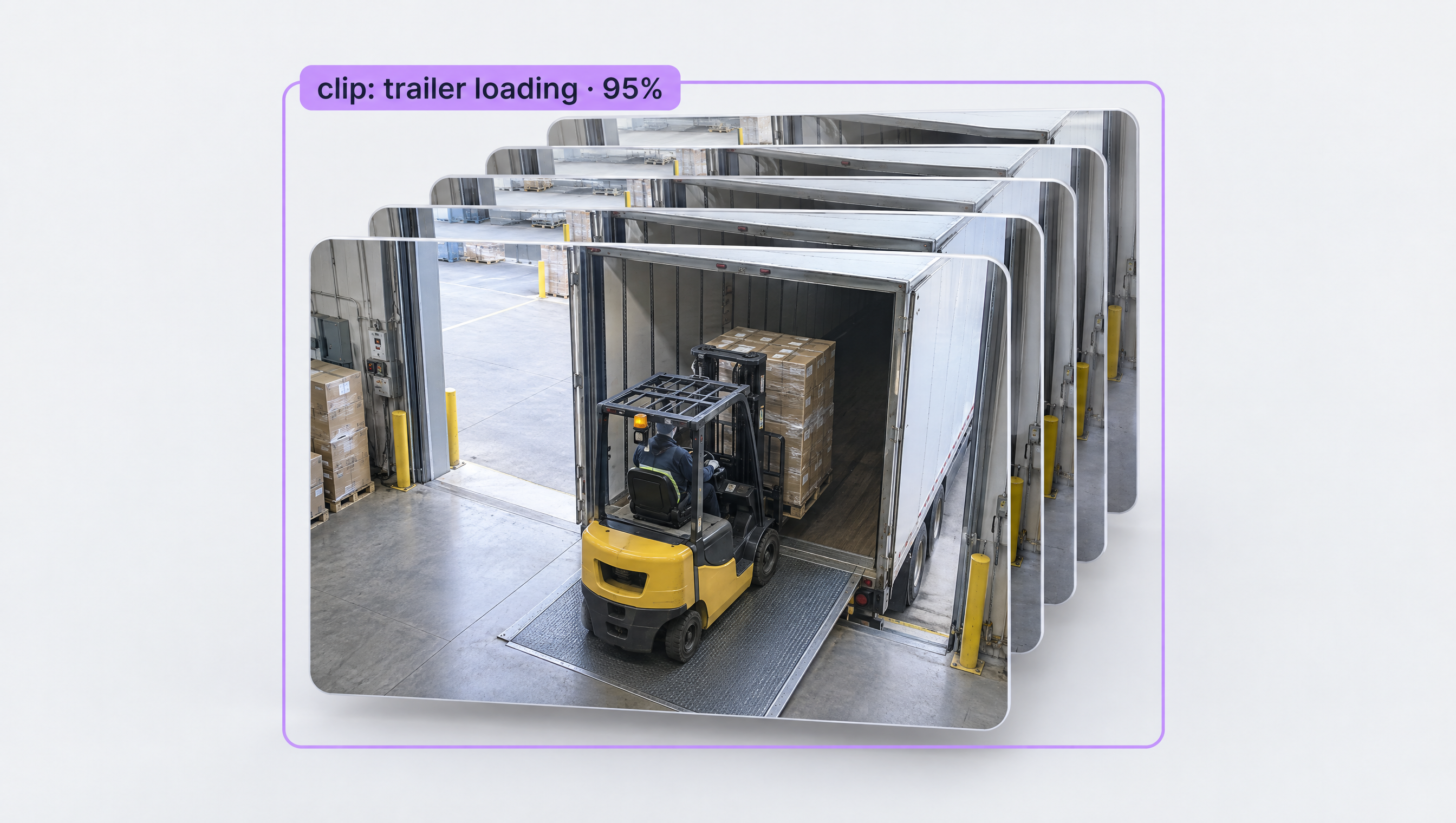
Video Classification AI, Built Your Way

  • Classify Clips, Not Just Frames

    Label time ranges in an Action Recognition project and fine-tune NVIDIA Cosmos 3 Edge, which reads several frames at once to score what is happening.

  • Start Zero-Shot

    Try Clip Comparison or the VLM As Classifier block in a Workflow to classify frames with no training, then train your own model when you need more accuracy.

  • Run on Files, Streams, or Libraries

    Run a classification Workflow on an uploaded video, a webcam or RTSP stream, or a whole bucket of videos with Batch Processing.

  • Clip-Level Classification
  • Frame-by-Frame Classifiers
  • Zero-Shot Video Tagging
  • Multi-Label Frame Labels
  • RTSP & Webcam Streams
  • Batch Video Processing

Building something bigger? Talk to an engineer.

Scaling past a prototype, or need on-prem, air-gapped, or fleet deployment? We'll help you plan it.

Ask us about:

  • Architecture review for your cameras, pipeline, and edge hardware
  • Help moving a prototype Workflow into production
  • Deployment options: edge, on-prem, air-gapped, or VPC
  • Volume pricing and enterprise support

Over 16,000 organizations build with Roboflow.

  • Rivian
  • Pella
  • Chobani
  • USG Corporation
  • BNSF Railway
  • American Woodmark
Start where you are

Classify Every Video, from First Clip to Full Library

Video classification can mean three different jobs: labeling what happens in a whole clip, tagging every frame as it streams in, or sorting a library of recorded footage. Roboflow covers all three, so you can pick the approach that fits your video and switch as your project grows.

Classify clips:

  • Create an Action Recognition project, upload clips, and drag across the timeline to label the time range of each class.
  • Fine-tune NVIDIA Cosmos 3 Edge, which by default reads 64 frames per window sampled at 4 fps, and scores the action across them.
  • Send a clip to the Serverless Cloud API and get back a timeline of what happened and when.

Classify frames:

  • Train a single-label or multi-label classification model on frames from your video, and add it to a Workflow with the Single-Label or Multi-Label Classification Model block.
  • No labels yet? Start zero-shot with the Clip Comparison or VLM As Classifier block, the same idea as classifying video scenes with CLIP.
  • Upload a video in the Workflow editor and run it on the video (opens in a new tab), or run the same Workflow on a webcam or RTSP stream, hosted or on your own hardware.

Classify a library:

  • Use Batch Processing (opens in a new tab) to run a Workflow over a folder of videos or an S3, Google Cloud Storage, or Azure Blob Storage bucket.
  • Cap frame sampling with --max-video-fps to control cost, and choose a GPU machine for Workflows with large models.
  • Export results as JSONL or CSV and load them into your own tools (see Batch Processing in action).

Start building today. Your first video classifier is one Workflow away.

‍

Frequently asked questions

What is the difference between video classification and action recognition?

Video classification assigns labels to video, whether that is a whole clip or each frame. Action recognition is the clip-level kind: it looks across many frames to recognize what someone is doing and when. Use a frame classifier when a single frame tells you the answer, and action recognition when the answer depends on motion over time.

Do I need to label every frame?

No. For clip-level classification you label time ranges on a timeline. For a frame classifier you label a sample of frames that covers your classes, not the whole video.

Can I classify video without training a model?

Yes. The Clip Comparison and VLM As Classifier blocks classify frames from a list of class names, so you can test an idea in a Workflow today and train a custom model later.

How do I classify thousands of videos?

Use Batch Processing. Point it at a folder or a cloud bucket, choose your Workflow and frame rate, and export the results as JSONL or CSV when the job finishes.

‍

Stay connected

Get the Latest in Computer Vision First

Unsubscribe at any time. Review our Privacy Policy.