Statistical Process Control with Computer Vision
 Mostafa IbrahimPublished Oct 5, 2026
To automate SPC data collection, point a camera at the line and run a Roboflow Workflow that measures a dimension (here, weld width in pixels) and counts defects on every unit, then writes each result as a timestamped row in a CSV. Feed that CSV into pyControlCharts to get an XmR chart for dimensional drift and a c-chart for defect frequency.
Statistical process control (SPC) helps manufacturers identify changes in production quality, from shifting part dimensions to increasing defect counts. Its usefulness depends on consistent inspection data.
With Roboflow Workflows, you can turn inspection images into structured data for SPC. A computer vision model identifies features and visible defects, while workflow logic extracts measurements and counts that your team can track over time. This automates data collection and returns an annotated image alongside each result for review.
In this tutorial, you’ll build a welding inspection workflow that extracts two values from each image: the detected welding line’s bounding-box width in pixels and the number of detected defects. You’ll export those results to a CSV, then use pyControlCharts to create an XmR chart for the pixel measurement and a c-chart for defect counts. The result is a practical starting point for connecting vision AI inspection to statistical process monitoring.
What Statistical Process Control Needs from a Vision System
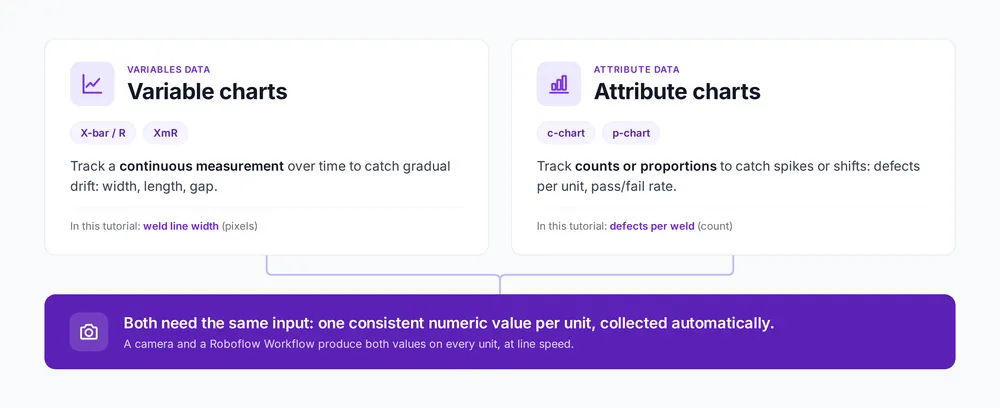
SPC splits into two chart families:
- Variable charts track a continuous measurement, a width, a length, a gap size, plotted over time to catch gradual drift.
- Attribute charts track counts or proportions, defects per unit, pass/fail rates, plotted to catch spikes or shifts in frequency.
Both are standard tools, and most real production lines use both.
What both families need from the data source is the same thing: a consistent, per-unit numeric value, collected automatically, at volume. That's exactly what the vision Workflow will produce. One image goes in, and a measurement and a defect count come out, along with a status that marks any image where the inspection failed.
Prepare a Welding Inspection Dataset for SPC
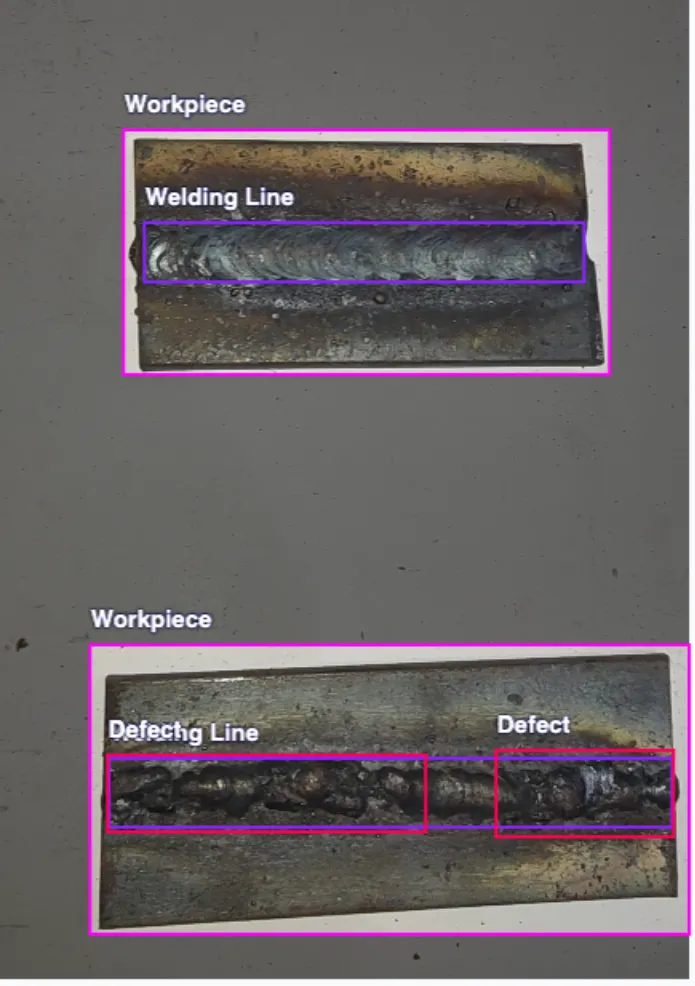
Fork the Welding Defect Detection dataset (opens in a new tab) from Roboflow Universe. It has three classes: Workpiece, Welding Line, and Defect, which map directly to the two kinds of SPC data this Workflow needs to produce.
For this demonstration, the continuous measurement is the detected Welding Line bounding box’s horizontal width in pixels. This illustrates how to extract a numeric feature for SPC; it is not automatically a measurement of physical weld width.
Tracking this value requires consistent imaging conditions and validation that it reflects the feature you want to monitor. For physical measurements, define the dimension of interest, calibrate the imaging setup, and compare the results with reference measurements.
The Workflow counts detections in the Defect class for each inspection unit, providing the attribute data for a c-chart that flags unusual variation in defect counts over time.
Train an RF-DETR Model for Welding Inspection
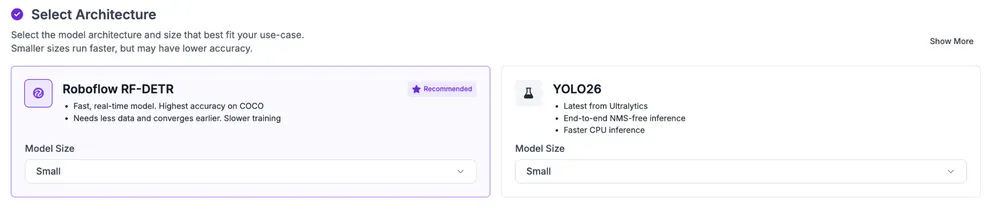
Generate a dataset version and click Train Model. For this tutorial, RF-DETR (opens in a new tab) was selected, but any supported object detection model that returns bounding boxes works since the Workflow only needs bounding box predictions from whatever you train.
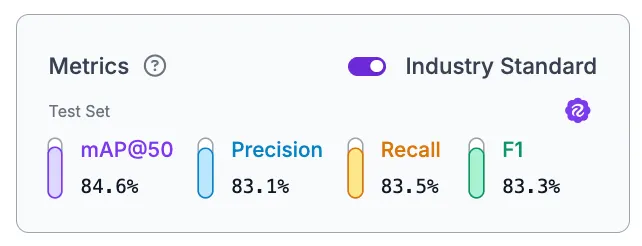
Once training finishes, review the metrics. This training run achieved 84.6% mAP@50, 83.1% precision, 83.5% recall, and 83.3% F1 on its evaluation split. Before using the outputs for SPC, evaluate welding-line localization and defect counting separately on representative production images. Compare measurements with reference inspections and check repeatability when the same workpiece is captured multiple times.
Build the Statistical Process Control Data Collection Workflow
Here's the workflow we'll build.
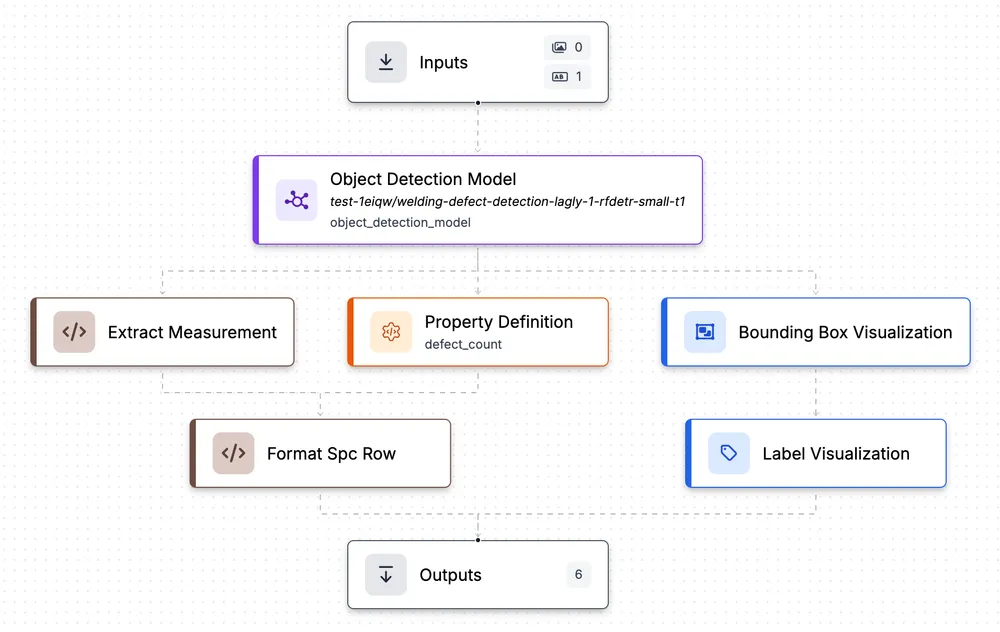
The Workflow starts with an Image Input feeding into your trained Object Detection Model, which detects Workpieces, Welding Lines, and Defects in the frame. From there, three blocks handle the SPC data extraction, and Bounding Box and Label Visualization blocks annotate the image for the output. Here's how the core data blocks work.
extract_measurement (Custom Python Block)
This block pulls the continuous measurement from the model's predictions.
def run(self, predictions):
   names = list(predictions.data.get("class_name", []))
   boxes = predictions.xyxy


   if "Workpiece" not in names:
       return {
           "measurement": None,
           "inspection_status": "missing_workpiece"
       }


   welding_boxes = [
       box for i, box in enumerate(boxes)
       if i < len(names) and names[i] == "Welding Line"
   ]


   if not welding_boxes:
       return {
           "measurement": None,
           "inspection_status": "missing_welding_line"
       }


   largest_box = max(
       welding_boxes,
       key=lambda box: (box[2] - box[0]) * (box[3] - box[1])
   )


   return {
       "measurement": float(largest_box[2] - largest_box[0]),
       "inspection_status": "success"
   }
The block first checks for a Workpiece and returns `missing_workpiece` if there isn’t one. It then collects every Welding Line box and returns `missing_welding_line` if there are none. If there are several, it uses the largest by area. The measurement is the box’s right edge minus its left edge, in pixels, and the status is `success`. A failed inspection returns None rather than 0.0, because a zero would be plotted as a real measurement.
defect_count (Property Definition)
A Property Definition block connected to the model's predictions, filtered to count only detections where the class name equals `Defect`. This gives a single integer per image, the number of defects found on that unit.
format_spc_row (Custom Python Block)
This block packages everything into a single row ready for CSV export.
def run(self, measurement, defect_count, image, inspection_status):
   from datetime import datetime, timezone
   from uuid import uuid4


   return {
       "timestamp": datetime.now(timezone.utc).isoformat(),
       "unit_id": str(uuid4()),
       "measurement": (
           float(measurement) if measurement is not None else None
       ),
       "defect_count": (
           int(defect_count) if inspection_status == "success" else None
       ),
       "inspection_status": inspection_status,
   }
It takes the measurement and inspection status from `extract_measurement` and the defect count from the previous block. It generates a timestamp and a unique unit ID, and returns five fields as a dictionary: `timestamp`, `unit_id`, `measurement`, `defect_count`, and `inspection_status`. The defect count is only recorded when the status is `success`, because a count of 0 only means a clean unit if the inspection itself worked. These five fields form the record format used for CSV export and SPC charting in this tutorial.
The Outputs block returns the annotated image alongside the five record fields, so each run gives you both a visual result and the raw data in one pass.
Run the Workflow and Build the CSV
With the Workflow built, the next step is to run it on inspection images and collect the results in a CSV. A short Python script calls the Workflow once per image and appends the measurement and defect count to a local CSV file.
Prerequisites
Before proceeding, make sure you have Python 3.10 or later installed and a local Roboflow Inference server (opens in a new tab) available. Install the required Python packages with:
pip install inference-sdk "pycontrolcharts[plotly]"The `inference-sdk` package connects the script to your Roboflow Workflow, while `pycontrolcharts[plotly]` provides the SPC calculations and Plotly-based charting functions used later in the tutorial.
To start the local Inference server, install the Inference CLI if needed and run:
pip install inference-cli
inference server start
The server runs at `http://localhost:9001` by default, matching the URL used in the script below. Self-hosted inference doesn't consume Roboflow credits, so you can run inspections continuously without per-image inference charges, although you're responsible for your own hardware and operating costs. See the Roboflow self-hosted deployment documentation (opens in a new tab) for details.
from inference_sdk import InferenceHTTPClient
from datetime import datetime, timezone
from uuid import uuid4
import csv
import os


client = InferenceHTTPClient(
   api_url="http://localhost:9001",
   api_key="YOUR_API_KEY_HERE"
)


csv_path = "spc_data.csv"
write_header = not os.path.exists(csv_path)


result = client.run_workflow(
   workspace_name="YOUR_WORKSPACE_NAME_HERE",
   workflow_id="YOUR_WORKFLOW_ID_HERE",
   images={"image": "IMAGE_NAME.jpg"}
)


output = result[0] if isinstance(result, list) else result


if output["inspection_status"] != "success":
   print(f"Inspection failed: {output['inspection_status']}")


with open(csv_path, "a", newline="", encoding="utf-8") as f:
   writer = csv.writer(f)


   if write_header:
       writer.writerow([
           "timestamp",
           "unit_id",
           "measurement",
           "defect_count",
           "inspection_status"
       ])


   writer.writerow([
       output["timestamp"] or datetime.now(timezone.utc).isoformat(),
       output["unit_id"] or str(uuid4()),
       output["measurement"],
       output["defect_count"],
       output["inspection_status"]
   ])


print(f"Row appended: {output}")
Replace `YOUR_API_KEY_HERE` with your Roboflow API key, `YOUR_WORKSPACE_NAME_HERE` with your workspace name, `YOUR_WORKFLOW_ID_HERE` with your workflow's slug, and `IMAGE_NAME.jpg` with the filename of the image you want to process. Run the script once per image, swapping the filename each time, and the CSV grows by one row with each run. If an inspection fails, the script still appends a row with the status and an empty measurement, so missed frames stay visible. Failed inspections skip `format_spc_row`, so they come back without a timestamp or unit ID. The script fills both in, using UTC to match the Workflow’s clock, so every row stays traceable and in order. The charting script keeps only `success` rows, so they never reach the control charts.
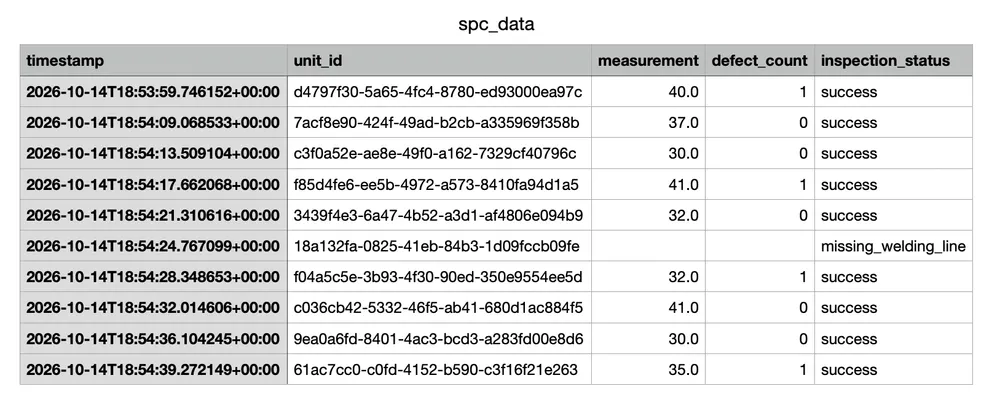
Each row is one unit. The `measurement` column tracks the welding line width in pixels across runs, and `defect_count` tracks how many defects were found on that unit. These are the two columns that feed directly into the control charts in the next step.
Generate XmR and c-Charts from Vision Inspection Data
With the CSV built, loading it into pyControlCharts (opens in a new tab) turns the raw data into real control charts with a few lines of Python.
import pandas as pd
from pycontrolcharts import calc_xmr, calc_c, plot_control_chart, ChartType


# Load your CSV
df = pd.read_csv("spc_data.csv")


# Only use successful inspections for SPC calculations
df = df[df["inspection_status"] == "success"].copy()


# XmR chart from the measurement column (variables data)
xmr = calc_xmr(df, value_column="measurement")
fig_xmr = plot_control_chart(xmr, ChartType.XMR, title="Detected Welding Line Bounding-Box Width (Pixels)")
fig_xmr.show()


# c-chart from the defect_count column (attribute data)
c_chart_data = calc_c(df, value_column="defect_count")
fig_c = plot_control_chart(c_chart_data, ChartType.C, title="Defects Per Unit")
fig_c.show()
`calc_xmr` takes the `measurement` column and produces an XmR chart, an Individuals chart tracking each welding line width over time with control limits, paired with a Moving Range chart showing how much that width changes between consecutive units. A point outside the control limits signals unusual variation that warrants investigation. The cause may involve the manufacturing process, imaging conditions, or measurement system. Runs and trends within the limits can also indicate a process change.
`calc_c` takes the `defect_count` column and produces a c-chart, plotting the number of defects per unit over time with its own control limits. A spike above the upper limit means the process produced more defects than its baseline variation would explain.
The appropriate control chart depends on the type of inspection data being collected:
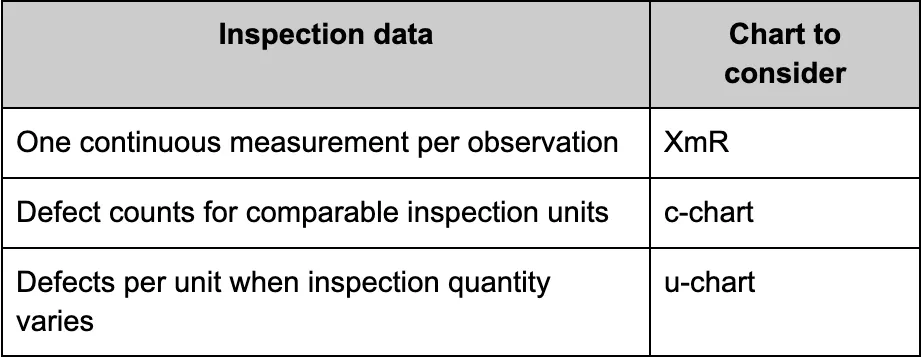
A c-chart assumes that each inspected unit has the same opportunity for defects, meaning the same inspected area or an equivalent inspection scope. If the inspected area or number of units varies, a u-chart is more appropriate because it accounts for differences in inspection quantity. See the NIST Engineering Statistics Handbook's section on counts control charts (opens in a new tab) for more on defect counts and inspection units.
Control limits are calculated from process data, while specification limits are defined by engineering requirements or customer expectations. As a result, a stable process can still produce parts that fall outside specification limits.
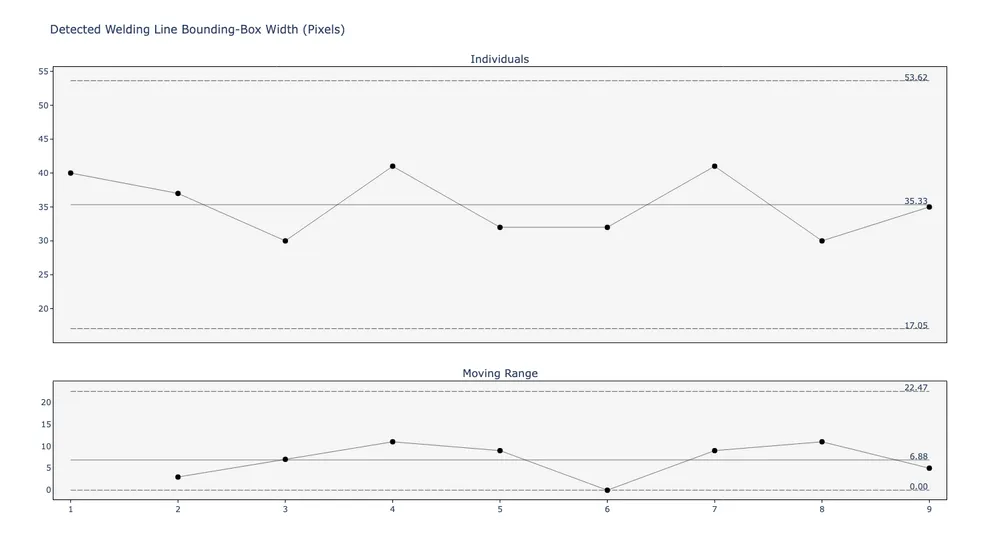
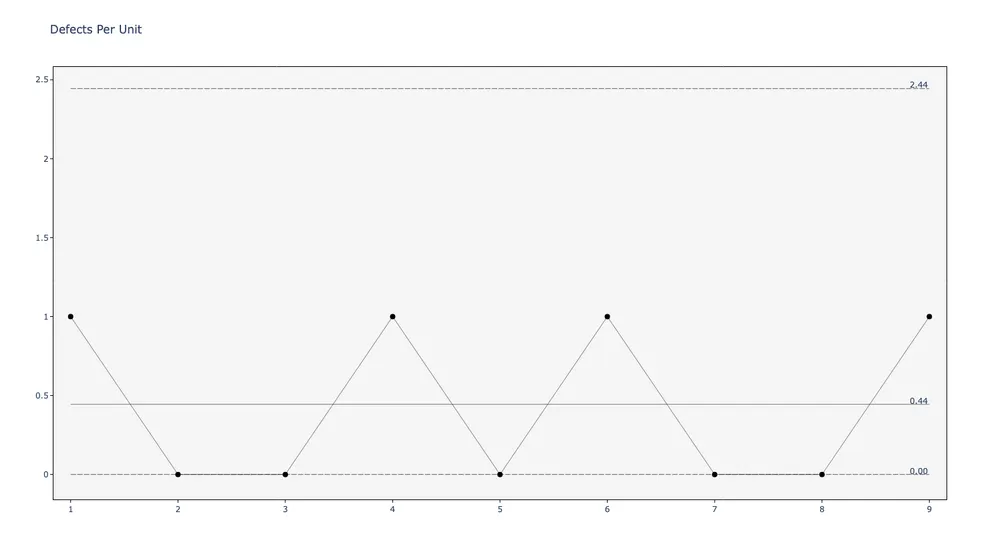
These charts use 10 images from the dataset to demonstrate the data collection and SPC charting pipeline. One image failed inspection (no welding line detected), so the status filter excluded it and each chart plots 9 points. They are illustrative examples, not measurements from 10 consecutive parts on a production line.
For a real production deployment, the timestamp should come from the camera's actual capture time rather than `datetime.now()`, which records when the Workflow runs. Similarly, `uuid4()` generates a unique identifier for each Workflow execution, not the physical part being inspected, so it should be replaced with an actual part ID. Control limits should also be established using an initial stable production run and then applied to subsequent inspections, rather than recalculated from every new batch of data. pyControlCharts supports custom and per-phase control limits for this purpose.
Together, these two charts show how to monitor variation in the detected Welding Line bounding-box width and defect counts across inspections. The Workflow produces the data, pyControlCharts does the charting, and nothing in between needs custom statistical code.
Connect Vision AI to Your SPC Process
Roboflow helps turn inspection images into structured data for statistical process control. In this tutorial, one workflow detects welding lines and visible defects, extracts a pixel measurement and defect count, and produces records you can export for control-chart analysis.
To adapt the workflow, start with images from your own production line and train a model to detect the features that matter. Check its measurements and defect counts against reference inspections, keep the camera setup consistent, and record missing detections separately from valid measurements. Establishing reliable inputs makes the resulting charts more useful for investigating process changes.
Build your inspection workflow in Roboflow, connect its outputs to your SPC tools, and use the results to identify where your process needs a closer look.
Further reading