Find Computer Vision Datasets in ChatGPT with Roboflow
 Timothy MPublished Oct 19, 2026
With the Roboflow plugin, ChatGPT can search Roboflow Universe for you: describe what you need to detect, and it shortlists matching datasets, compares their classes, image counts, and licenses, and links you to annotated sample images and version details so you can check quality before committing. Once you find the right dataset, fork it into your Roboflow workspace, add your own images, and train a model, instead of spending days collecting and labeling data from scratch.
Every computer vision model starts with labeled data, and collecting and annotating images from scratch can take weeks. Before you start, it’s worth checking whether someone has already labeled data for your task. Roboflow Universe, a public library of open-source computer vision datasets and trained models, is a good place to look.
Finding the right dataset still takes work, though. You have to search, compare class names that vary from owner to owner, check image counts and licenses, and look at the actual annotations to judge quality. The Roboflow plugin for ChatGPT handles that legwork: describe what you need to detect in plain language, and ChatGPT searches Universe, compares the results side by side, and links you straight to sample images and version details.
In this tutorial, we’ll use the plugin to find a dataset for a common manufacturing task: a camera inspecting steel sheets for surface defects such as scratches, patches, and pitted surfaces. We’ll compare candidate datasets, inspect sample images and annotations, and check the dataset version before using it. The same steps work for any object you want to detect, from PCB defects to safety gear to retail products.
How to Add the Roboflow Plugin to ChatGPT
The Roboflow plugin connects ChatGPT to Roboflow, so ChatGPT can search Roboflow Universe and look up dataset details for you. Setup takes about a minute. If you don’t have a Roboflow account yet, you can sign up for free.
Step 1: Open the plugin directory
In ChatGPT, select Plugins in the sidebar, or go to chatgpt.com/plugins. This works on the web, desktop, and mobile apps.
Step 2: Install the Roboflow plugin
Search for Roboflow, open the Roboflow plugin, and select Install plugin.
Step 3: Connect your Roboflow account
When prompted, select Connect and sign in to Roboflow. If you don’t have an account yet, you can create one for free during this step.
Step 4: Use the plugin in a chat
Start a new conversation and type @Roboflow at the start of your message, or select + in the message box and choose Roboflow. ChatGPT can also use the plugin on its own when your request is relevant, but mentioning it directly ensures it’s used.
To check that everything works, try a quick prompt:
@Roboflow Search Roboflow Universe for object detection datasets of hard hats.If ChatGPT returns a list of datasets, you’re ready to go.
How to Search Roboflow Universe from ChatGPT
Let's start by searching Roboflow Universe for a steel surface defect dataset using ChatGPT. We will define our requirements, narrow the search results, and inspect a suitable dataset before choosing a version to use.
Step 1: Define the dataset requirements
Start by describing what you want to detect. For this example, we need images of steel surfaces with bounding box annotations for three defect types. Use these requirements to guide the search:
| Requirement | What we need |
|---|---|
| Application | Steel surface inspection |
| Project type | Object Detection |
| Target defects | Scratches, patches, and pitted surfaces |
| Annotation type | Bounding boxes |
Choose Object Detection because we want to locate the defects within each image. Include the material and defect names in your search so the results are relevant to the inspection task.
Step 2: Search for datasets from ChatGPT
Start a new ChatGPT conversation and mention @Roboflow in your prompt. Describe the dataset requirements and ask for a comparison of the results. Send this prompt:
@Roboflow Search Roboflow Universe for Object Detection datasets suitable for inspecting steel surfaces in manufacturing.

I need bounding box annotations for:
- scratches
- patches
- pitted surfaces

Show up to 5 relevant datasets in a table with:
- Dataset name
- Dataset owner
- Image count
- Exact class names
- License
- Link to the dataset

Identify which of my target defects are covered by each dataset and which are missing.
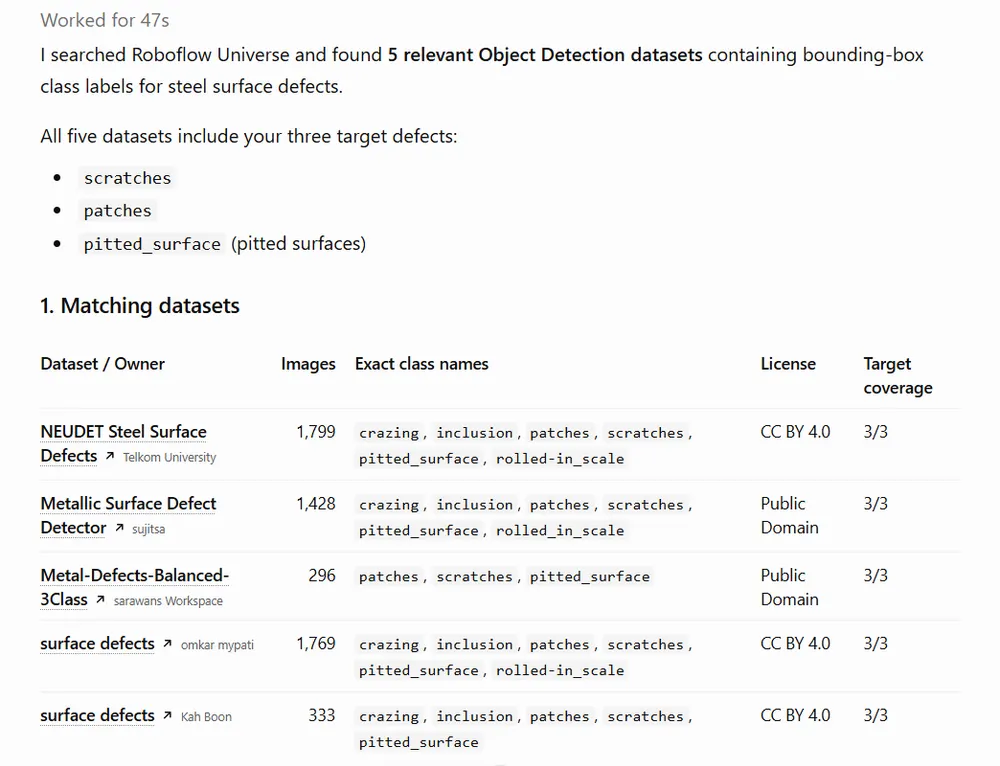
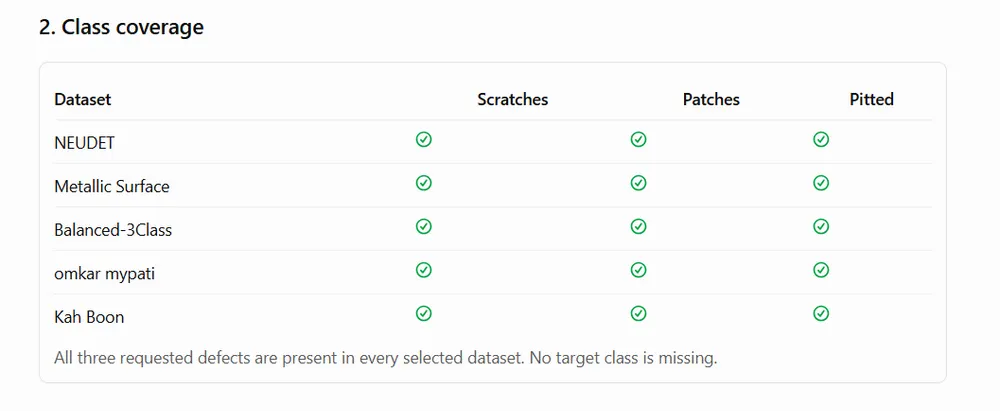
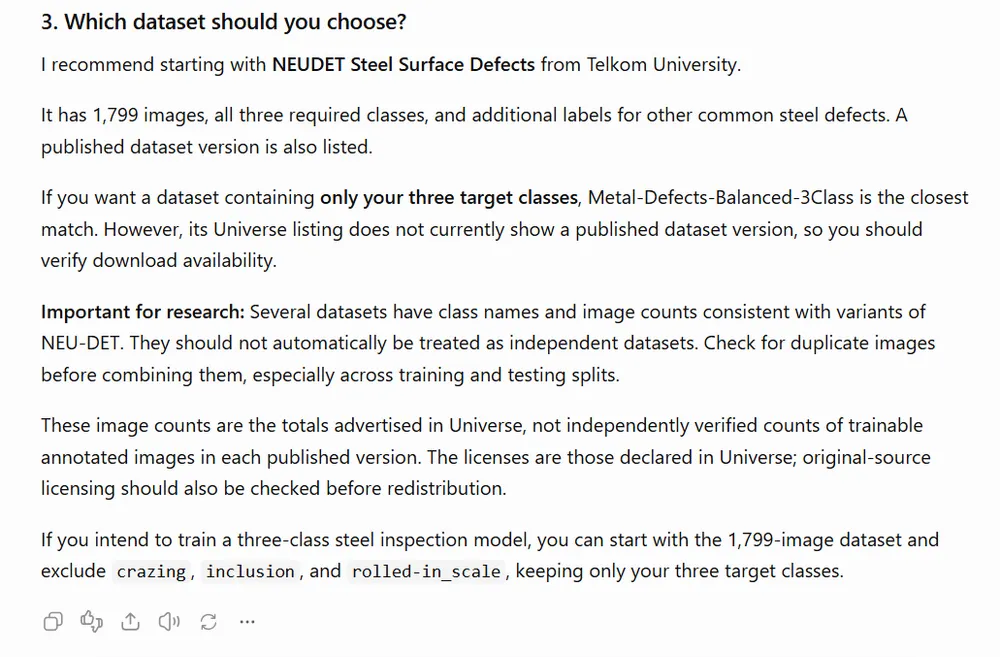
The response should provide a shortlist of datasets with their details. Check the actual class names because dataset owners may use different naming conventions, such as pitted_surface instead of “pitted surfaces.” Keep the links for the datasets that cover your target defects. For the above prompt, I received the following responses. Here's the breakdown.
It gave me 5 matching datasets:
It also returned a table of class coverage:
and a recommendation for which dataset to use:
Step 3: Refine the search
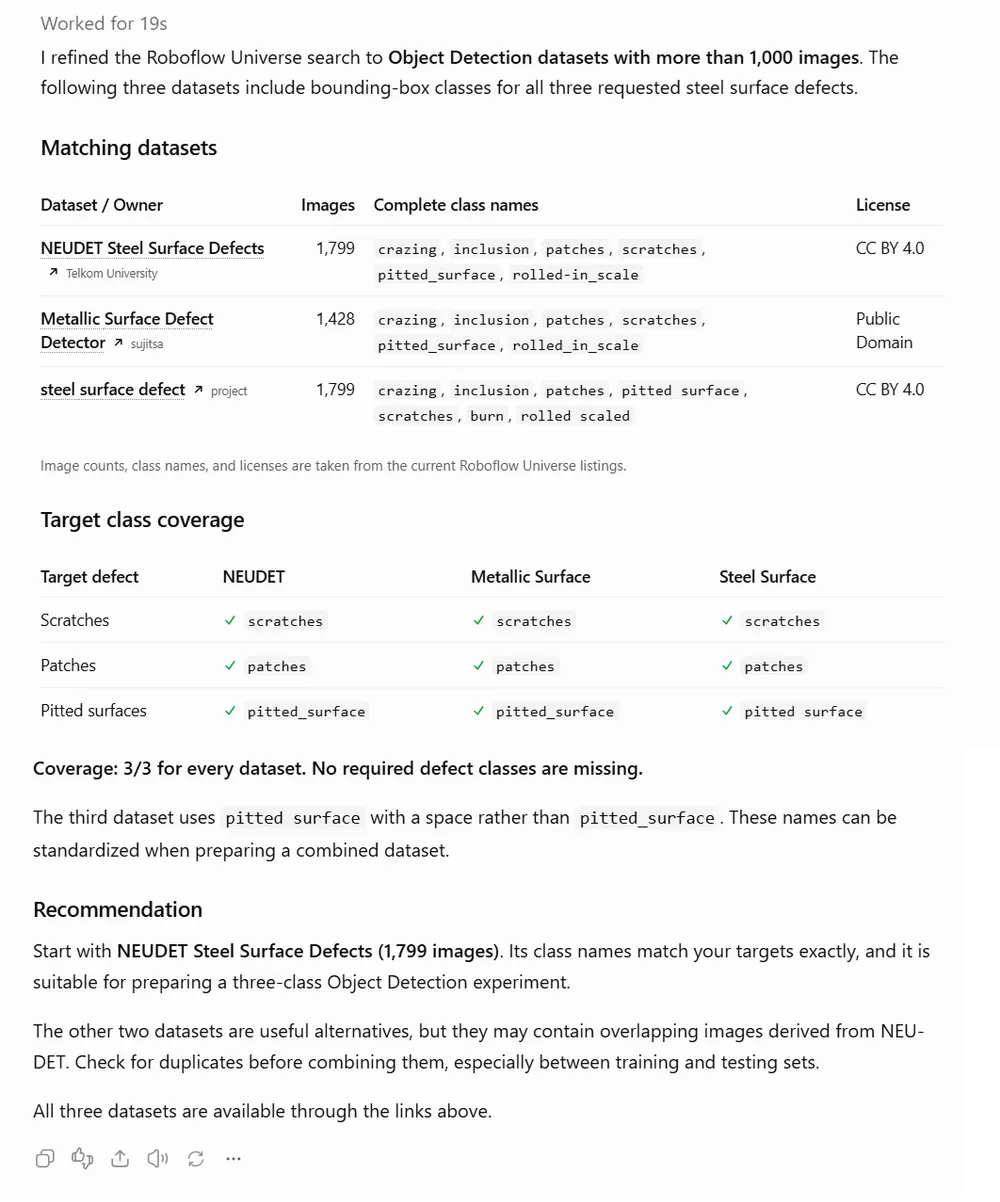
Next, narrow the results using the image count and class coverage. For this demonstration, we will look for datasets with more than 1,000 images and annotations for all three target defects.
@Roboflow Refine the search to steel surface Object Detection datasets with more than 1,000 images.

Keep datasets that include annotations for scratches, patches, and pitted surfaces. Check the actual class names and account for naming variations.

Show up to 3 matching datasets with their image counts, complete class lists, licenses, and links.
One dataset returned during this search was Steel Surface Defects. Its project page lists the following details.
| Detail | Value |
|---|---|
| Dataset owner | my focus |
| Project type | Object Detection |
| Project image count | 1,799 |
| Classes |
crazing,
inclusion,
patches,
scratches,
pitted_surface,
rolled-in_scale
|
| Listed license | CC BY 4.0 |
This dataset includes the three target defect classes, along with three additional classes. It is a candidate for our example, but we still need to inspect its images and annotations. See the full response below:
Step 4: Inspect sample images and annotations
The class list tells you what is labeled. Sample images help you decide whether the data resembles the surfaces your inspection camera will capture. Replace [DATASET_URL] with the selected dataset link:
@Roboflow Find 6 unique annotated sample images from this Universe dataset:

[DATASET_URL]

Include examples of these classes, distributed as evenly as possible:
[CLASS_NAMES]

Check the actual annotation metadata to confirm which classes each image contains.

For each image, return a table with:
- Image ID
- Annotated classes
- Number of annotations
- A clickable “View annotations” link

The links must open the Roboflow Universe image annotation viewer, where I can inspect the image, bounding boxes, and class labels.

Use this URL format:
https://universe.roboflow.com/{workspace-slug}/{project-slug}/images/{image-id}

Take the public workspace and project slugs from the dataset URL. Use the exact image ID returned by Roboflow.

Do not return source.roboflow.com URLs or original.jpg links as the “View annotations” links.

Also include the dataset’s Images browsing page:
https://universe.roboflow.com/{workspace-slug}/{project-slug}/browse

If a requested class or image ID is unavailable, explain what is missing. Do not invent image IDs or links.
I received exactly the information I was looking for. See below:
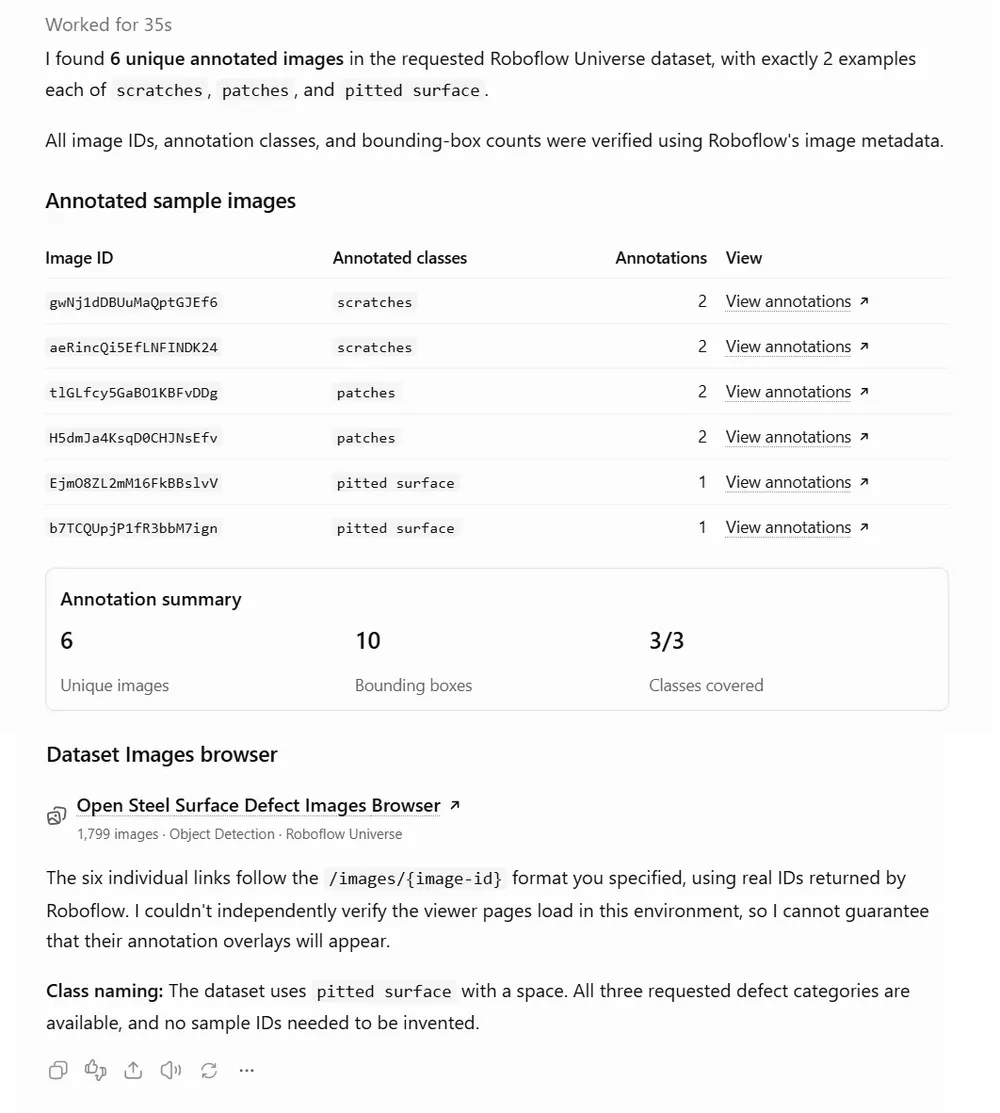
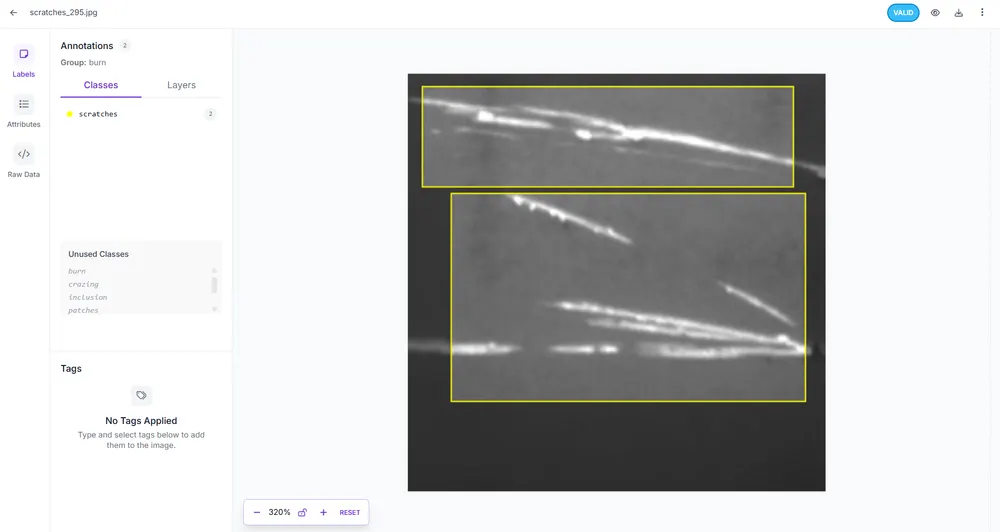
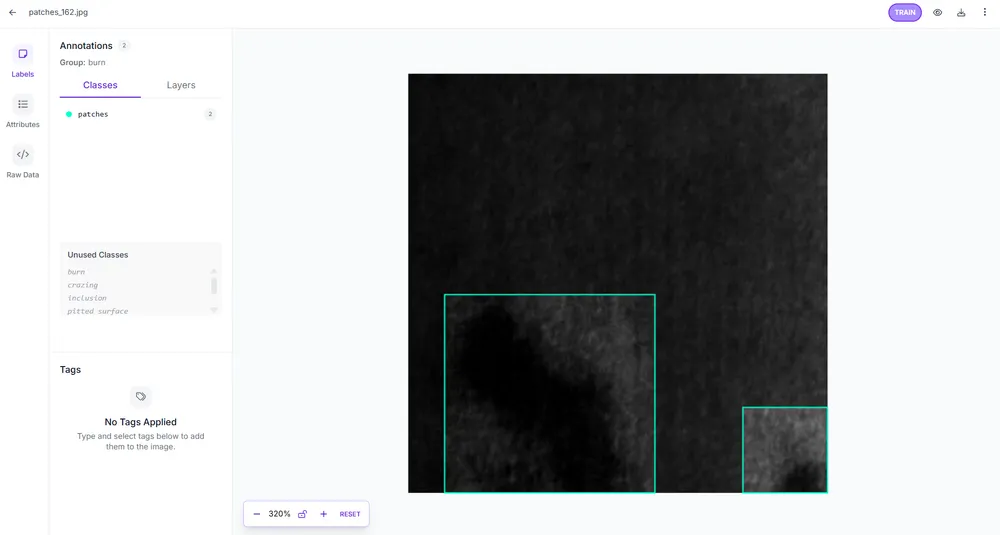
Open the returned Images page and review the bounding boxes. Check whether they cover the defects accurately and whether visible defects have been missed. Also compare the image resolution, lighting, surface texture, and defect size with your intended manufacturing application.
Here are the images I could see when I clicked on the provided links, for scratches class:
scratches classfor patches class
patches classand for pitted_surface class,
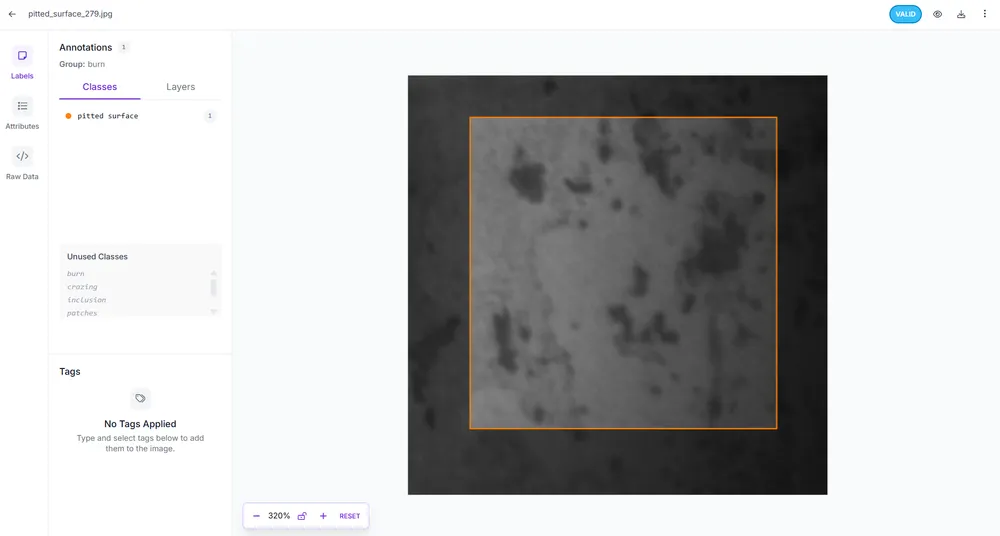
pitted_surface classand also the image browser.
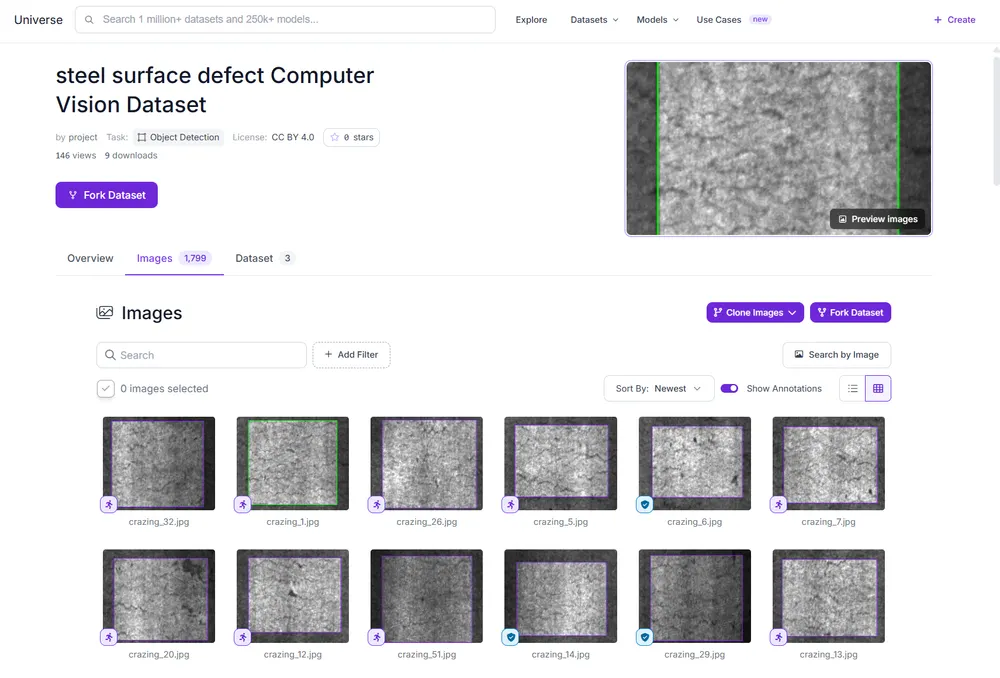
Step 5: Check the dataset version
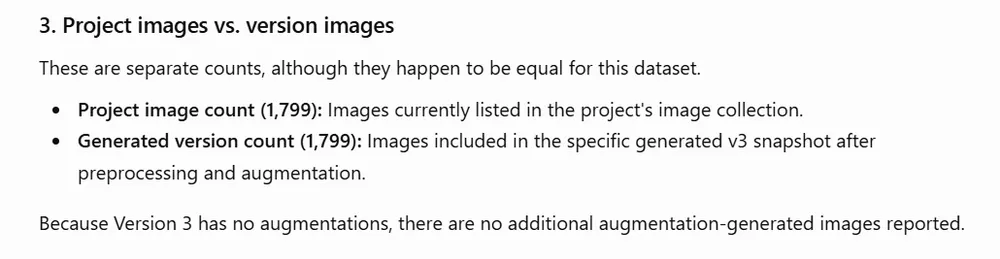
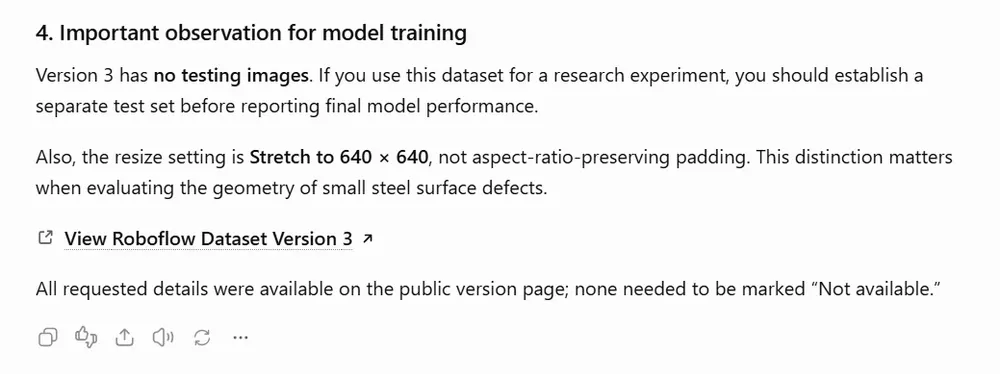
After selecting a dataset, check its available versions. A version may include preprocessing or augmentation, so review these settings before downloading the data. Send this prompt:
@Roboflow Check the public dataset version information for:

[DATASET_URL]

Report the following details where available:
- Version number
- Version image count
- Training, validation, and testing image counts
- Preprocessing settings
- Augmentation settings
- Listed license
- Direct link to the dataset version

Distinguish the project image count from the generated version image count. Mark unavailable details as “Not available”.
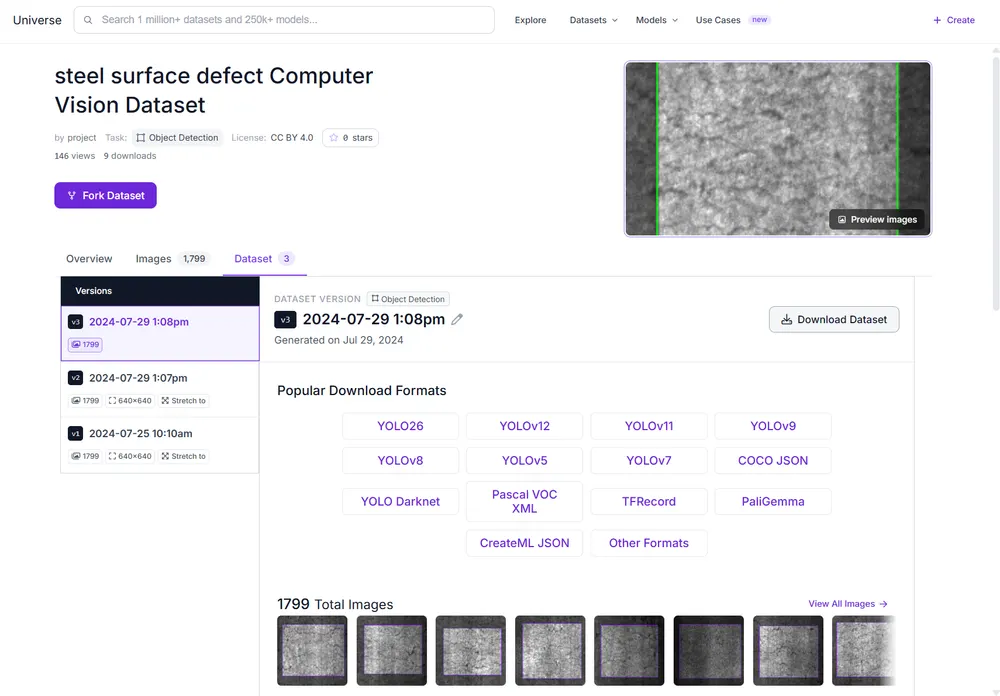
The above prompt for the specified dataset returned the version details, split counts, project and version image counts, and an observation about training:
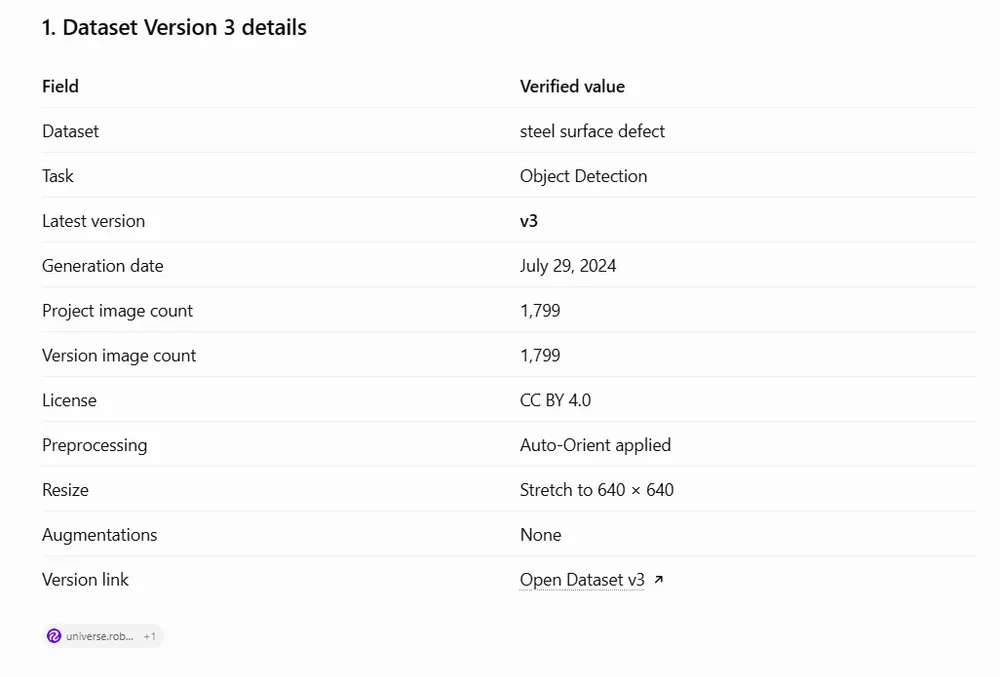
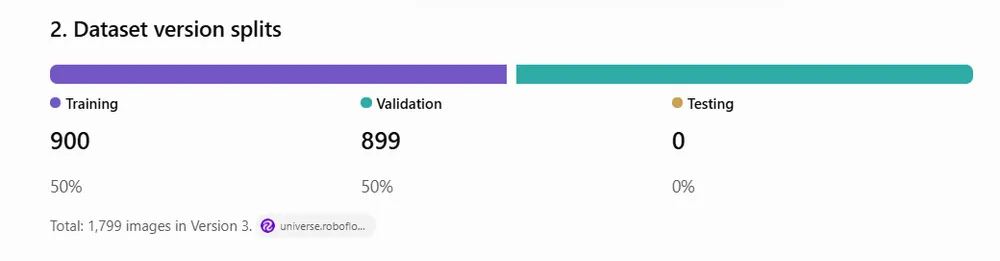
Clicking the link opened the following dataset page:
Step 6: Fork the dataset into your Roboflow workspace
Open the dataset link returned by ChatGPT and click Fork Dataset. This copies the images and annotations into your own Roboflow workspace, where you can edit, extend, and train on them. The original dataset stays unchanged, and your copy keeps a link back to it, so you can always tell where the data came from.
Step 7: Train a model on the dataset
In your forked project, generate a dataset version and click Train. Choose any model, such as RF-DETR, Roboflow’s state-of-the-art vision model, and Roboflow handles the training infrastructure, so there’s no GPU to set up and no training code to write. When training finishes, you can test the model on new images right in your browser.
Starting from an existing dataset gives you a baseline model in hours instead of weeks. That baseline shows you quickly whether the classes and image conditions fit your task, before you invest in collecting your own data.
Step 8: Add images from your own environment
A public dataset is a starting point. To make the model reliable on your own line, add images from your own cameras, with your lighting, materials, and defect conditions. Upload them to the same project and label them with Roboflow Annotate, where AI-assisted labeling can pre-label new images using the model you just trained, so you review boxes instead of drawing every one. Then retrain, and compare the new version against your baseline.
Once the model performs well on your images, you can deploy it to the cloud or run it on your own hardware.
Prefer to train elsewhere? You can also download any dataset version in formats such as COCO JSON or YOLO. Open the dataset’s Dataset tab, select a version, click Download, and choose your format.
How to Find Computer Vision Datasets in ChatGPT with Roboflow Universe
Combining ChatGPT with Roboflow Universe turns dataset hunting into a conversation. You describe what you need, and the plugin finds candidates, compares their classes, sizes, and licenses, and links you to the annotations so you can judge quality yourself. From there, forking a dataset into Roboflow takes you straight to training a model right within ChatGPT, then improving it with images from your own environment, and through to inference and deployment.